Transcoding Presets
A transcoding preset defines the encoding parameters applied to a live stream to produce a specific output profile. Presets are reusable and can be attached to one or more transcoding templates, allowing operators to standardize quality tiers across multiple streams.
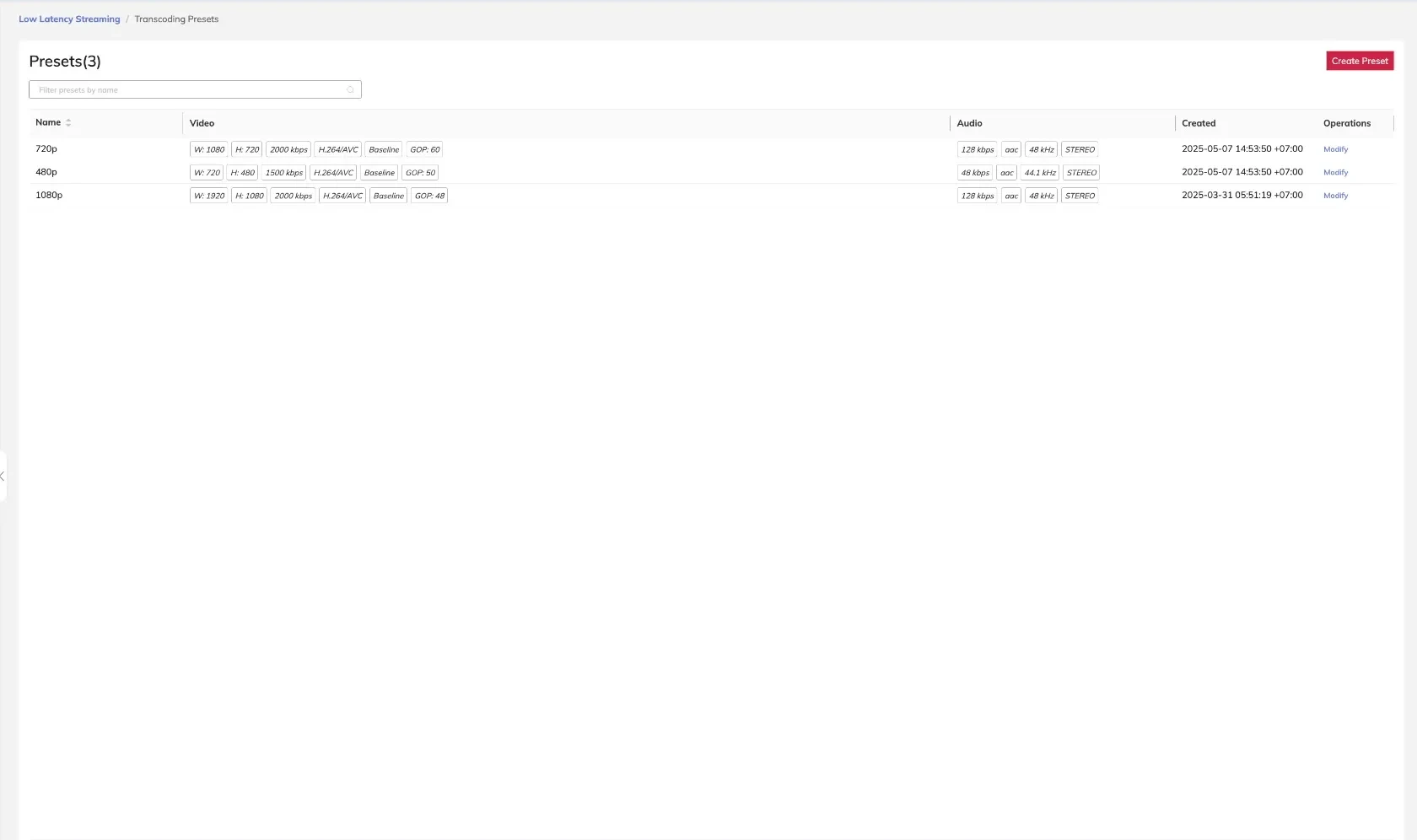
The example above shows three configured presets: 720p, 480p, and 1080p, each with distinct video and audio settings.
Video Settings
Each preset includes a video configuration that controls the output resolution, encoding method, codec, bitrate, frame rate, and keyframe interval.
| Setting | Description |
|---|---|
| Width | Output frame width in pixels |
| Height | Output frame height in pixels |
| Mode | Landscape or Portrait orientation |
| Processing | Transmuxing (container repack only) or Transcoding (full re-encode) |
| Codec | AVC/H.264 or HEVC/H.265 |
| Profile | Encoder profile (e.g., Baseline, Main, High) |
| Bitrate | Target video bitrate in kbps |
| FPS | Output frame rate (frames per second) |
| GOP | Group of Pictures interval (keyframe distance in frames) |
Transmuxing repackages the stream without re-encoding, which reduces CPU load and introduces minimal additional latency. Use transmuxing when the source stream already matches the desired codec and quality level.
Example Video Configurations
| Preset | Width | Height | Bitrate | Codec | Profile | GOP |
|---|---|---|---|---|---|---|
| 720p | 1080 | 720 | 2000 kbps | H.264/AVC | Baseline | 60 |
| 480p | 720 | 480 | 1500 kbps | H.264/AVC | Baseline | 50 |
| 1080p | 1920 | 1080 | 2000 kbps | H.264/AVC | Baseline | 48 |
Audio Settings
Each preset also includes an audio configuration controlling the codec, channel layout, bitrate, and sampling rate.
| Setting | Description |
|---|---|
| Processing | Transmuxing or Transcoding |
| Codec | AAC |
| Channel | MONO or STEREO |
| Bitrate | Target audio bitrate in kbps |
| Sampling Rate | Audio sample rate in kHz (e.g., 44.1 kHz, 48 kHz) |
Example Audio Configurations
| Preset | Bitrate | Codec | Sampling Rate | Channel |
|---|---|---|---|---|
| 720p | 128 kbps | AAC | 48 kHz | STEREO |
| 480p | 48 kbps | AAC | 44.1 kHz | STEREO |
| 1080p | 128 kbps | AAC | 48 kHz | STEREO |
Creating a Transcoding Preset
- Navigate to Media Processing > Transcoding Presets.
- Click Add Preset.
- Enter a unique preset name.
- Configure the Video Settings fields as required.
- Configure the Audio Settings fields as required.
- Click Save.
Modifying an existing preset affects all transcoding templates that reference it. Active streams using those templates will apply the updated parameters on their next reconnect or pipeline reset.
Deleting a Transcoding Preset
A preset cannot be deleted while it is referenced by an active transcoding template. Remove the preset from all templates before attempting deletion.