Screenshot Templates
A screenshot template defines how the platform automatically captures still images from a live stream. When a stream matching the template's domain, application, and stream name pattern is ingested, the platform generates screenshots at the configured interval and saves them to the specified storage path.
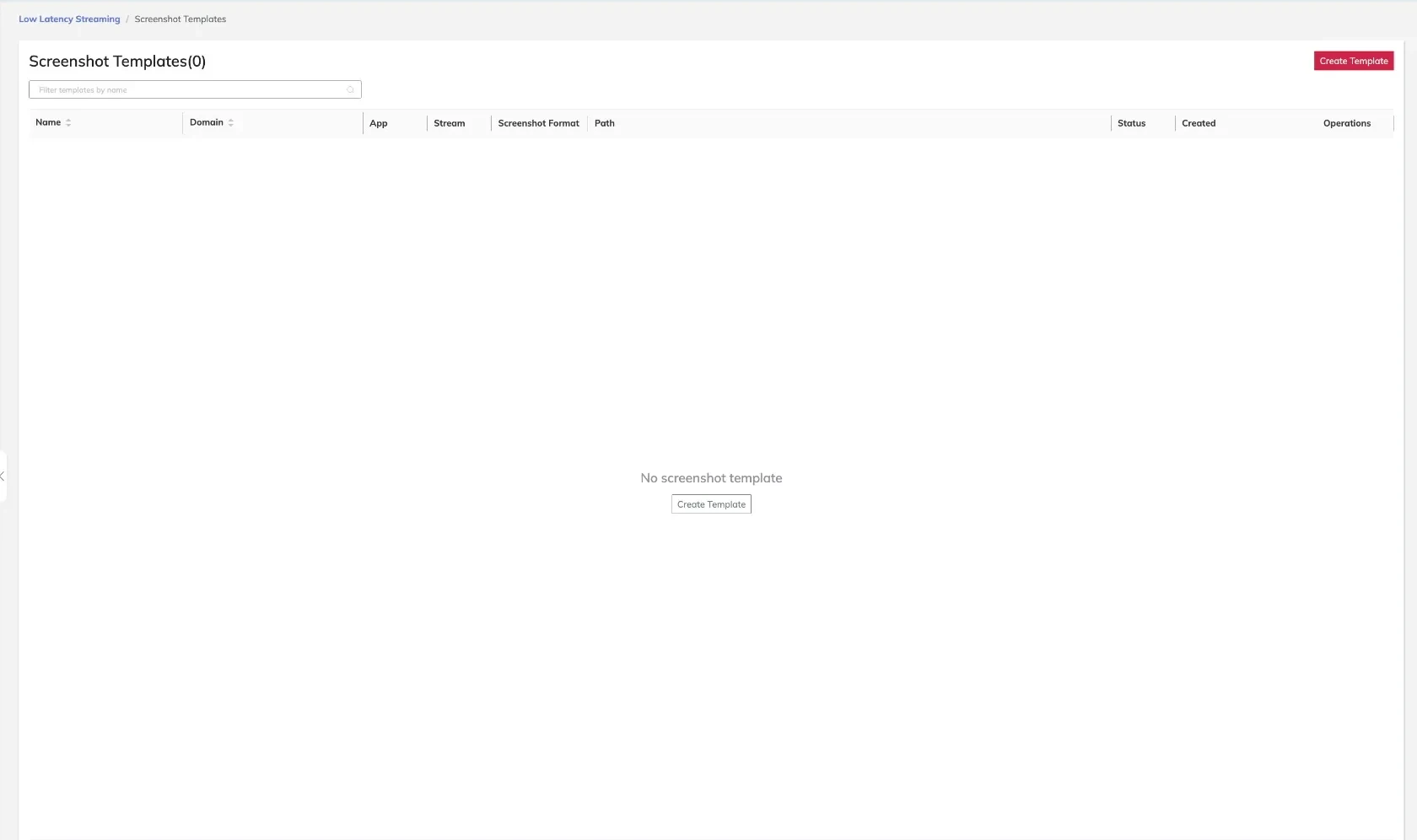
Template List Columns
| Column | Description |
|---|---|
| Name | Unique identifier for the screenshot template |
| Domain | The ingest domain this template applies to |
| App | The application name scope (supports wildcards) |
| Stream | The stream name scope (supports wildcards) |
| Screenshot Format | The image format for captured stills (e.g., JPG, PNG) |
| Path | The storage path or bucket prefix where screenshots are saved |
| Status | Whether the template is enabled or disabled |
| Created | Timestamp when the template was created |
| Operations | Available actions: Modify or Delete |
Creating a Screenshot Template
- Navigate to Media Processing > Screenshot Templates.
- Click Add Template.
- Enter a unique template name.
- Select the target Ingest Domain.
- Specify the App and Stream name patterns.
- Select the Screenshot Format.
- Define the output Path.
- Set the template Status to enabled or disabled.
- Click Save.
tip
Screenshot templates are commonly used to generate thumbnail images for stream preview in player interfaces or content management dashboards. Configure the path to include the stream name for easy file identification.
Modifying a Screenshot Template
- Locate the template in the list.
- Click Modify in the Operations column.
- Update the required fields.
- Click Save.
Deleting a Screenshot Template
- Locate the template in the list.
- Click Delete in the Operations column.
- Confirm the deletion when prompted.
caution
Deleting a screenshot template immediately stops image capture for any streams matched by its scope. Screenshots already saved to storage are not removed.