Report Mailbox
The Report Mailbox holds messages that end users have flagged for administrator review — for example, suspected phishing attempts that the engine did not catch, false positives that should be released, or any other message the user wants to escalate. The mailbox lets administrators triage user reports, follow up with the reporter, and feed signals back into the inbound and outbound filtering policies. The page header reads Report Mailbox.
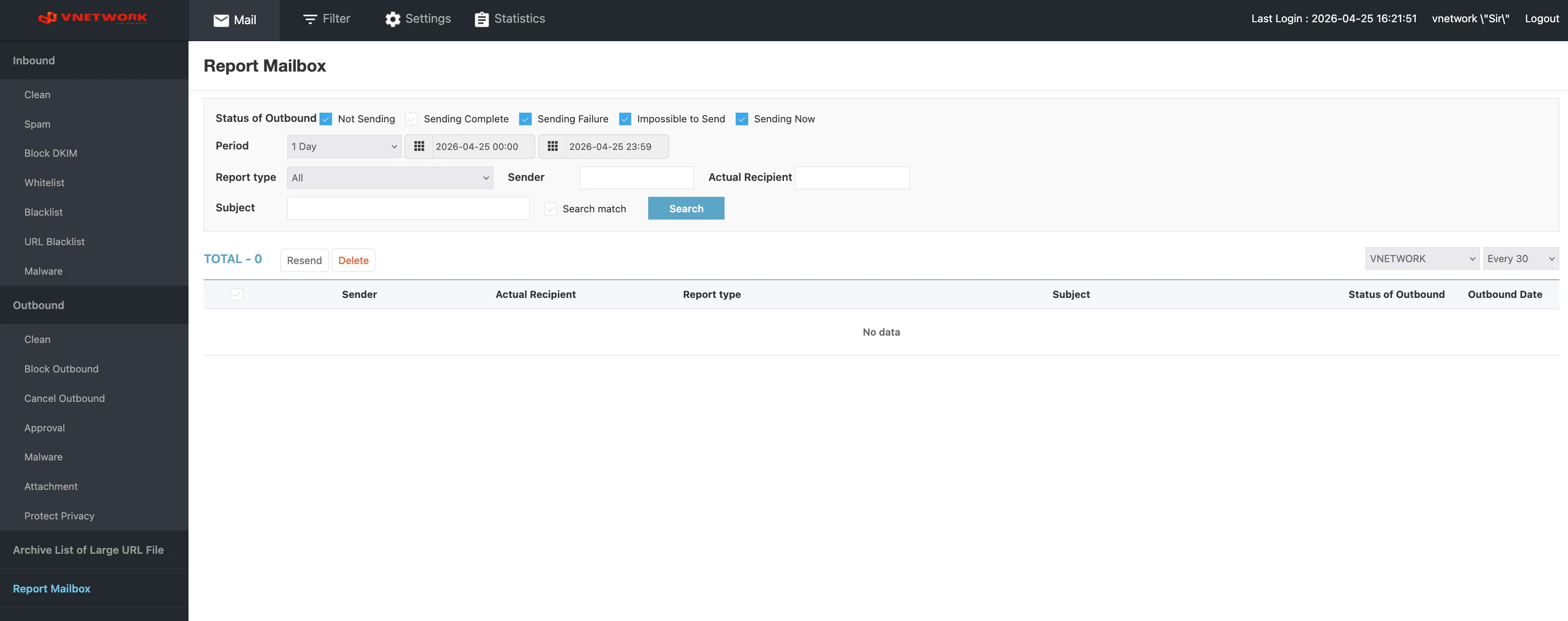
The page is divided into four areas: a filter bar at the top, an action bar below it, the message list, and pagination at the bottom.
Filter Bar
The filter bar narrows the message list to a specific set of criteria. Multiple filters can be combined.
Status of Outbound checkboxes
A row of checkboxes at the top of the filter bar narrows the list by the current state of the reported message:
| Checkbox | Selects messages with status |
|---|---|
| Not Sending | Reported message blocked or not yet sent |
| Sending Complete | Reported message that was successfully sent before the report |
| Sending Failure | Reported message whose delivery failed |
| Impossible to Send | Reported message that the engine determined cannot be sent |
| Sending Now | Reported message currently in the sending queue |
By default several boxes are checked. Adjust the selection to focus on the state you want to triage.
Standard filter fields
| Field | Description |
|---|---|
| Period | Time range for the report date. A preset selector (for example, 1 Day) is provided alongside two date-time pickers for a custom range |
| Report type | Filter by the report category the user selected when flagging the message (for example, All, phishing, false positive) |
| Sender | Filter by the address of the original sender of the reported message |
| Actual Recipient | Filter by the recipient who reported the message |
| Subject | Filter by the subject of the reported message. The Search match checkbox enables exact matching |
After entering the criteria, click Search to apply the filter.
Action Bar
The action bar sits between the filter bar and the message list. It shows the total number of matching reports and provides bulk operations on selected rows.
Counter
- TOTAL : N — Number of reported messages that match the current filter
Bulk actions
| Action | Effect |
|---|---|
| Resend | Re-send the selected reported messages — used when a report turned out to be a false positive and the message should be delivered |
| Delete | Remove the selected reports from the mailbox |
View options (right side)
- A scope selector (for example, VNETWORK) narrows the list to a specific organization or sub-tenant when multiple are configured.
- Page size — Choose how many reports to show per page (for example, Every 25)
Message List
Each row in the list summarizes one reported message.
| Column | Description |
|---|---|
| Sender | Address of the sender of the reported message |
| Actual Recipient | Address of the user who flagged and reported the message |
| Report type | Category the reporter chose when submitting the report |
| Subject | Subject of the reported message |
| Status of Outbound | Current state of the reported message |
| Outbound Date | Date and time the reported message was originally sent (or attempted) |
Use the row checkbox on the left to select reports for the bulk actions in the action bar.
When the mailbox has no matching records the body shows No data.
Pagination
Pagination controls at the bottom of the page allow navigation through large result sets. The current page is highlighted, and arrows step backward or forward through the available pages.
Common Workflows
Triaging a phishing report
When a user flags a message as suspected phishing:
- Filter by Report type matching the phishing category (for example, All then narrow by inspection).
- Locate the report and inspect the Sender and Subject columns.
- If the message is genuinely phishing:
- Review related inbound mailboxes (Spam, Block DKIM, URL Blacklist) for similar messages.
- Add the offending sender to the Blacklist filter.
- If the message is a false positive, follow the false-positive workflow below.
Releasing a false-positive report
When a report turns out to be a legitimate message that should be delivered:
- Locate the report and verify the message is genuinely safe.
- Select the row checkbox.
- Click Resend in the action bar to push the message back into the sending queue.
- Notify the reporter of the outcome so they understand the message was released.
Auditing reports by user
A periodic review helps spot users who frequently report messages, which can indicate either a noisy filter for that user or strong security awareness:
- Set Period to the audit window.
- Use Group by Actual Recipient to rank reporters by report count.
- Click the Excel icon (if available) to export the result for awareness-program follow-up.
Closing out triaged reports
Once a report has been triaged and resolved:
- Filter by Period and select the rows that have been actioned.
- Click Delete to remove them from the mailbox so the active triage queue stays clean.
The Report Mailbox is the single best feedback channel from end users into the security team. Schedule a daily review of new reports — even one missed phishing report can lead to an account compromise within a single business day.
Resend delivers a reported message to its recipient. Verify the message is genuinely a false positive before resending — releasing a real phishing message because the report was misclassified can create the very compromise the user was trying to prevent.