The Mail module is the primary workspace in SGuard. It groups every mailbox used to monitor mail traffic — both messages received from external senders and messages sent from internal users — into a single navigation area, so administrators can review, search, and act on any message handled by the platform.
Module Layout
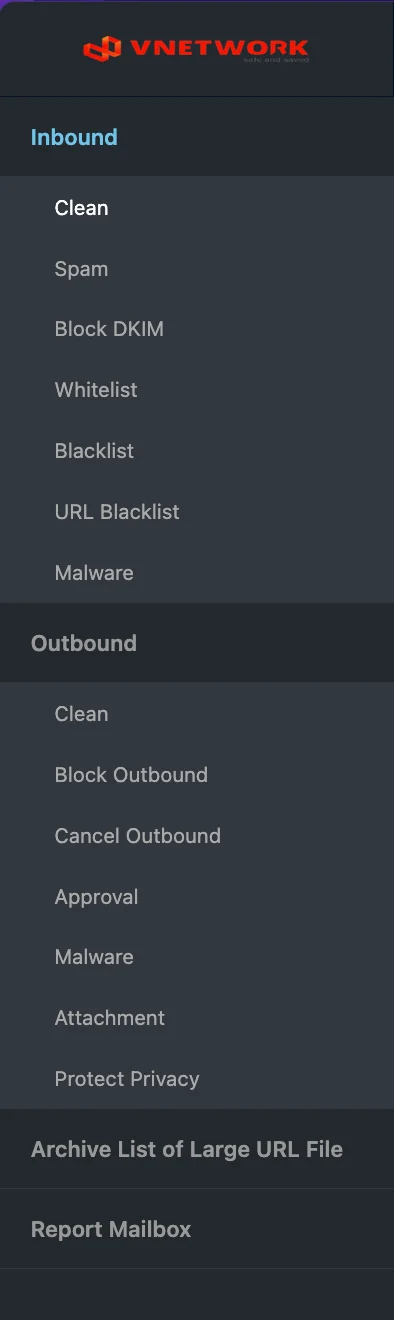
When the Mail menu is selected from the top navigation bar, the sidebar lists every available mailbox grouped by traffic direction:
- Inbound — Mailboxes for messages received from external senders (Clean, Spam, Block DKIM, Whitelist, Blacklist, URL Blacklist, Malware)
- Outbound — Mailboxes for messages sent from internal users to external recipients (Clean, Block Outbound, Cancel Outbound, Approval, Malware, Attachment audit, Protect Privacy)
- Archive List of Large URL File — Storage for large attachments delivered to recipients as secure download links
- Report Mailbox — Messages reported by end users for administrator review
Selecting any mailbox loads it in the main content area with the standard layout described in the Portal Overview: a filter bar, an action bar, a message list, and pagination.
Topics
- Inbound Mailboxes — All seven inbound mailboxes on a single page, including the Filter Result badge and action-bar differences between Clean, Spam, Block DKIM, Whitelist, Blacklist, URL Blacklist, and Malware
- Outbound Mailboxes — All seven outbound mailboxes, including the special Approval workflow and the per-file Attachment audit view
- Archive List of Large URL File — Large attachments delivered to recipients as secure download links
- Report Mailbox — Messages flagged and reported by end users
Filter Bar Reference
Every mailbox in the Mail module shares the same filter bar. Knowing the controls in detail makes the difference between scrolling through hundreds of pages and finding the message you need in seconds.
Default View
The default filter bar shows five rows: Filter (mailbox checkboxes), Period, Sender / Sender IP, Recipient / Attachment name, and Subject. The Detail ▼ button on the right reveals the advanced filters described below.
Filter — cross-mailbox checkboxes
The first row exposes one checkbox per inbound mailbox: Clean / Spam / Block DKIM / Whitelist / Blacklist / URL Blacklist / Malware. All seven are ticked by default, which is why opening a mailbox from the sidebar already shows messages without a manual filter.
Unticking a box removes that mailbox from the result; leaving several ticked produces a cross-mailbox view in which the message list mixes rows from different categories. The Filter Result column makes the source of each row explicit with a colour-coded badge:
| Badge | Colour | Mailbox |
|---|---|---|
| Spam | Red | Spam |
| Blacklist | Purple | Blacklist |
| Block DKIM | Red | Block DKIM |
| URL Blacklist | Red | URL Blacklist |
| Malware | Red | Malware |
| Safe / Clean | Blue / Green | Clean and Whitelist |
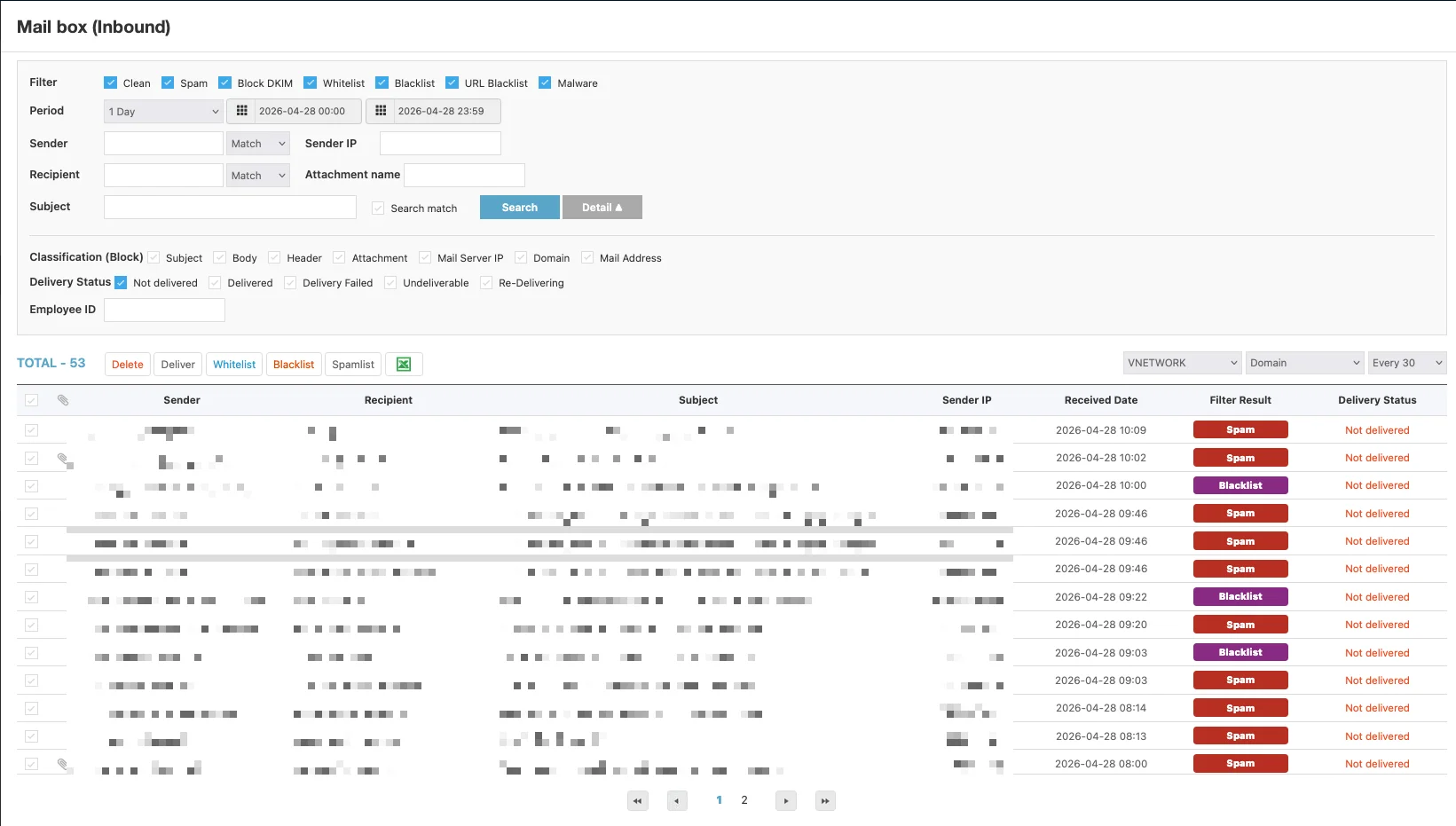
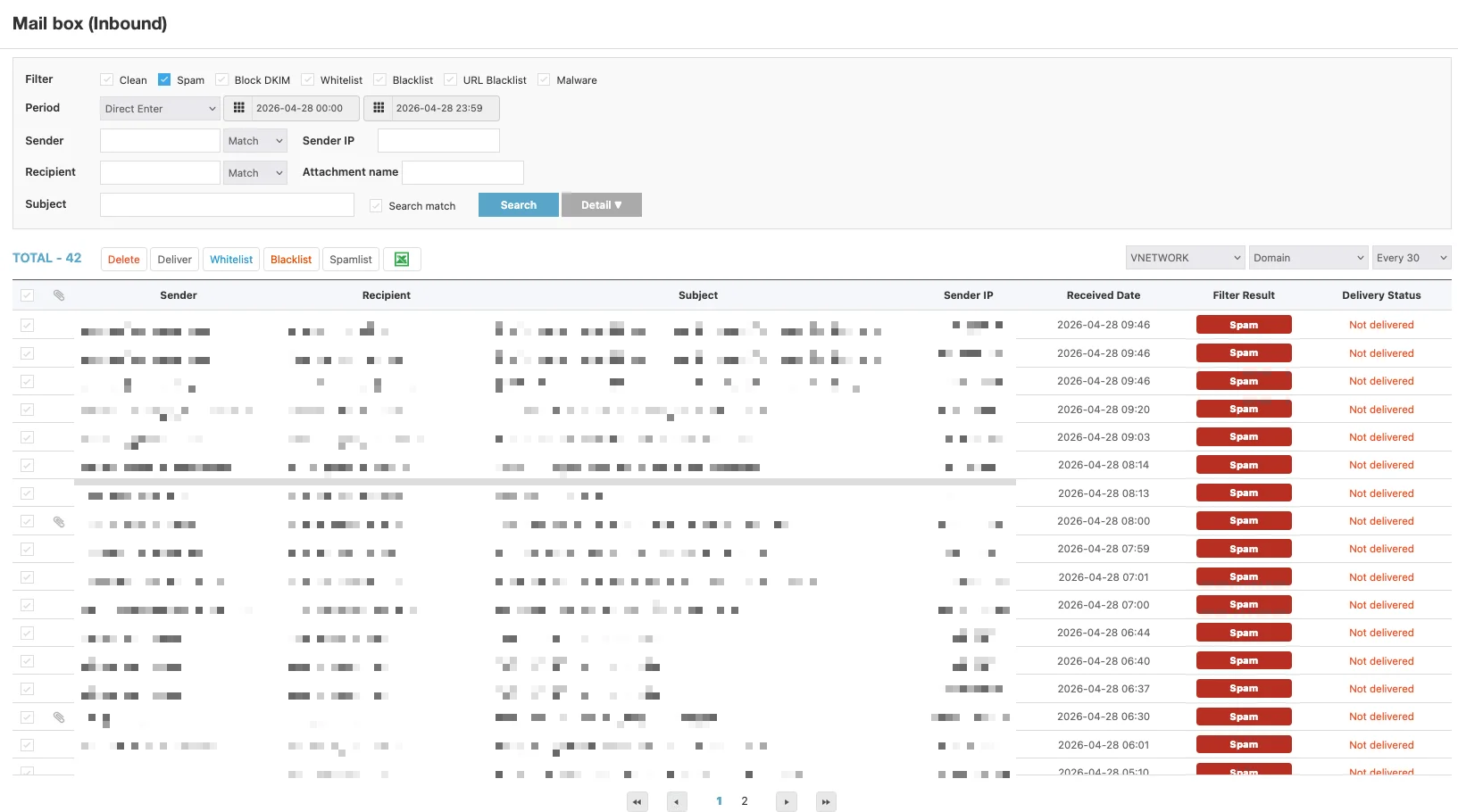
The screenshot above mixes Spam and Blacklist rows in one list because both checkboxes are ticked. Clicking the Spam checkbox alone narrows the result to a single mailbox:
Period — date range
The Period dropdown offers nine presets that snap the date pickers to a relative range:
| Preset | Range |
|---|---|
| 1 Day | Today |
| 3 Day | Today and the previous two days |
| 7 Days | Last week |
| 14 Days | Last two weeks |
| 1 Month | Last 30 days |
| 3 Months | Last quarter |
| 6 Months | Last half year |
| Direct Enter | Custom range — type the dates manually in the two date pickers |

The two date pickers next to the dropdown always show the current range, even when a preset is selected. Editing them switches the dropdown to Direct Enter.
Match modes — Sender and Recipient
The Sender and Recipient fields each have a Match dropdown next to the input. The mode controls how the value is matched against the address column:
| Mode | Behaviour |
|---|---|
| Match | Exact match (default) |
| Start | Address starts with the value |
| End | Address ends with the value |
| Include | Address contains the value anywhere |

Include is the most forgiving and is the right choice when only a fragment of the address is known. End is useful when filtering by domain — for example End + @vnetwork.vn.
Subject and the Search match toggle
The Subject field is a free-text input. The Search match checkbox next to the Search button controls how strict the match is for Subject:
- Ticked — apply the strict mode set by the Match dropdowns to the subject line as well.
- Unticked — only "contains" matching is applied to the subject, regardless of the Match mode.
Leave Search match unticked when looking for a keyword somewhere inside the subject; tick it for a precise match.
Detail ▼ — advanced filters
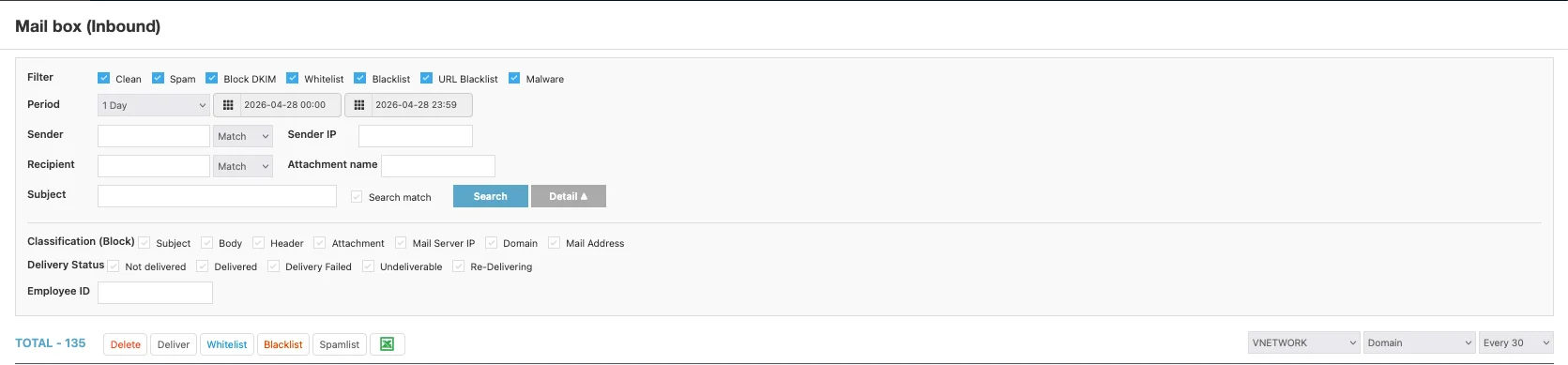
Clicking Detail ▼ expands the filter bar with three additional rows. The button label switches to Detail ▲ while expanded.
Classification (Block)
Seven checkboxes — Subject / Body / Header / Attachment / Mail Server IP / Domain / Mail Address — narrow the result to messages blocked because of that specific signal. They are most useful in Spam and Blacklist to answer questions such as which messages were blocked because of the sender domain? or how many messages did we block because of an attachment last week?
Tick one or more boxes; an unticked checkbox excludes that classification reason from the result.
Delivery Status
Five checkboxes — Not delivered / Delivered / Delivery Failed / Undeliverable / Re-Delivering — filter by the final delivery state. The most common pattern is to tick Not delivered alone to see everything currently held in quarantine across the selected mailboxes.
Action Bar Reference
The action bar sits below the filter bar and applies to the rows currently selected in the message list. The differences in the bulk action set per mailbox are documented in Inbound Mailboxes and Outbound Mailboxes. Two controls on the right of the action bar are common to every mailbox:
- EXCEL download — the green spreadsheet icon. Clicking it exports the filtered message list to an
.xlsxfile. The export honours every filter currently applied, including the Period, the Filter checkboxes, and the Detail ▼ filters. - Domain selector / Page size — the VNETWORK / Domain / Every 30 dropdowns on the far right scope the list to a specific domain inside the group and choose the page size (
Every 30shows 30 rows per page).
Common Workflows
The filter bar is designed to be combined. The same handful of patterns covers most administrative tasks.
Find every quarantined message in the last week
- Tick all seven Filter checkboxes (default).
- Set Period to 7 Days.
- Click Detail ▼, then tick Delivery Status → Not delivered.
- Click Search.
The result is every message currently in quarantine across the platform.
Find every message a specific sender sent
- Type the sender address in Sender and pick the matching mode (Include for fragments, End for whole-domain searches).
- Set Period to the desired range.
- Click Search.
Leave the Filter checkboxes at their defaults to see how the sender's mail was classified across all mailboxes at once.
Investigate a specific block reason
- Pick the mailbox that fits the question — Spam for spam-engine decisions, Blacklist for policy decisions.
- Click Detail ▼.
- Tick a single Classification (Block) checkbox — for example Domain to see only messages blocked because of the sender domain.
- Click Search and review the Filter Result column.
Export the result for offline analysis
- Apply every filter relevant to the question.
- Click Search to confirm the list looks right.
- Click the EXCEL download icon on the right of the action bar.
The export contains exactly the rows visible in the current filter, in the order they appear on screen.
How Mailboxes Are Used
Each mailbox corresponds to one outcome of the SGuard filtering engine. Messages are routed automatically to the mailbox that matches their classification, which lets administrators:
- Investigate the volume and trend of each threat category independently
- Confirm or override automatic decisions (for example, releasing a quarantined inbound message or resending an outbound message held for approval)
- Export filtered message lists for offline analysis or audit
Most administration of how messages are classified — allow / whitelist / blacklist / spam list / DKIM verification / URL block list — is done from the Filter module. The Mail module is for reviewing the result and acting on individual messages.
The Filter checkboxes plus the Period dropdown handle most day-to-day searches. Reach for Detail ▼ when the question is about why a message landed in a mailbox or what its delivery state was.