Inbound Mailboxes
The Inbound section of the Mail module groups every message received from external senders into seven mailboxes, one for each outcome of the SpamGuard filtering engine. The screen layout — filter bar, action bar, message list, pagination — is the same in every mailbox; only the messages, the Filter Result badge, and a small set of action-bar buttons change between them.
For the field-by-field description of the shared layout, see Portal Overview. For the filter bar — including the cross-mailbox checkboxes, Match modes, Period presets, and the Detail ▼ advanced filters — see the Filter Bar Reference on the Mail overview page.
The Seven Mailboxes
| Mailbox | Page header | Contents | Default delivery state |
|---|---|---|---|
| Clean | Mail box (Inbound) - Safe | Legitimate messages that passed every check | Delivered |
| Spam | Mail box (Inbound) - Spam | Messages flagged as unsolicited or bulk by content / source / behaviour | Not delivered |
| Block DKIM | Mail box (Inbound) - Block DKIM | Messages that failed DKIM authentication, often indicating spoofing | Not delivered |
| Whitelist | Mail box (Inbound) - Whitelist | Messages from senders explicitly allowed by policy | Delivered |
| Blacklist | Mail box (Inbound) - Blacklist | Messages from senders explicitly blocked by policy | Not delivered |
| URL Blacklist | Mail box (Inbound) - URL blacklist | Messages containing links flagged as dangerous | Not delivered |
| Malware | Mail box (Inbound) - Malicious code | Messages containing malicious attachments or payloads | Not delivered |
Selecting a mailbox from the sidebar loads it in the main content area.
Sample Mailbox Views
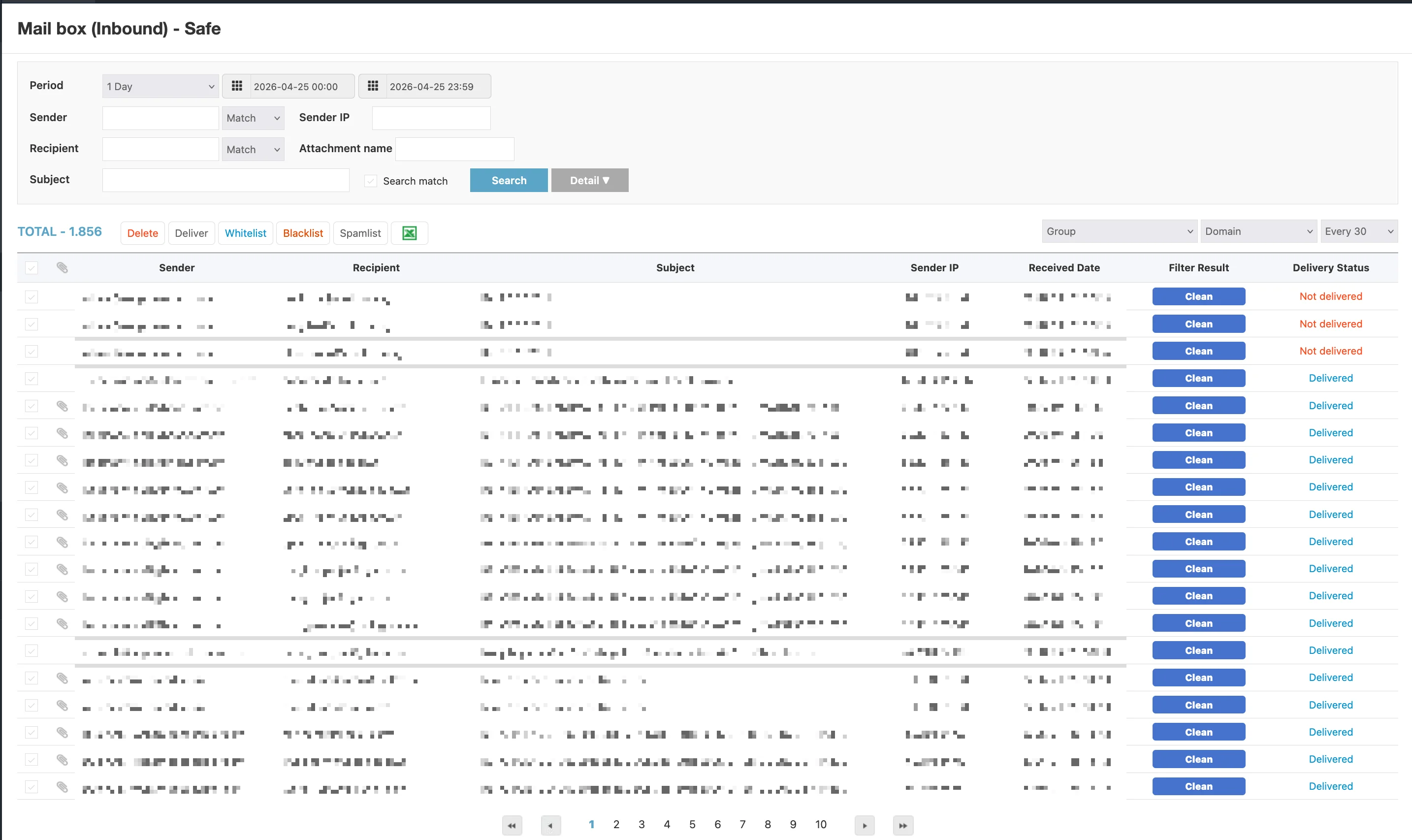
The Clean mailbox is the most common starting point — every safely delivered inbound message is listed here.
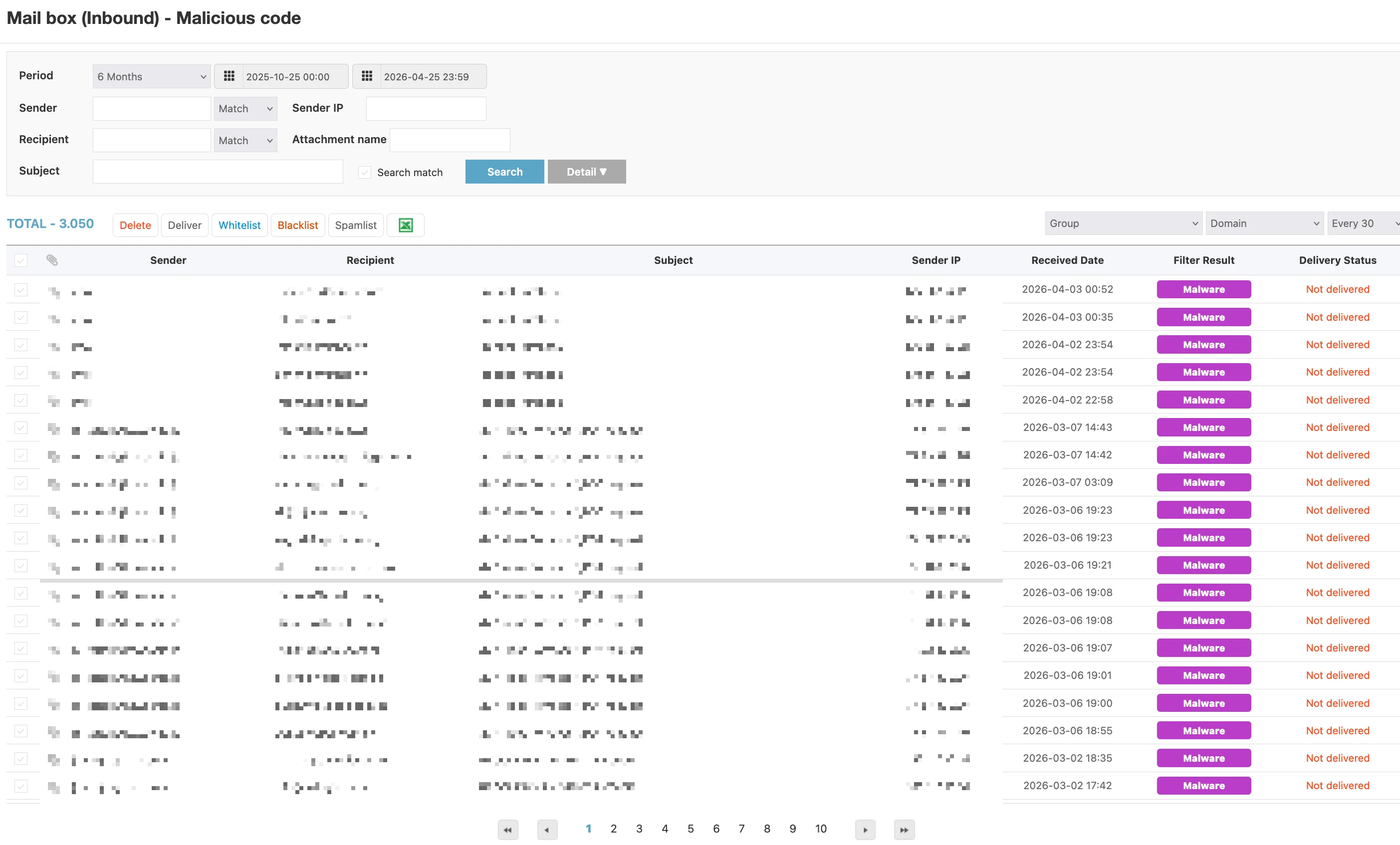
The Malware mailbox is the most security-relevant view. Every row is held in quarantine and the Delivery Status column shows Not delivered in red.
The remaining mailboxes use the same screen layout, with the Filter Result badge updated to match the classification (Spam, Block DKIM, Whitelist, Blacklist, URL Blacklist).
Message Detail View
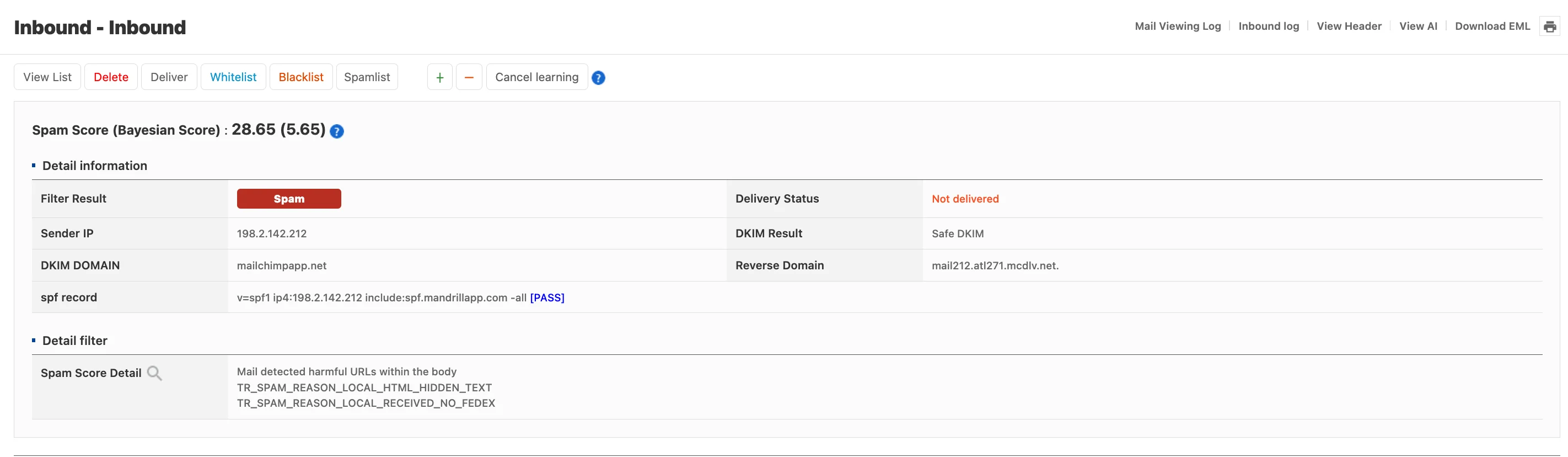
Clicking any row in an inbound mailbox opens the message detail view. The page header reflects the path you arrived from — for example Inbound - Inbound.
Header links (top right)
| Link | Purpose |
|---|---|
| Mail Viewing Log | Audit trail of who opened the message and when |
| Inbound log | Inbound processing log for this message |
| View Header | Full raw mail headers |
| View AI | SpamGuard's AI-based explanation of the classification |
| Download EML | Download the message as an .eml file for offline analysis |
| Print the detail view |
Action bar
The action bar at the top of the detail view exposes ten buttons that act on the single message currently being viewed.
| Button | Effect |
|---|---|
| View List | Return to the mailbox list |
| Delete | Delete the message from SGUARD storage |
| Deliver | Release the message to the recipient |
| Whitelist | Add the sender to the whitelist policy |
| Blacklist | Add the sender to the blacklist policy |
| Spamlist | Tag the sender as a spam source |
| + / − | Adjust the Bayesian learning weight for this sample |
| Cancel learning | Remove this sample from the Bayesian training set |
| ❓ | Inline help for the action bar |
Inspection sections
The detail view typically renders three sections stacked vertically:
- Spam Score (Bayesian Score) — A single line with the engine's score for this message, for example
28.65 (5.65). The number in parentheses is the Bayesian-only contribution to the total. - Detail information — A two-column grid containing the Filter Result badge, Sender IP, DKIM Result (for example
Safe DKIM), DKIM DOMAIN, Reverse Domain, Delivery Status, and the raw spf record with its result tag (for example[PASS]). - Detail filter — The Spam Score Detail breakdown, listing every internal reason that contributed to the score. Reason codes follow the
TR_SPAM_REASON_*naming scheme — for exampleTR_SPAM_REASON_LOCAL_HTML_HIDDEN_TEXTfor messages with hidden HTML text, orTR_SPAM_REASON_LOCAL_RECEIVED_NO_FEDEXfor forged courier-style headers.
The detail view is the right place to confirm a classification before applying a permanent Whitelist or Blacklist decision from the action bar.
View AI is the fastest way to understand why a message ended up in a given mailbox without parsing the TR_SPAM_REASON_* codes manually.
Action Bar Differences
The filter bar and the message list are identical across all seven mailboxes. The action bar varies because the appropriate remediation depends on what put the message in the mailbox.
| Mailbox | Available bulk actions | Notes |
|---|---|---|
| Clean | Delete · Deliver · Whitelist · Blacklist · Spamlist | The full action set |
| Spam | Delete · Deliver · Whitelist · Blacklist · Spamlist | Same as Clean |
| Block DKIM | Delete · Deliver · Whitelist · Blacklist · Spamlist | Same as Clean |
| Whitelist | Delete · Deliver · Blacklist · Spamlist | Whitelist action omitted — every message is already from a whitelisted sender |
| Blacklist | Delete · Deliver · Whitelist · Spamlist | Blacklist action omitted — every message is already from a blacklisted sender |
| URL Blacklist | Delete · Deliver · Spamlist | Whitelist and Blacklist omitted — the decision is based on the link, not the sender |
| Malware | Delete · Deliver · Whitelist · Blacklist · Spamlist | The full action set, but Deliver must be used with extreme care |
The Excel icon, the Group option, and the Page size option on the right of the action bar are present in every mailbox.
Common Workflows
The same handful of tasks come up across most mailboxes.
Releasing a quarantined message
- Open the relevant mailbox (Spam, Block DKIM, Blacklist, URL Blacklist, or Malware).
- Filter by Sender or Subject to locate the message.
- Verify out of band that the message is safe before continuing.
- Select the row checkbox and click Deliver.
Adjusting trust for a sender
| Goal | Action | Where it works |
|---|---|---|
| Trust a sender permanently | Whitelist | Clean / Spam / Block DKIM / Blacklist / Malware |
| Block a sender permanently | Blacklist | Clean / Spam / Block DKIM / Whitelist / Malware |
| Tag a sender as a spam source | Spamlist | Every inbound mailbox |
Exporting a list for analysis
- Apply the Period and any other filters.
- Click Search to refresh the list.
- Click the Excel icon on the right of the action bar to download an
.xlsxfile.
Cleaning up old records
- Set Period to the older range you want to clear.
- Apply any other filters needed to scope the deletion.
- Select the rows and click Delete.
The URL Blacklist mailbox is the highest-fidelity indicator of attempted attacks. Even when the messages stay in quarantine, exporting the list periodically gives the security team useful telemetry about who is being targeted and from where.
Never use Deliver in the Malware mailbox without independent verification that the message is safe. Releasing a quarantined malware message into a recipient's inbox can compromise the user's machine or the wider network.
Every action in the action bar applies to all selected rows. Verify the selection before clicking — moving a critical partner to the blacklist will block all of their future messages.