Portal Overview
After signing in, the SGuard portal is organized into three main areas: the top navigation bar, the sidebar menu, and the main content area. This page describes the role of each area so administrators can locate features quickly.
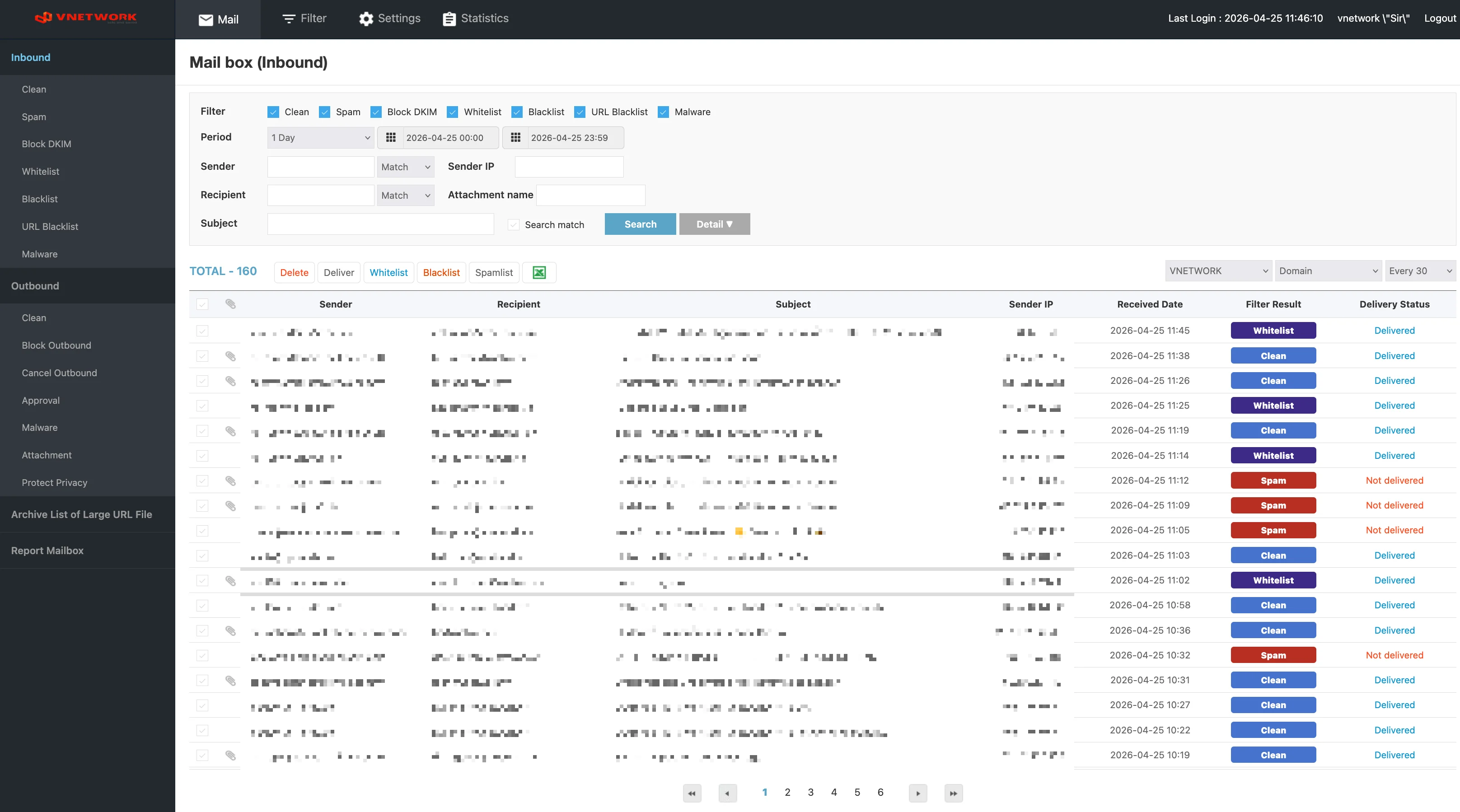
Top Navigation Bar
The dark header at the top of every page contains the primary navigation and the active session information.

Primary Menu
The primary menu provides access to the four main modules of the platform:
| Menu | Purpose |
|---|---|
| Monitor and process mailboxes for inbound and outbound mail traffic | |
| Filter | Manage allow, white, black, spam, and inspection rules applied to inbound and outbound mail |
| Settings | Configure server, operations, user, and report policies — available to the Admin Group |
| Statistics | View aggregated reports and analytics for inbound and outbound traffic |
Selecting a menu item highlights the active module and updates the sidebar with the corresponding sub-menu.
Session Information
The right side of the header displays:
- Last Login — the date and time of the previous successful sign-in, useful for verifying that the account has not been accessed by an unauthorized party
- Username — the administrator account currently signed in
- Logout — ends the session and returns to the login page
Always review the Last Login value when entering the portal. If the timestamp does not match a known session, change the password immediately and report the activity to the VNETWORK administrator.
Sidebar Menu
The sidebar on the left lists the available functions for the active module. When the Mail module is selected, the sidebar shows every mailbox available for monitoring inbound and outbound mail traffic.
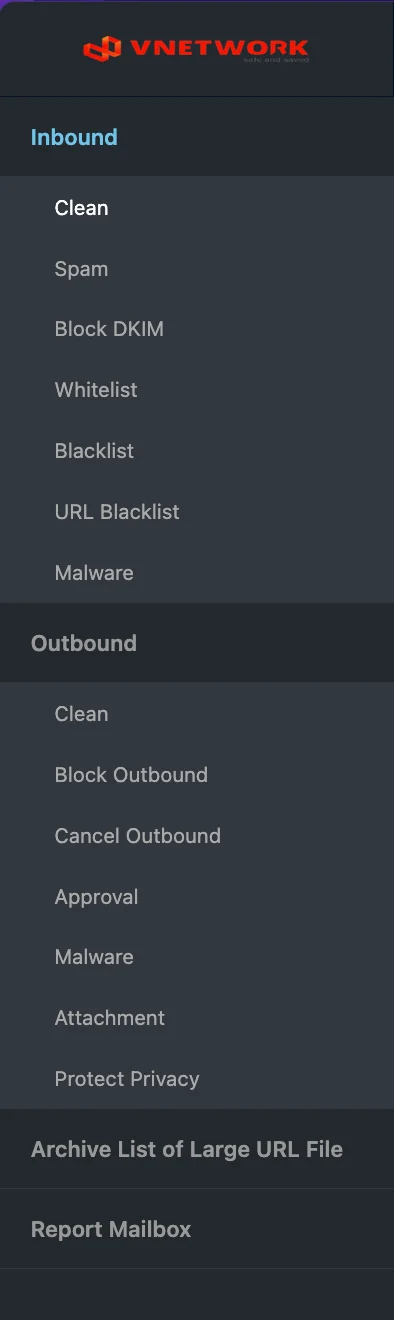
Inbound
Mailboxes that hold messages received from external senders, classified by the result of the security checks:
- Clean — Legitimate messages that passed all checks (labeled Safe in the page header)
- Spam — Messages identified as spam by content, source, or behaviour
- Block DKIM — Messages that failed DKIM authentication, often indicating spoofing
- Whitelist — Messages from senders explicitly allowed by policy
- Blacklist — Messages from senders explicitly blocked by policy
- URL Blacklist — Messages containing links flagged as dangerous
- Malware — Messages containing malicious attachments or payloads (page header Malicious code)
Outbound
Mailboxes that hold messages sent from internal users to external recipients:
- Clean — Outbound messages confirmed as safe (labeled Safe in the page header)
- Block Outbound — Messages blocked for violating sending policy
- Cancel Outbound — Messages canceled before delivery, manually or by policy
- Approval — Messages held in a review queue awaiting manual approval
- Malware — Outbound messages containing malicious code (page header Malicious code)
- Attachment — Per-attachment audit log with size and download of the gateway's stored copy
- Protect Privacy — Messages flagged for potential leakage of sensitive or personal information (page header Privacy blocking)
Other Mailboxes
- Archive List of Large URL File — Storage for large attachments delivered to recipients as secure download links
- Report Mailbox — Messages reported by end users for administrator review
Selecting any item in the sidebar loads the corresponding mailbox in the main content area.
Main Content Area
The main area on the right displays the content of the active mailbox or feature. For mail-related views, it is divided into four sections.
Filter Bar
The filter bar at the top of the page narrows the message list. Multiple filters can be combined.
- Period — Select the time range to query, with a preset selector (for example, 1 Day) and two date-time pickers for a custom range
- Sender / Sender IP — Filter by sender address or sending server IP. The Match option enables exact matching of the entered keyword
- Recipient (inbound) or Actual Recipient (outbound) — Filter by recipient address. The Match option enables exact matching
- Attachment name — Filter by the name of an attached file
- Subject — Filter by the subject line. The Search match checkbox enables exact matching
- Search / Detail ▼ — Click Search to apply the current filter, or Detail ▼ to expand additional filter fields
Some mailboxes add fields specific to their function — for example, Approval adds an Approver field and a row of status checkboxes (Safe / Block Outbound / Cancel Outbound / Waiting approval / Approval / Reject / Protect Privacy) so reviewers can narrow the queue to a single state.
Action Bar
Between the filter bar and the message list, an action bar shows the total number of matching messages (TOTAL - N) and provides bulk operations on selected rows.
The set of available actions varies by mailbox. The complete catalog of bulk actions used across SGuard is:
| Action | Effect |
|---|---|
| Delete | Remove the selected messages from the mailbox |
| Deliver | Forward the selected messages to their recipients (used to release messages held in inbound quarantine) |
| Resend | Re-attempt sending an outbound message that previously failed or was rejected |
| Whitelist | Add the senders of the selected messages to the whitelist |
| Blacklist | Add the senders of the selected messages to the blacklist |
| Spamlist | Add the senders of the selected messages to the spam list |
| Upload | Upload a new file to the Archive List of Large URL File mailbox |
A few patterns to keep in mind:
- The Whitelist mailbox omits the Whitelist action; the Blacklist mailbox omits the Blacklist action — every message in those mailboxes already comes from a sender on the corresponding list.
- The URL Blacklist mailbox shows only Delete, Deliver, and Spamlist, because the decision is based on the link content rather than the sender's identity.
- Most outbound mailboxes show only Delete, since outbound messages have already been processed by the sending engine. Approval shows only Resend.
The Excel icon on the right of the action bar exports the current message list to an .xlsx file. View options on the far right allow grouping the results by a chosen column (for example, Domain) and adjusting the page size (for example, Every 30).
Message List
The message list shows the results of the active filter. Each row provides a summary of one message. The exact columns vary between inbound and outbound mailboxes:
Inbound mailboxes show: Sender, Recipient, Subject, Sender IP, Received Date, Filter Result, Delivery Status.
Outbound mailboxes show: Sender, Actual Recipient, Subject, Outbound Date, Filter log, Status of Outbound, Real Outbound Date.
The Filter Result badge (inbound) or Filter log badge (outbound) shows the classification assigned by the engine — for example, Safe, Spam, Block DKIM, Malicious code. The Delivery Status (inbound) and Status of Outbound (outbound) show the final state of the message — Delivered / Sending Complete / Not delivered / Not Sending.
Use the row checkbox on the left to select messages for the bulk actions in the Action Bar.
Pagination
Pagination controls at the bottom of the page allow navigation through large result sets. The current page is highlighted, and arrows step backward or forward through the available pages.
The exact set of columns and the available bulk actions may vary slightly between mailboxes, since each mailbox is optimized for the type of message it contains. Each mailbox page in this documentation lists the columns and actions specific to it.