Account
The Account area holds your personal settings — separate from the Organizations console, which manages your company. Open it from Account at the bottom of the left navigation. It has four sections: Information · Billing · API Keys · Affiliate.
Information
Your identity, contact details and account security — the page stacks several cards.
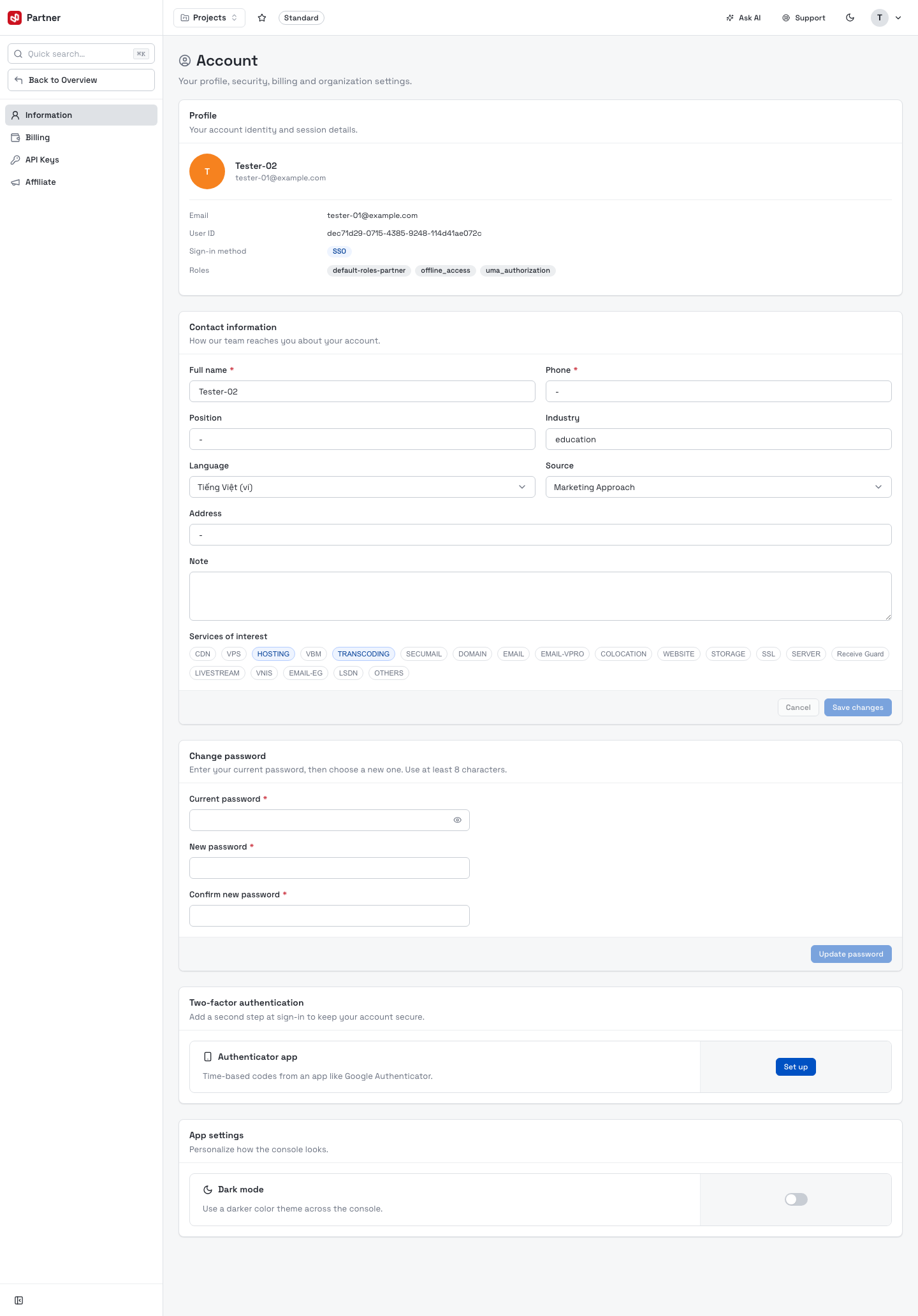
- Profile — your name, email, User ID, sign-in method (SSO) and assigned roles.
- Contact information — an editable form (Full name, Phone, Position, Industry, Language, Source, Address, Note) plus Services of interest tags. Edit and Save changes to update how VNETWORK reaches you.
Change password
Enter your current password, then a new password (at least 8 characters) and confirm it, and click Update password.
If you sign in with VNETWORK-ID (SSO), your password is managed by the identity provider — change it there rather than here.
Two-factor authentication
Add a second step at sign-in to keep your account secure.
Authenticator app — click Set up to register a time-based one-time-password (TOTP) app such as Google Authenticator or 1Password:
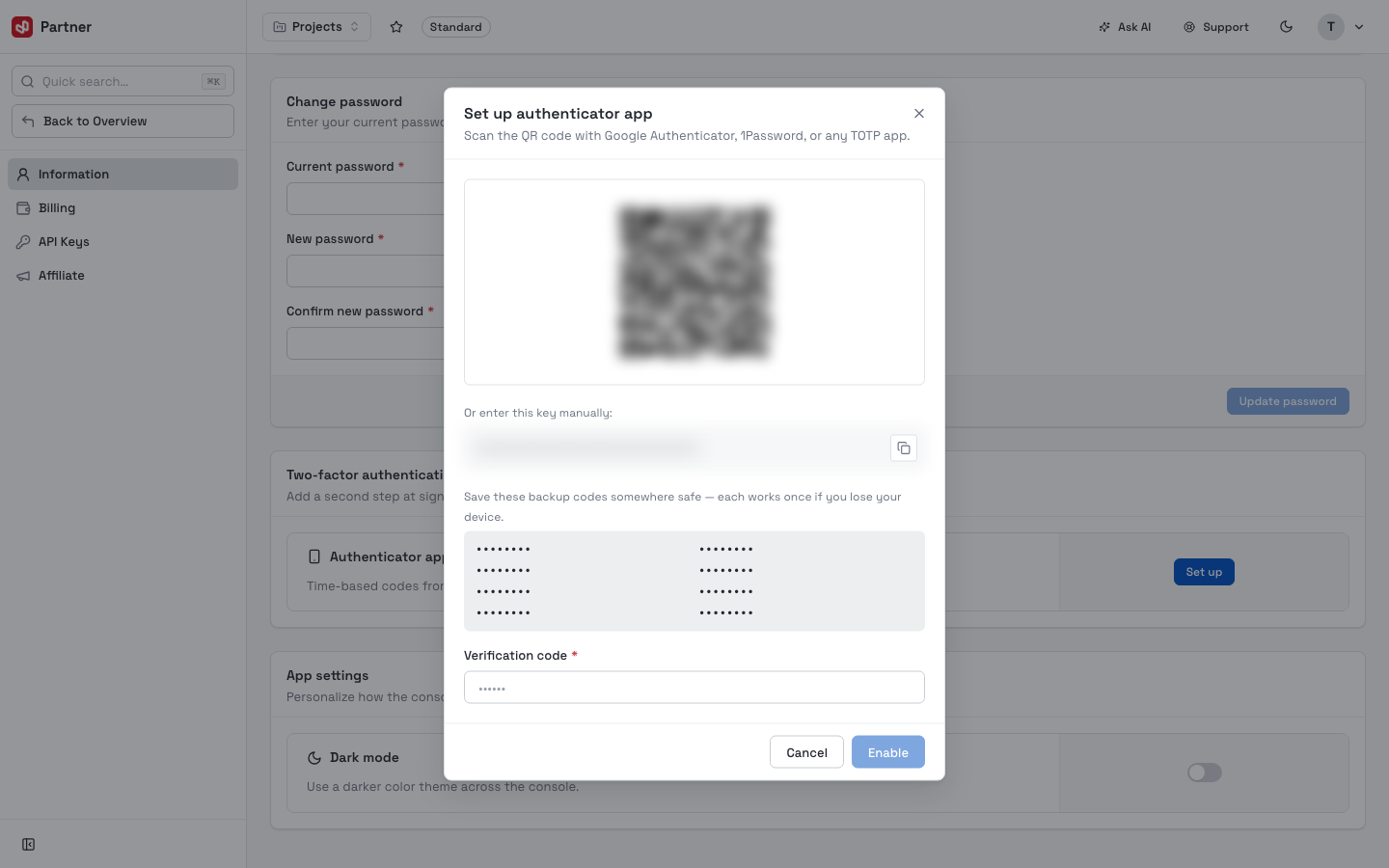
- Scan the QR code with your authenticator app — or enter the key manually if you can't scan.
- Save the backup codes shown (each works once if you lose your device).
- Enter the 6-digit verification code from the app and click Enable. From then on, sign-in asks for a code.
To turn it off later, use Disable and confirm with your password.
Store your backup/recovery codes somewhere safe — without them, losing the authenticator device can lock you out.
(The QR code, secret key and backup codes above are blurred/redacted — yours are unique.)
App settings
Personalize how the console looks — for example the Dark mode toggle, which applies a darker theme across the console.
Billing
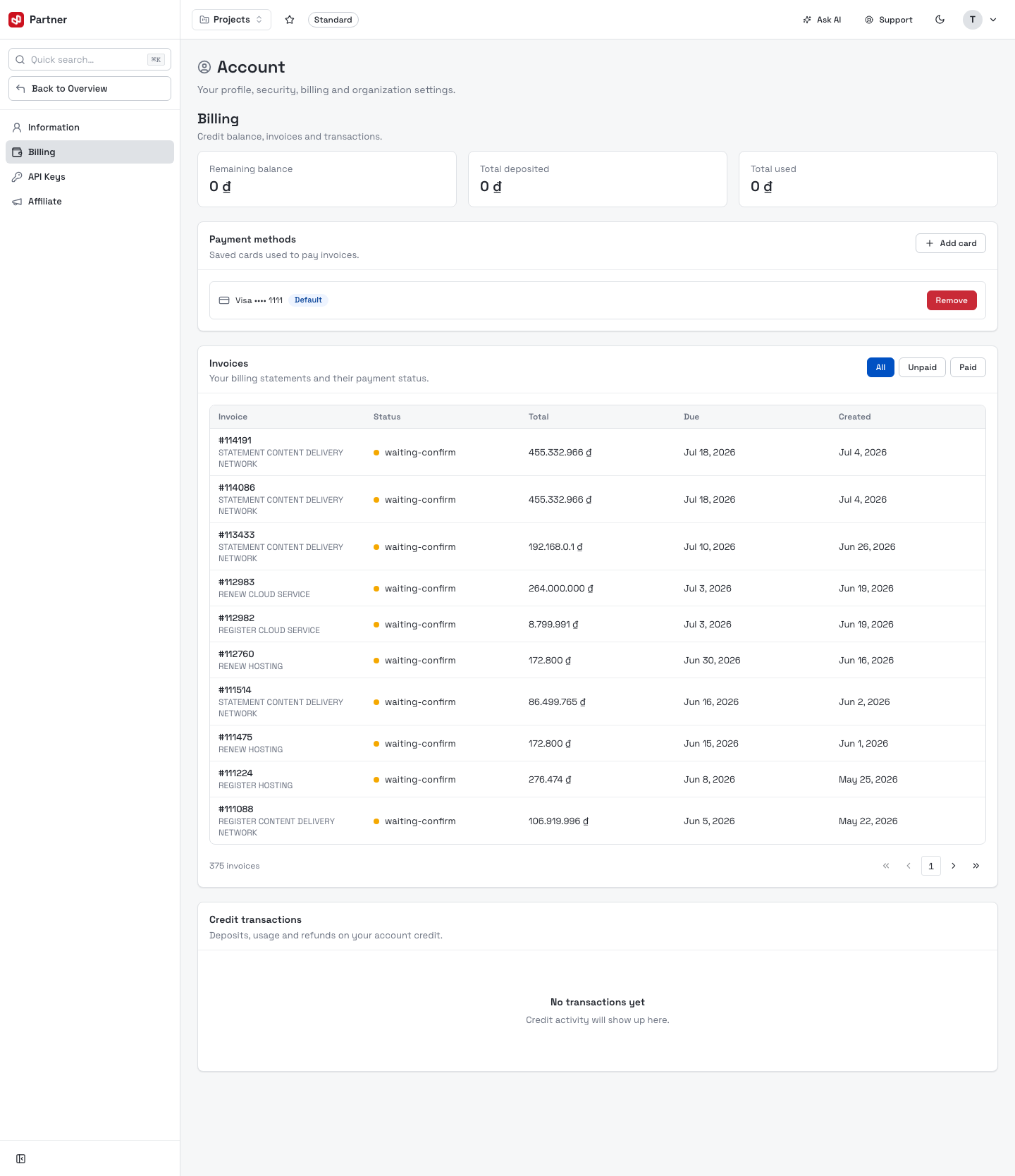
Your credit balance, saved payment methods and invoices.
-
Balance cards — Remaining balance, Total deposited and Total used.
-
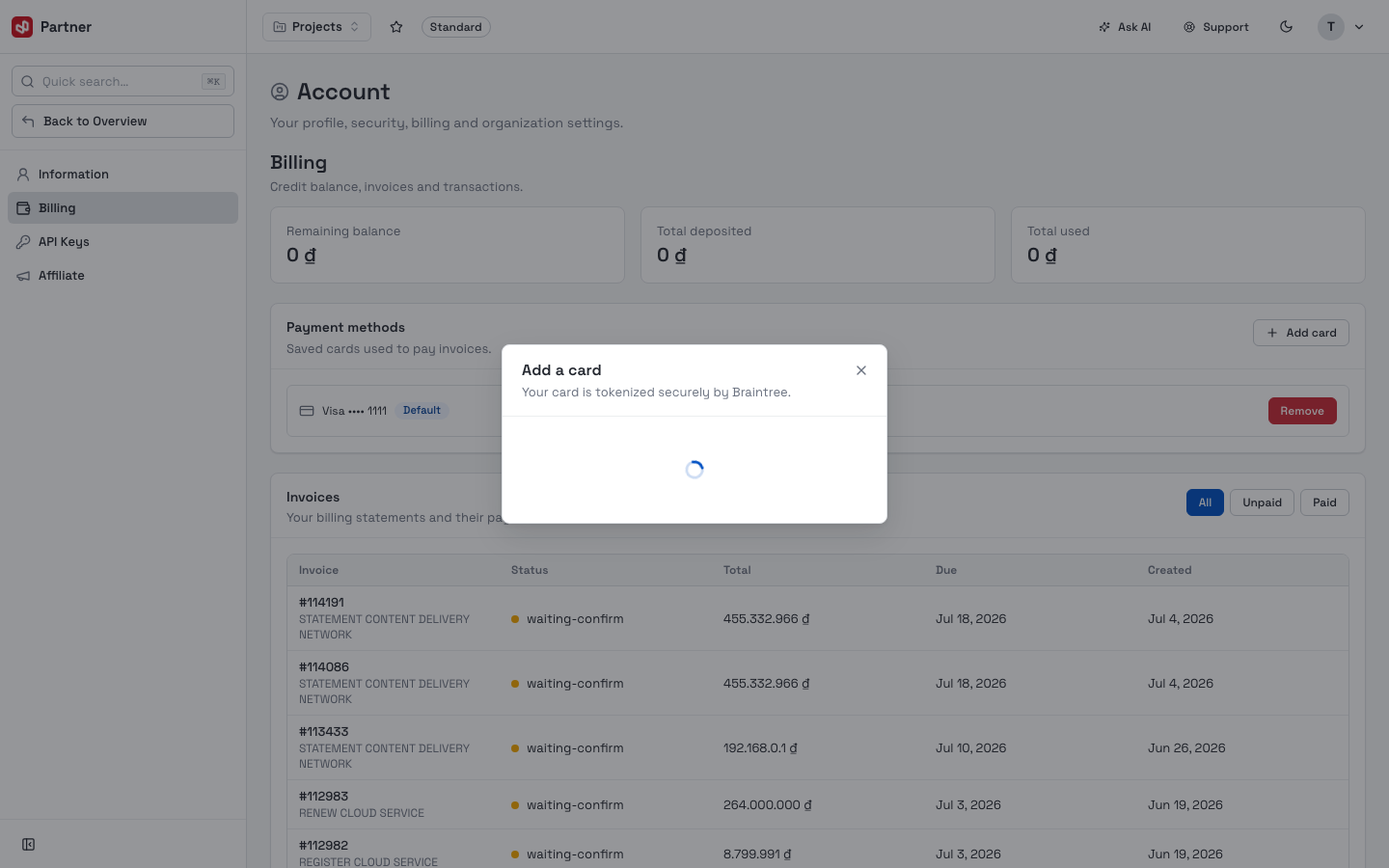
Payment methods — saved cards used to pay invoices. Click Add card to save a new one; each card row has Remove and a Default marker.
-
Invoices — your billing statements with Status (e.g. waiting-confirm, paid), Total, Due and Created dates. Filter by All / Unpaid / Paid.
API Keys
Programmatic access to your VNETWORK resources.
-
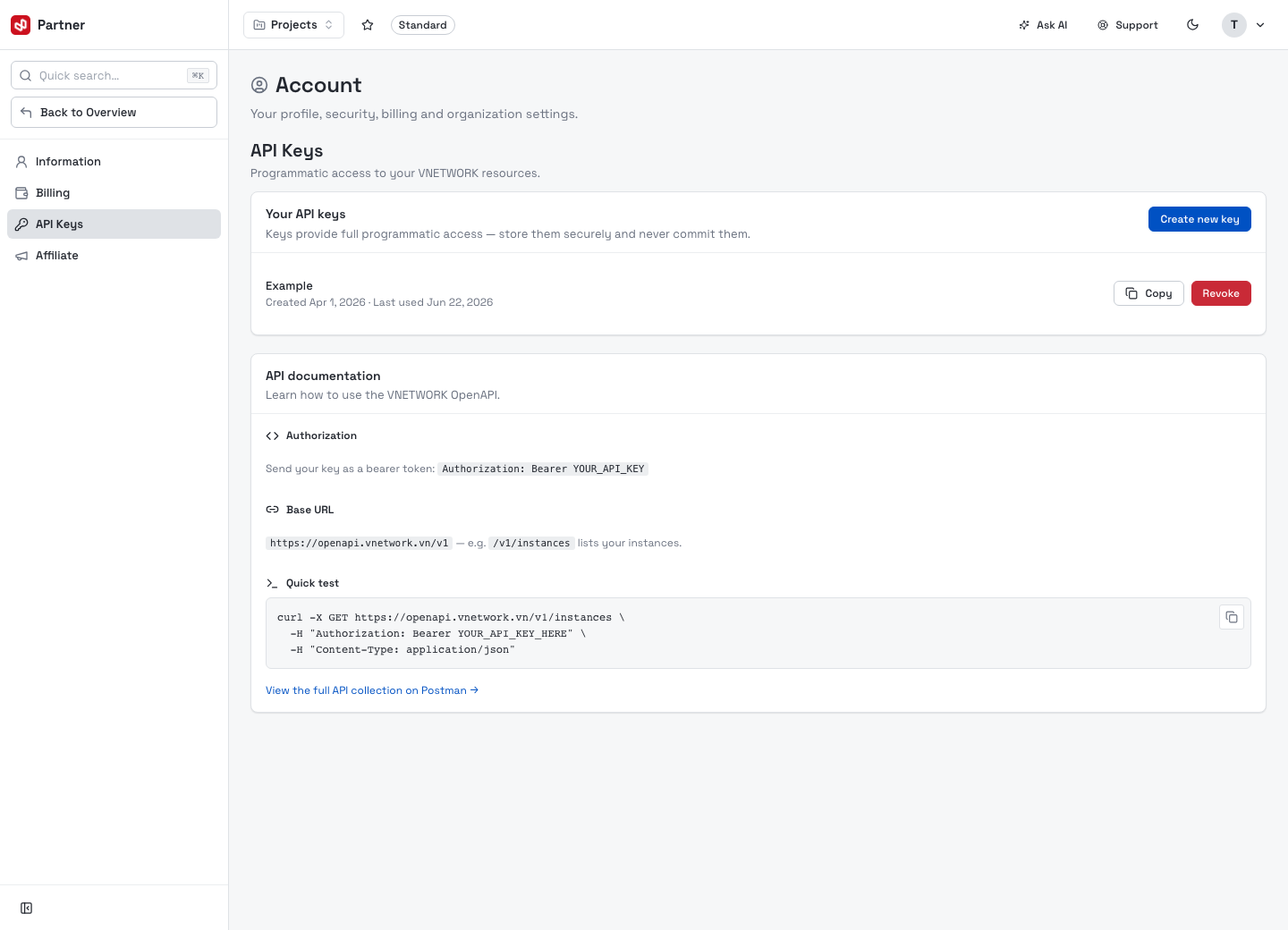
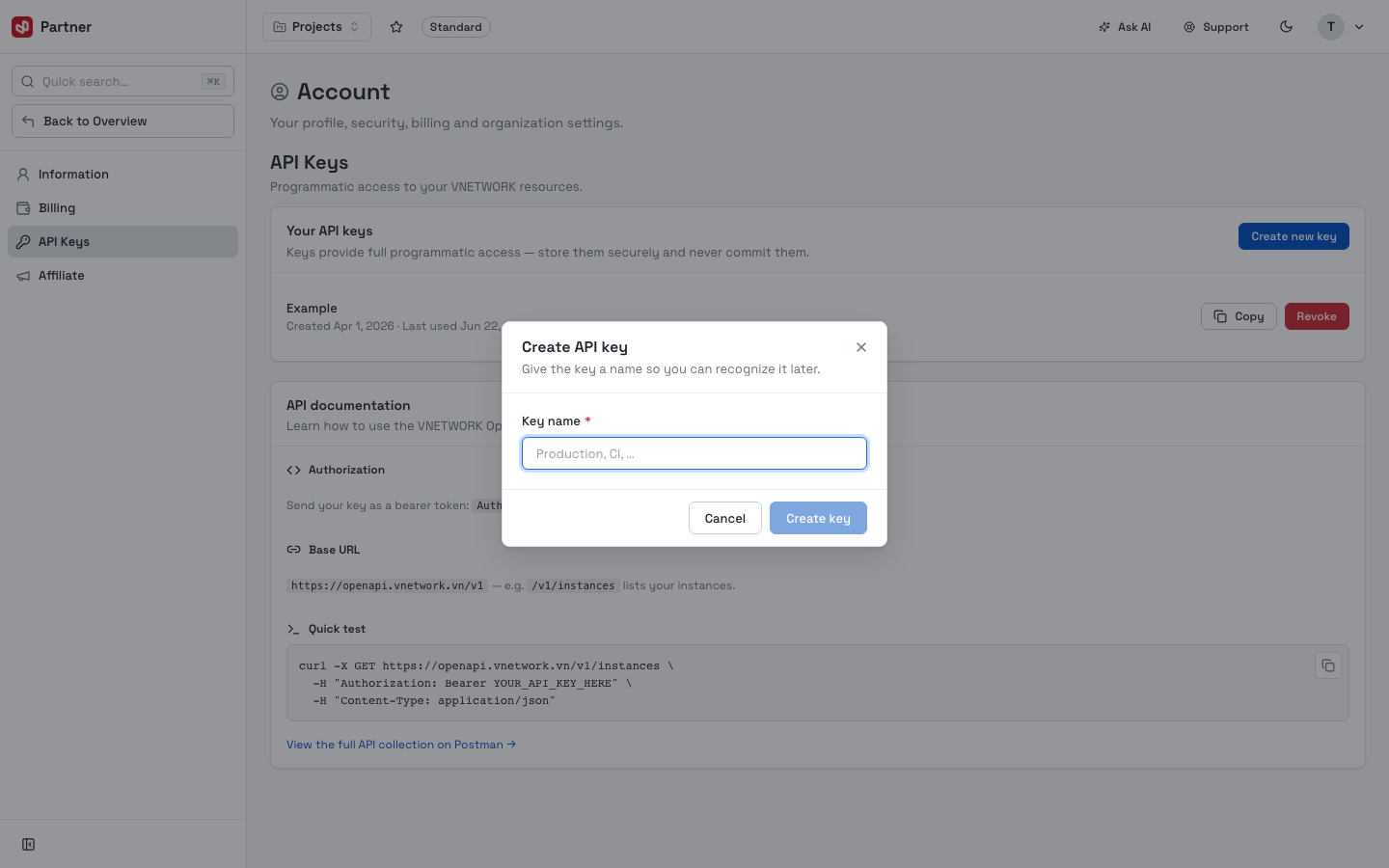
Your API keys — each key shows its name, created date and last-used date, with Copy and Revoke. Click Create new key and give it a recognizable name:
 warning
A key grants full programmatic access to your account. The secret is shown once on creation — store it securely and never commit it to source control. Revoke any key that may have leaked.
-
API documentation — how to call the API: send the key as a bearer token (
Authorization: Bearer YOUR_API_KEY), the base URL (https://openapi.vnetwork.vn/v1), a copy-pastecurlquick test, and a link to the full Postman collection.
Affiliate
Refer customers to VNETWORK and earn commission.
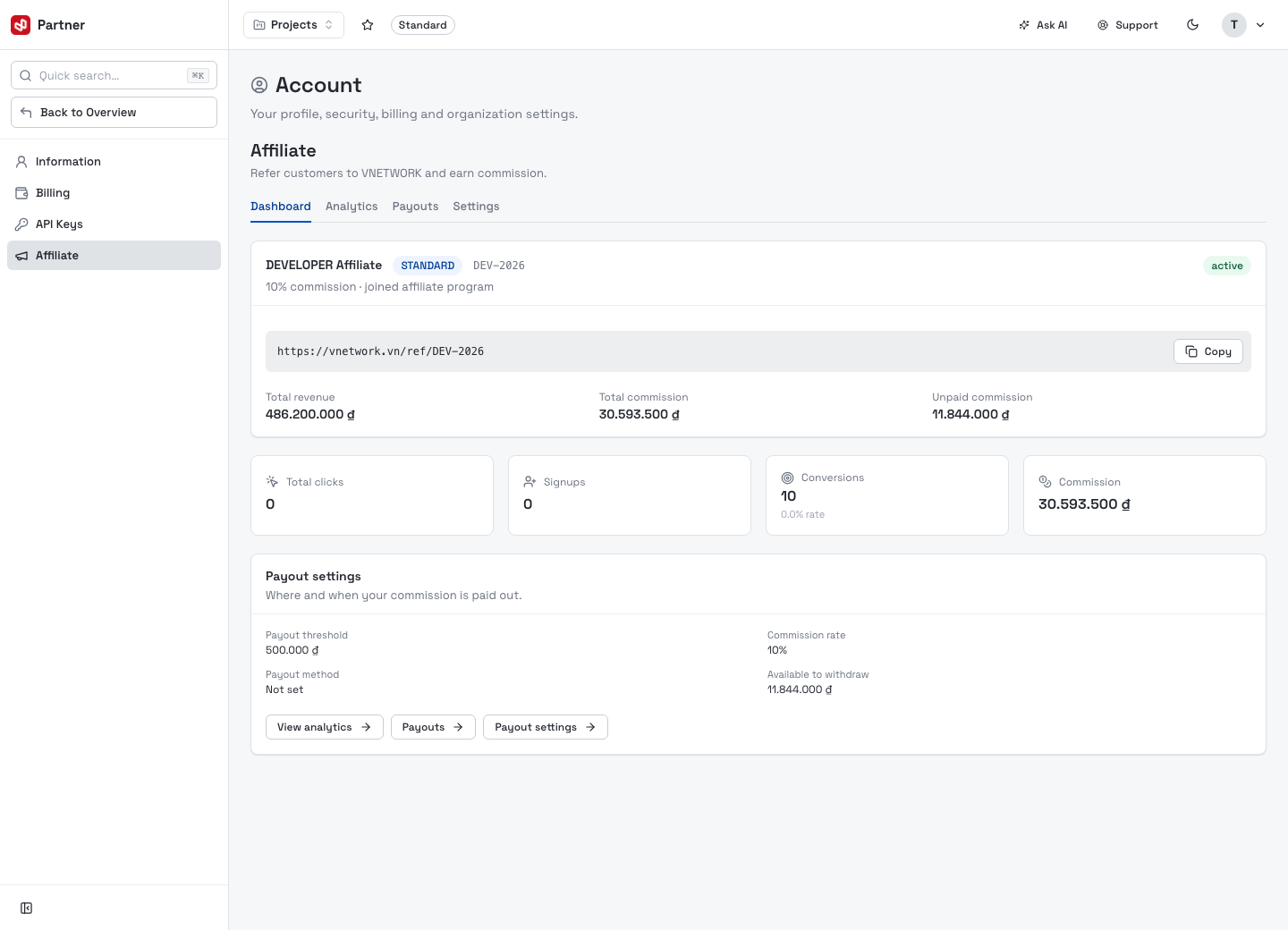
Four tabs: Dashboard · Analytics · Payouts · Settings.
Dashboard
Your referral link (copy and share it), program tier and commission rate, headline figures (Total revenue / commission / unpaid), engagement counters (clicks, signups, conversions), and a Payout settings summary.
Analytics
Performance of your referrals over time.
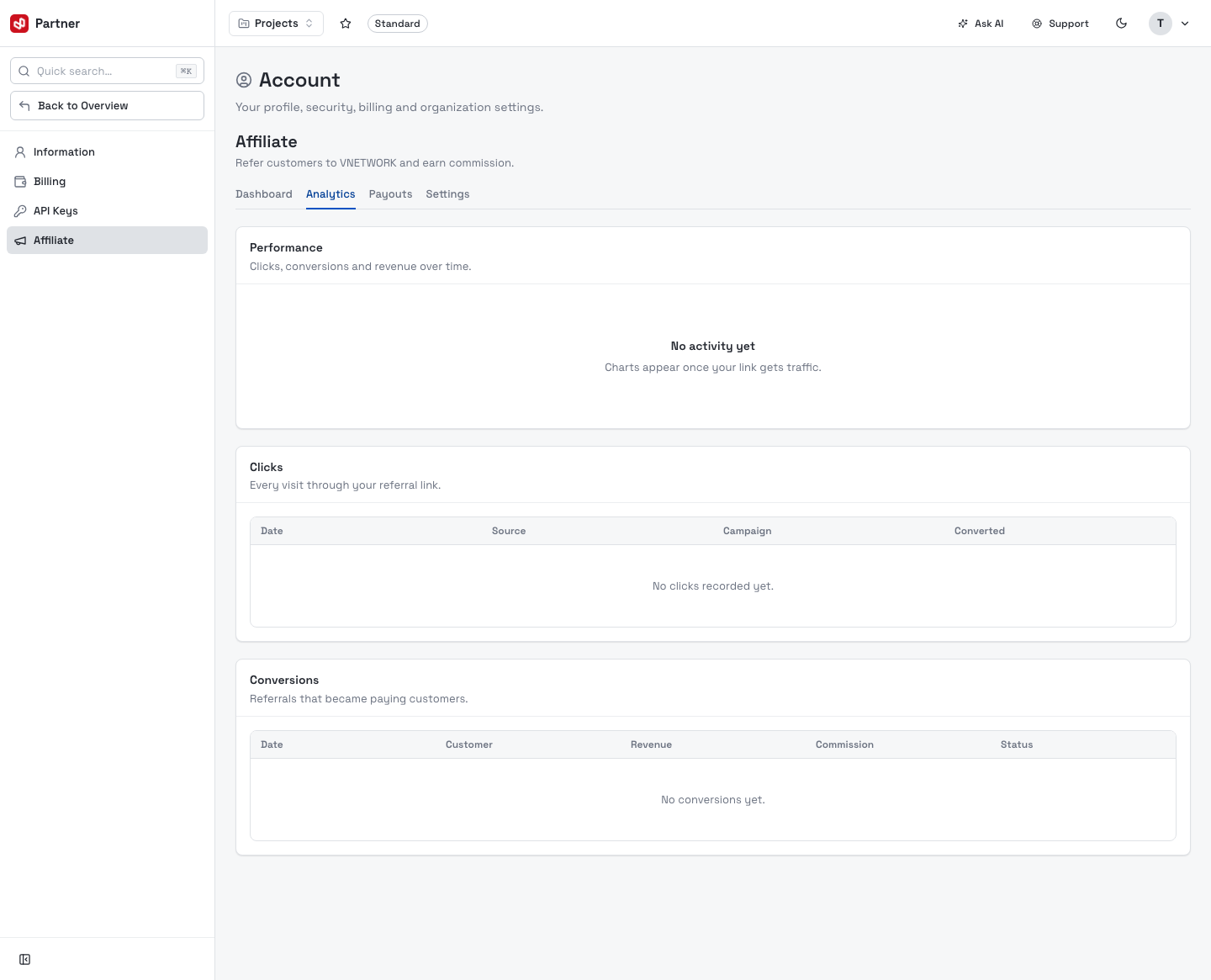
- Performance — clicks, conversions and revenue over time (charts appear once your link gets traffic).
- Clicks — every visit through your referral link (Date, Source, Campaign, Converted).
- Conversions — referrals that became paying customers (Date, Customer, Revenue, Commission, Status).
Payouts
Your commission balance and payout history.
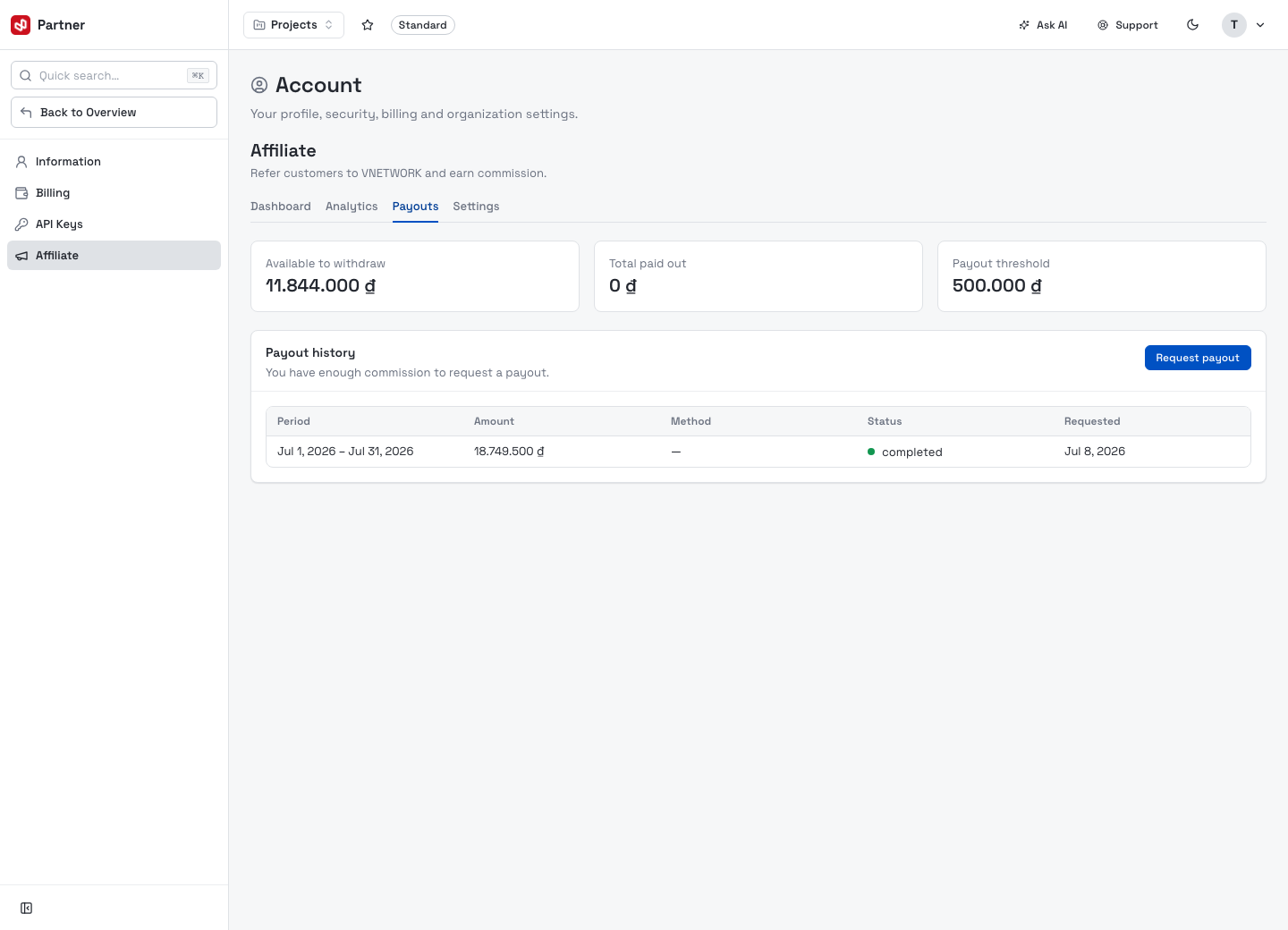
- Cards: Available to withdraw, Total paid out, Payout threshold.
- Request payout — enabled once your balance clears the threshold.
- Payout history — each period's amount, method, status and request date.
Settings
How you receive commission.
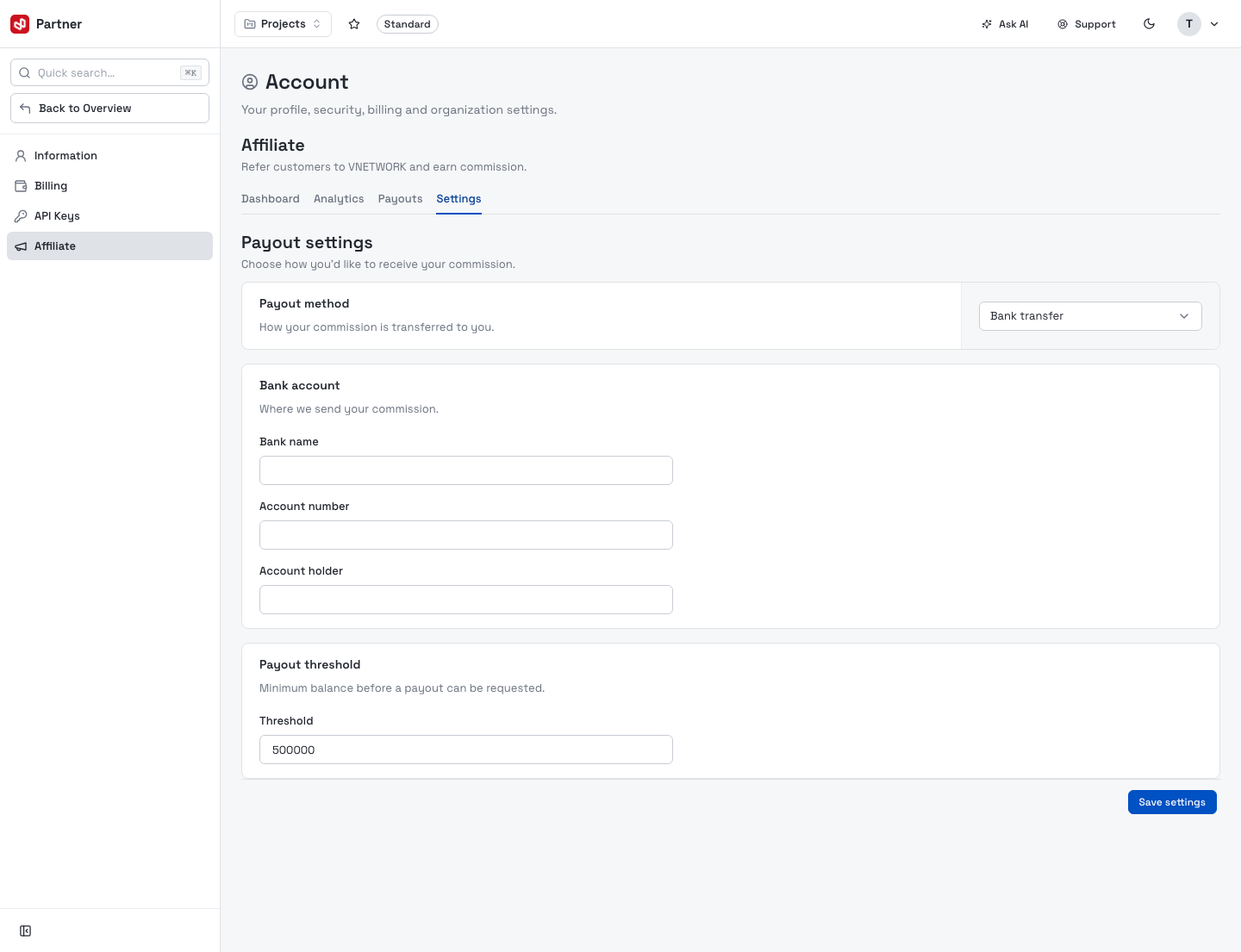
- Payout method — e.g. Bank transfer.
- Bank account — bank name, account number and account holder.
- Payout threshold — the minimum balance before a payout can be requested.
Click Save settings to apply.