Storage
The service-wide view of block storage: every volume, snapshot and backup in the service. (The per-instance views — a single instance's disks, snapshots and backups — live under Instances.)
Volumes
Manage all of the service's block disks in one place.
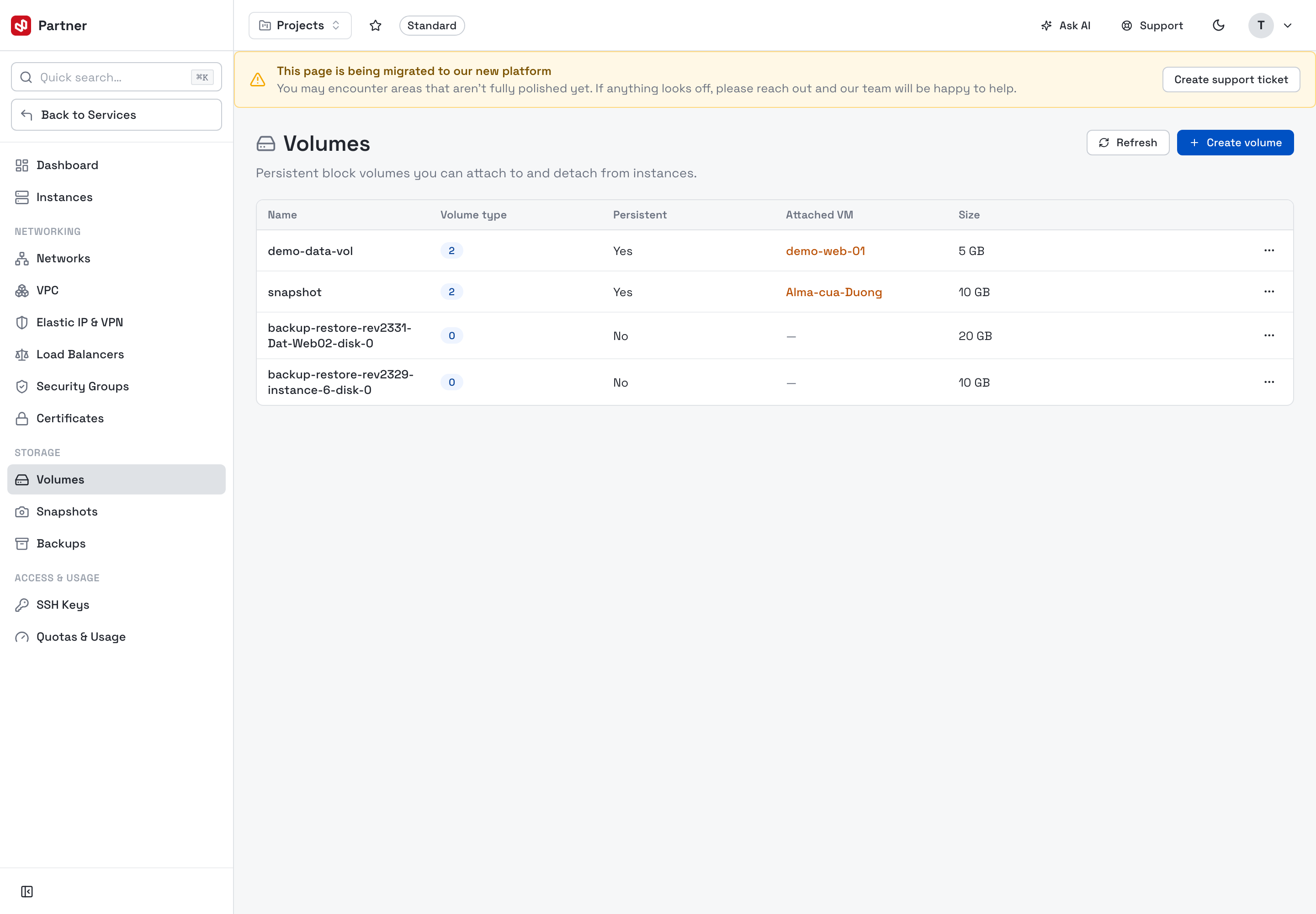
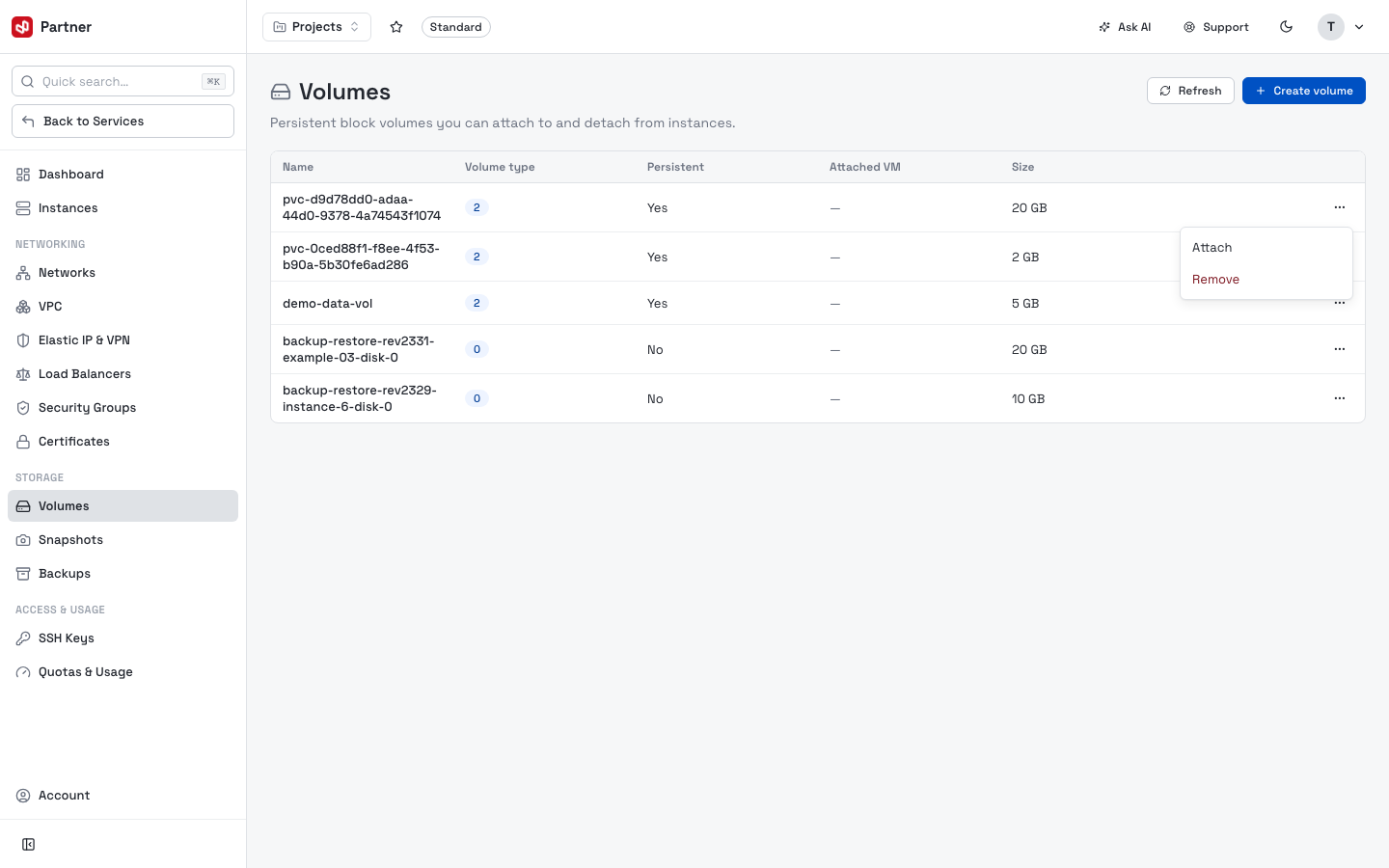
The table lists every volume with its Volume type, Persistent flag, Attached VM and Size. Each volume's … menu offers the actions available for its state — an unattached volume shows Attach and Remove; an attached one shows Resize, Detach and Snapshot.
Create a volume
Click Create volume:
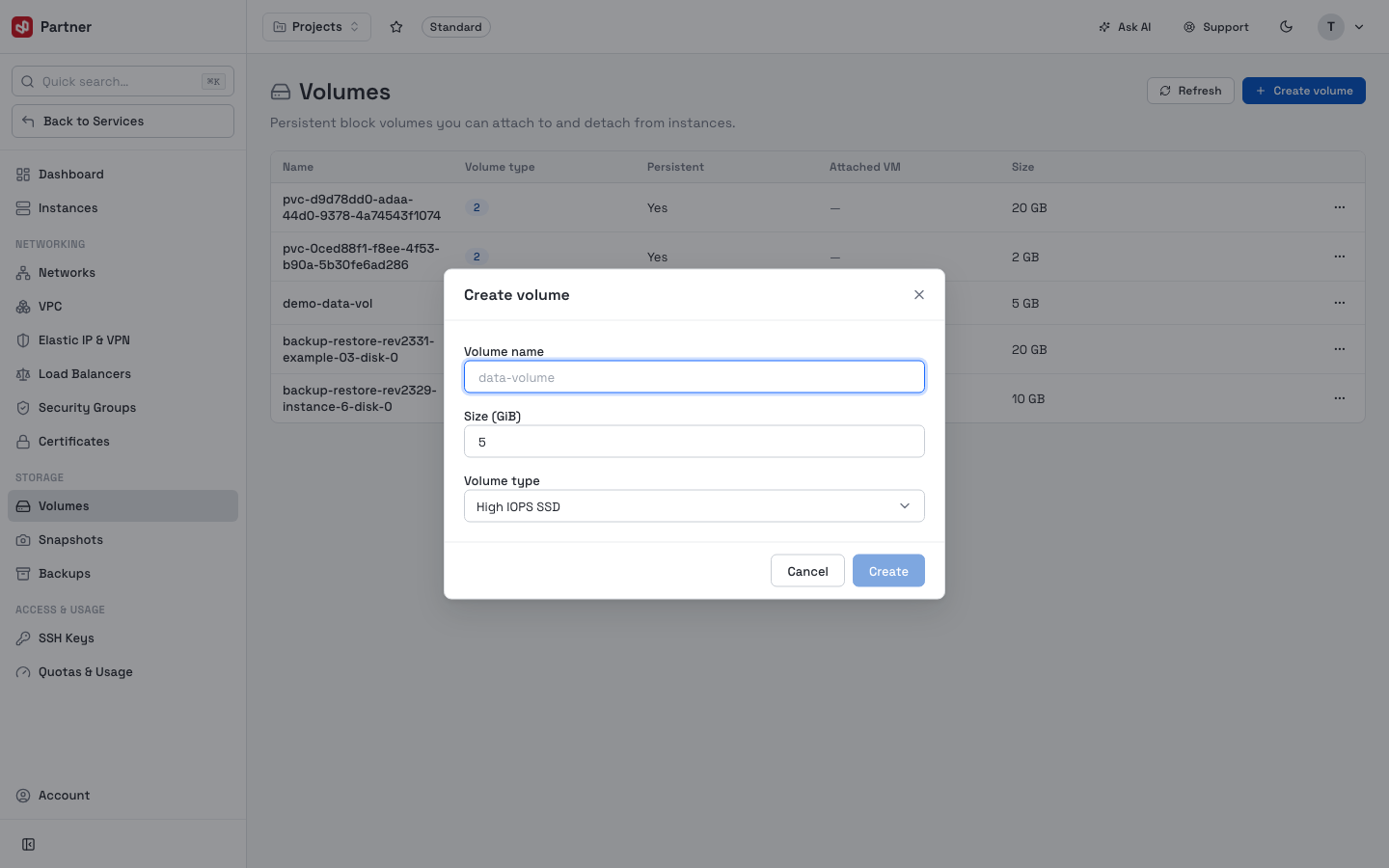
- Set a Volume name.
- Set the Size (GiB).
- Pick a Volume type (the storage tier).
- Create. The new volume appears in the list as unattached.
Attach, resize, detach
- Attach — bind an unattached volume to an instance. The instance and the volume must be in the same Zone. Once attached it appears under the instance's Volumes tab as a Data disk.
- Resize — grow a volume to a larger size (you cannot shrink).
- Detach — remove a Data disk from its instance; the data on the volume is kept. The System disk cannot be detached.
A volume is one disk attached to one instance at a time. To move data between instances, detach from one and attach to another (same zone), or use a snapshot.
Snapshots
The list of all disk snapshots in the service.
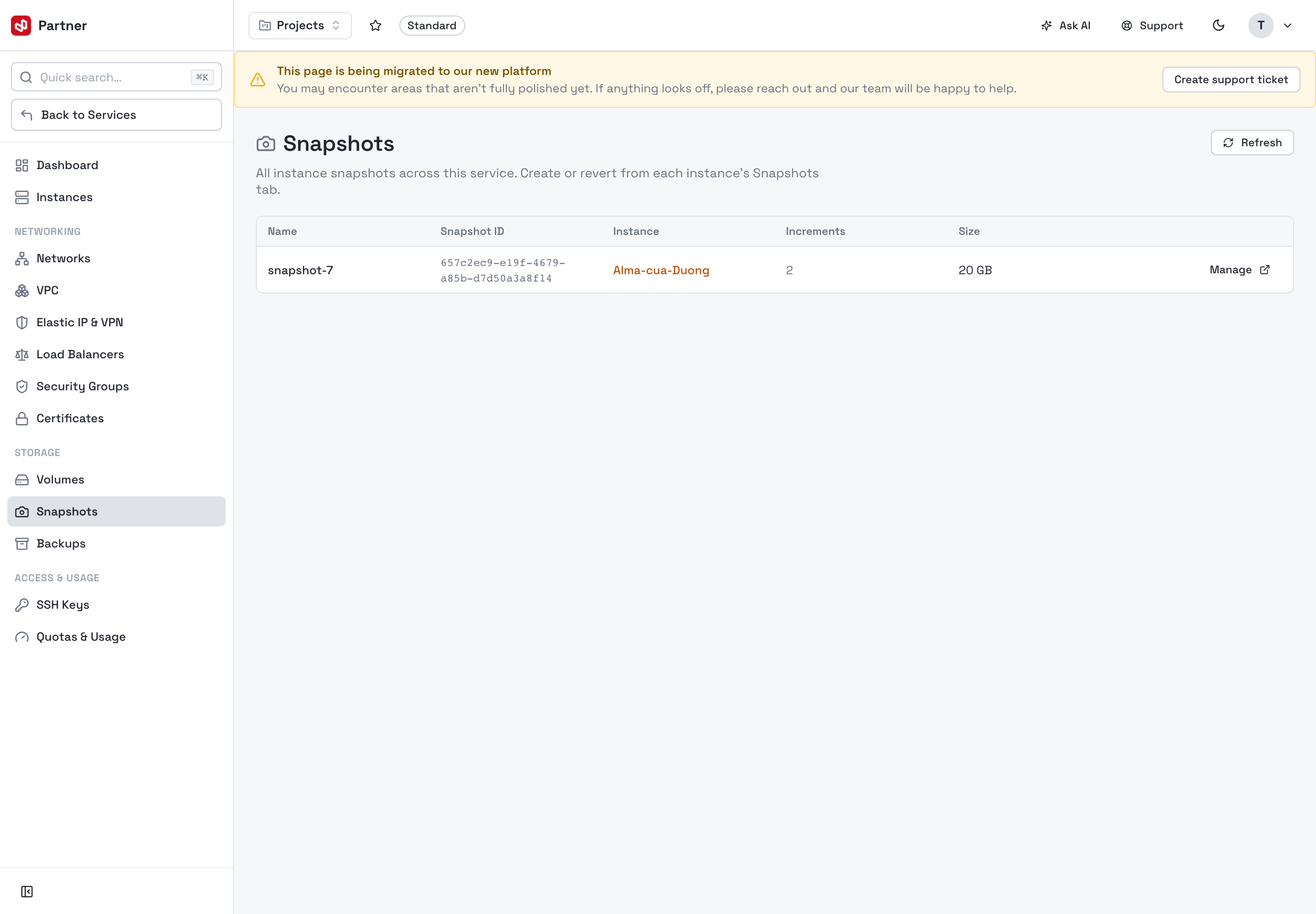
Columns: Name, Snapshot ID, Instance, Increments, Size. A snapshot captures a disk's state at a point in time so you can revert to it. Creating and restoring snapshots is done from each instance's Snapshots tab — this page is the service-wide inventory (and where you delete old ones to reclaim quota).
Backups
The list of all instance backups in the service.
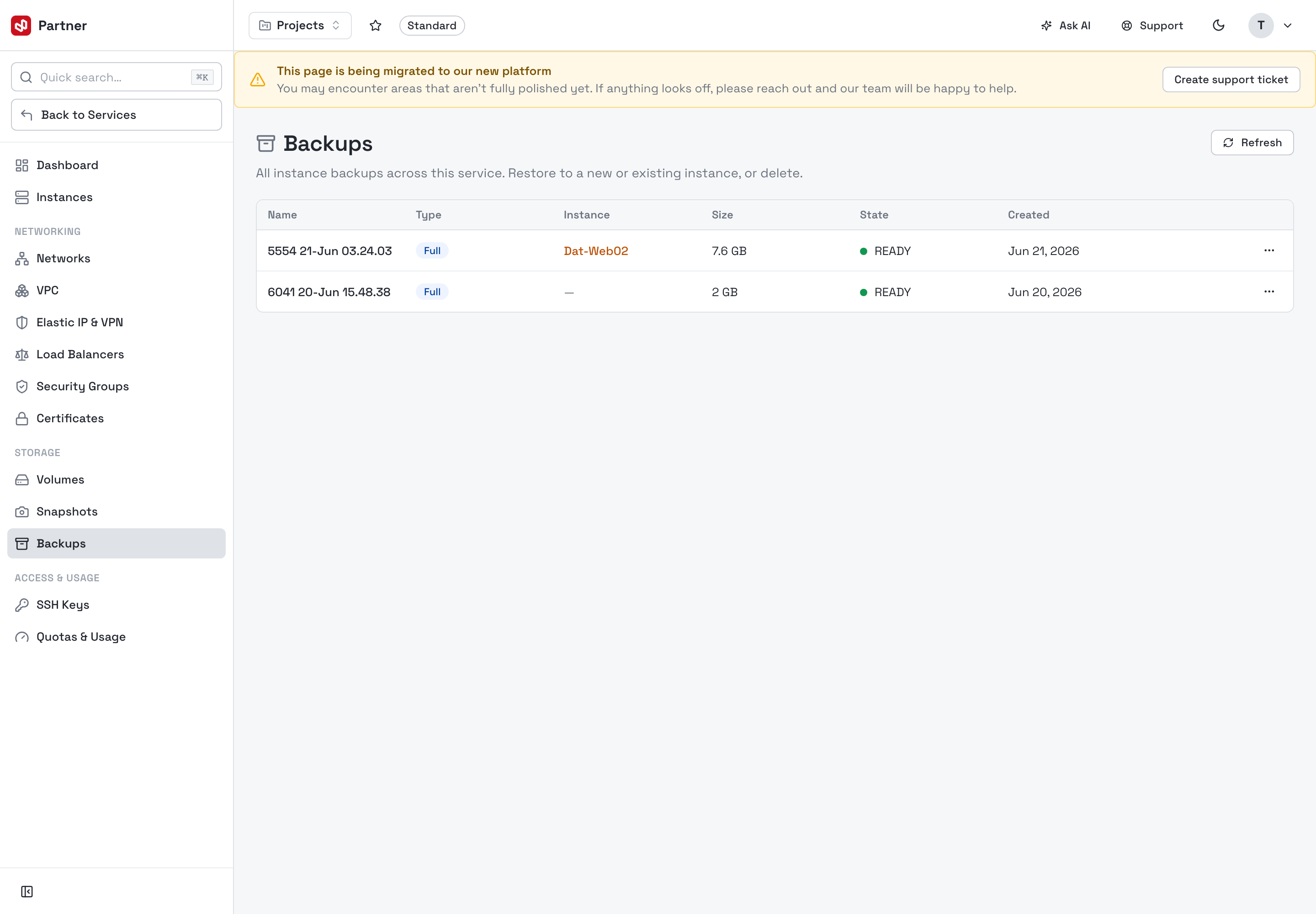
Columns: Name, Type, Instance, Size, State, Created. A backup is a full copy of an instance's disks. Each backup's … menu has Restore and Delete:
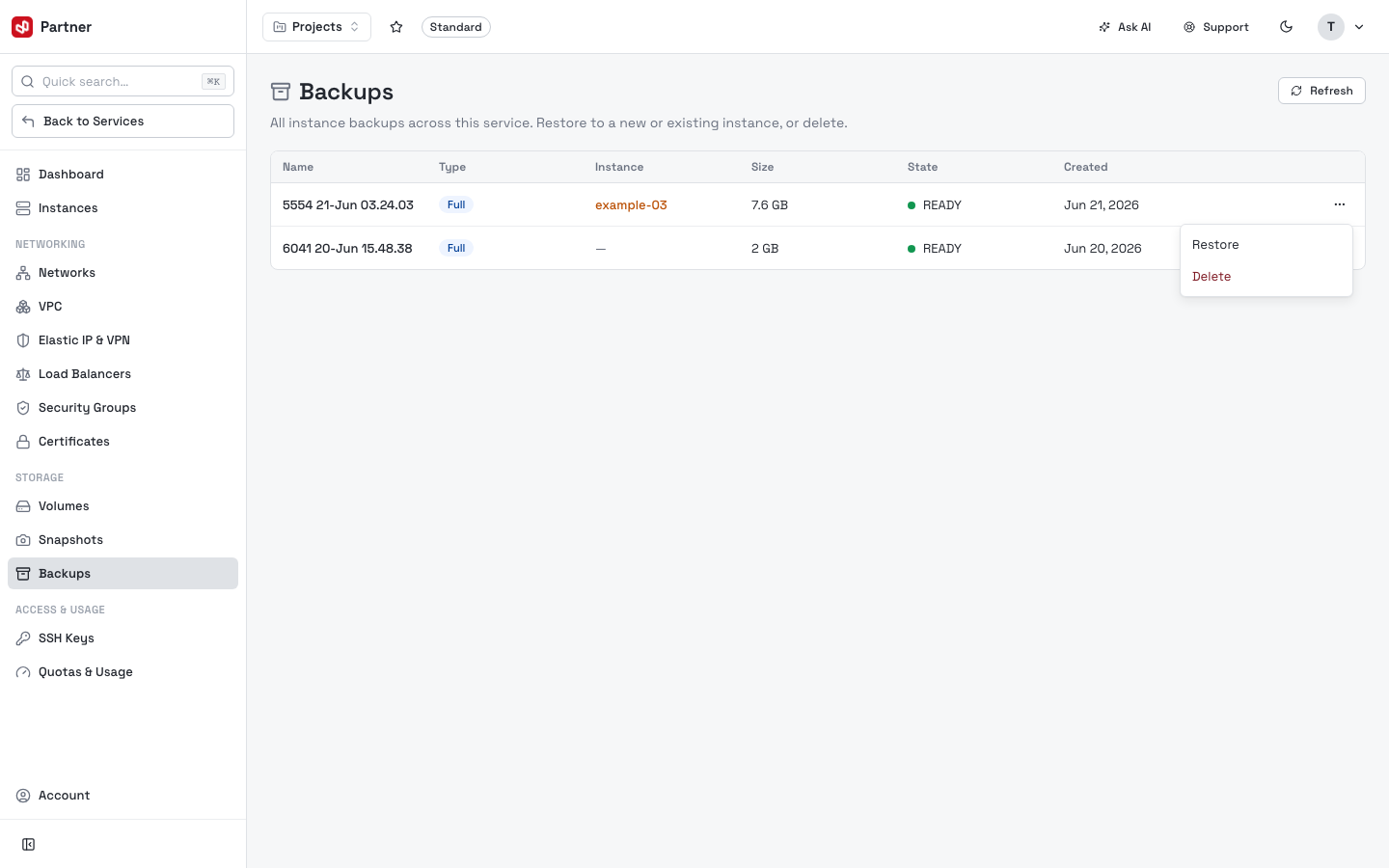
- Restore — bring the backup back, either to a new instance (clone) or to an existing instance (roll back).
- Delete — remove the backup to reclaim quota.
Create backups on demand or on a schedule from the instance's Backups tab.
Snapshots are quick, incremental and disk-scoped — good for a fast revert point before a change. Backups are full, instance-scoped copies — good for recovery and cloning. Use Scheduled actions on the instance to automate either.