Cloud Compute
Cloud Compute lets you launch and operate virtual machines (VMs) on VNETWORK's cloud infrastructure: create instances to the spec you want, manage storage (volumes, snapshots, backups) and networking (VPC, static IPs, VPN, load balancers, security groups, TLS certificates) and SSH keys, while tracking performance, traffic and billable quota — all in one console.
Each Cloud Compute service (for example Cloud Instances - 8064) has its own
console. Open it from Services → Compute → pick a Cloud Compute service, or at
/services/compute/<service-id>.
Some regions are being migrated to the new platform (a yellow banner appears at the top of the page). Sections marked Beta (such as Network traffic) are still being finished.
When to use it
Use Cloud Compute for self-managed servers — application backends, databases you run yourself, batch jobs — when you want full control of the OS and predictable VM pricing.
Activate
Cloud Compute is self-serve from the Partner Portal:
- Open Services → Compute → Cloud Compute.
- Review the plan and click Activate. VNETWORK provisions a Cloud Compute service for your current project.
- When provisioning finishes, the service card opens into its console — start on the Dashboard, then create your first instance.
Concepts & scope
| Concept | Scope | Role |
|---|---|---|
| Organization (Org) | Top level | Owns many projects and many Cloud Compute services. |
| Cloud Compute service | One console | A "block" of compute tied to a project; has its own instances, networking, storage and quota. |
| Instance (VM) | Inside a service | A virtual server with defined vCPU/RAM/disk/OS — the unit that runs your application. |
| Volume | Attached to an instance | A block disk for data; a System disk or an additional Data disk. |
| Network / VPC | Inside a service | A shared public network or an isolated private network (VPC) for instances. |
| Security Group | Inside a service | A set of firewall rules (inbound/outbound) assigned to an instance's NIC. |
- The console operates on the currently selected Cloud Compute service (its display name is shown at the top, e.g. Cloud Instances - 8064).
- Each instance sits in a Zone (availability zone); a volume and an instance must be in the same zone to attach.
- Every page runs on the new platform's API v3; the yellow banner notes that some regions are still being finished.
The console & navigation
Inside a Cloud Compute service, the left navigation switches to the service scope, grouped into four clusters:
- Dashboard · Instances
- NETWORKING — Networks · VPC · Elastic IP & VPN · Load Balancers · Security Groups · Certificates
- STORAGE — Volumes · Snapshots · Backups
- ACCESS & USAGE — SSH Keys · Quotas & Usage
Use Back to Services to return to the service list.
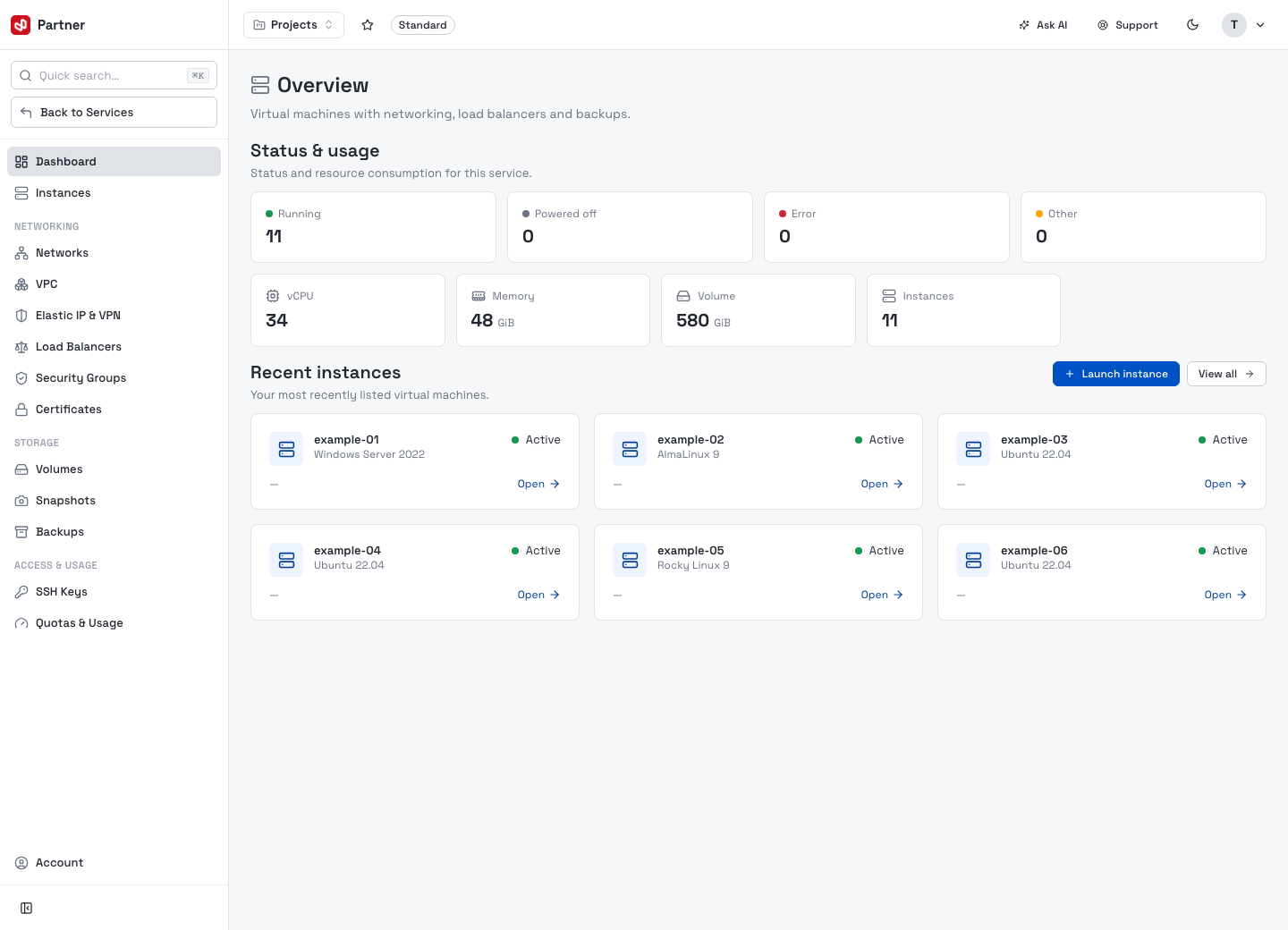
Dashboard
The Dashboard gives a quick view of the service's resources and health.
| Area | Meaning |
|---|---|
| Status & usage | Distribution of instance states: Running / Powered off / Error / Other. |
| Resource cards | Total vCPU, Memory (GiB), Volume (GiB) and number of Instances allocated. |
| Recent instances | A grid of recent VMs with name, OS, state (Active) and an Open link to their detail. |
| Launch instance | Button to create a new VM. |
How it fits together
A Cloud Compute service carries the quota and zone. Inside it you run instances; each instance uses storage (volumes, snapshots, backups) and connects through networking (networks/VPC, elastic IPs, security groups, load balancers), authenticated by SSH keys and certificates. Quotas & Usage measures both the service and each instance for billing.
Cloud Compute service (Quota + Zone)
├── Instance (VM: vCPU/RAM/OS)
│   ├── Storage — Volume · Snapshot · Backup
│   ├── Networking — Network/VPC · Elastic IP · Security Group · LB
│   └── Access — SSH Keys · Certificates
└── Quotas & Usage (metering & billing)
In this guide
- Instances — list, create wizard, detail, lifecycle actions, monitoring, network, volumes, snapshots, backups, resize.
- Networking — networks, VPC, elastic IP & VPN, load balancers, security groups, certificates.
- Storage — volumes, snapshots, backups.
- Access & Usage — SSH keys, quotas & usage, and important operating notes.