Networking
Networking connects and protects your instances: shared and private networks, static IPs and VPN, managed load balancers, firewall rules and TLS certificates. Each area below is a page under the console's NETWORKING group.
Networks
Manage the service's networks across three tabs.
-
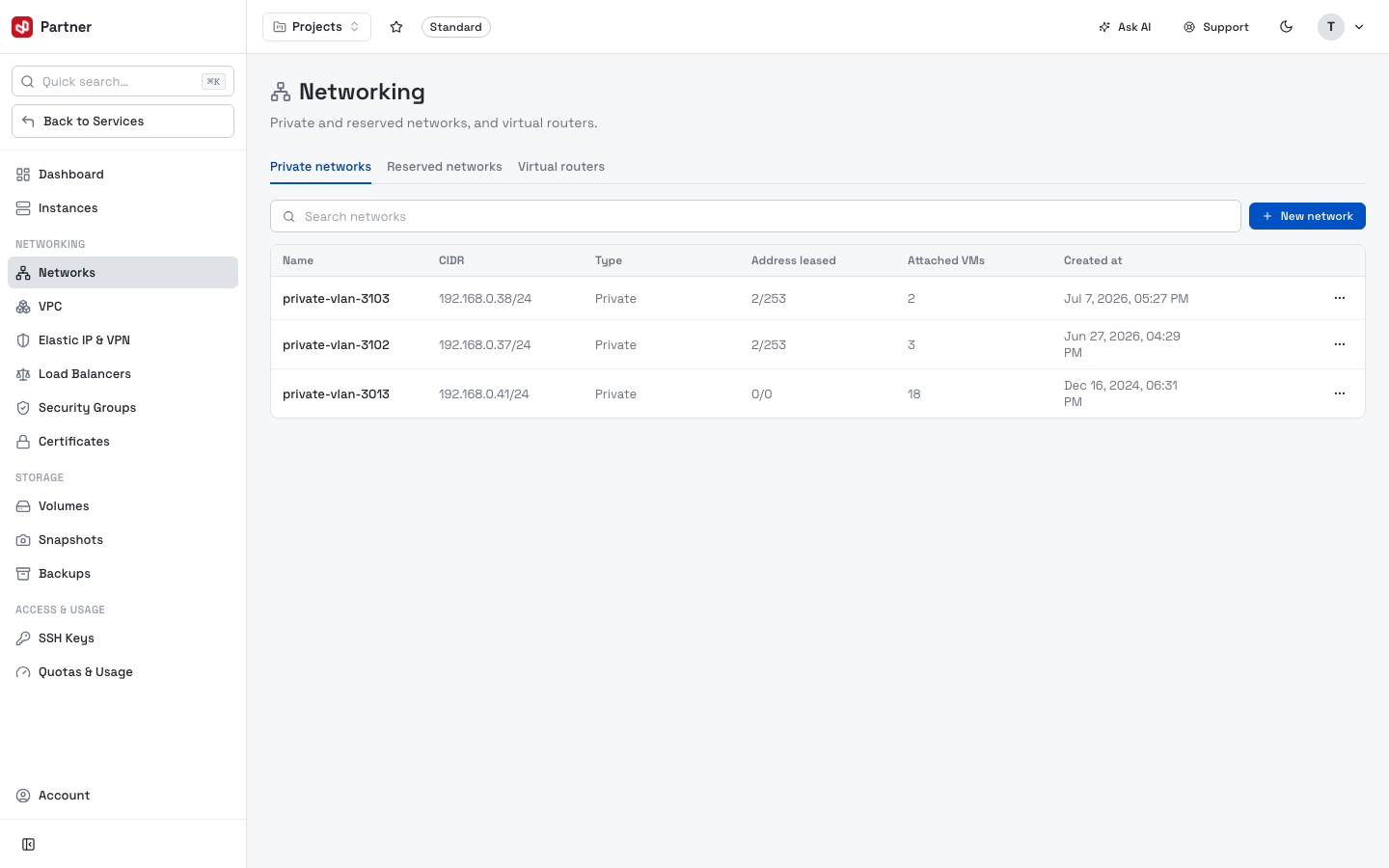
Private networks — the isolated L2 networks your instances attach to. Each row shows the network name, CIDR and the instances using it.
-
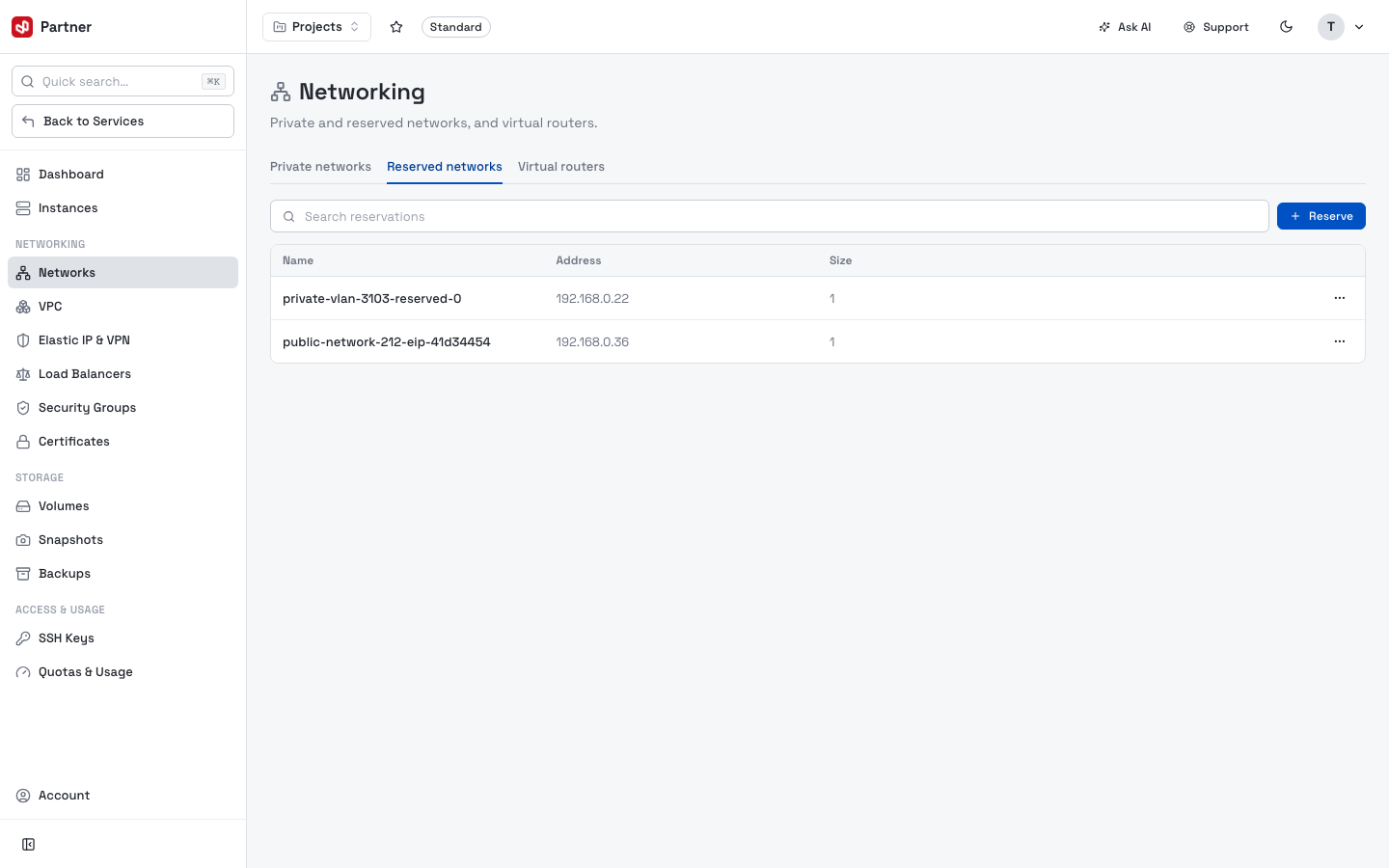
Reserved networks — address ranges reserved within the service so they aren't auto-assigned.
-
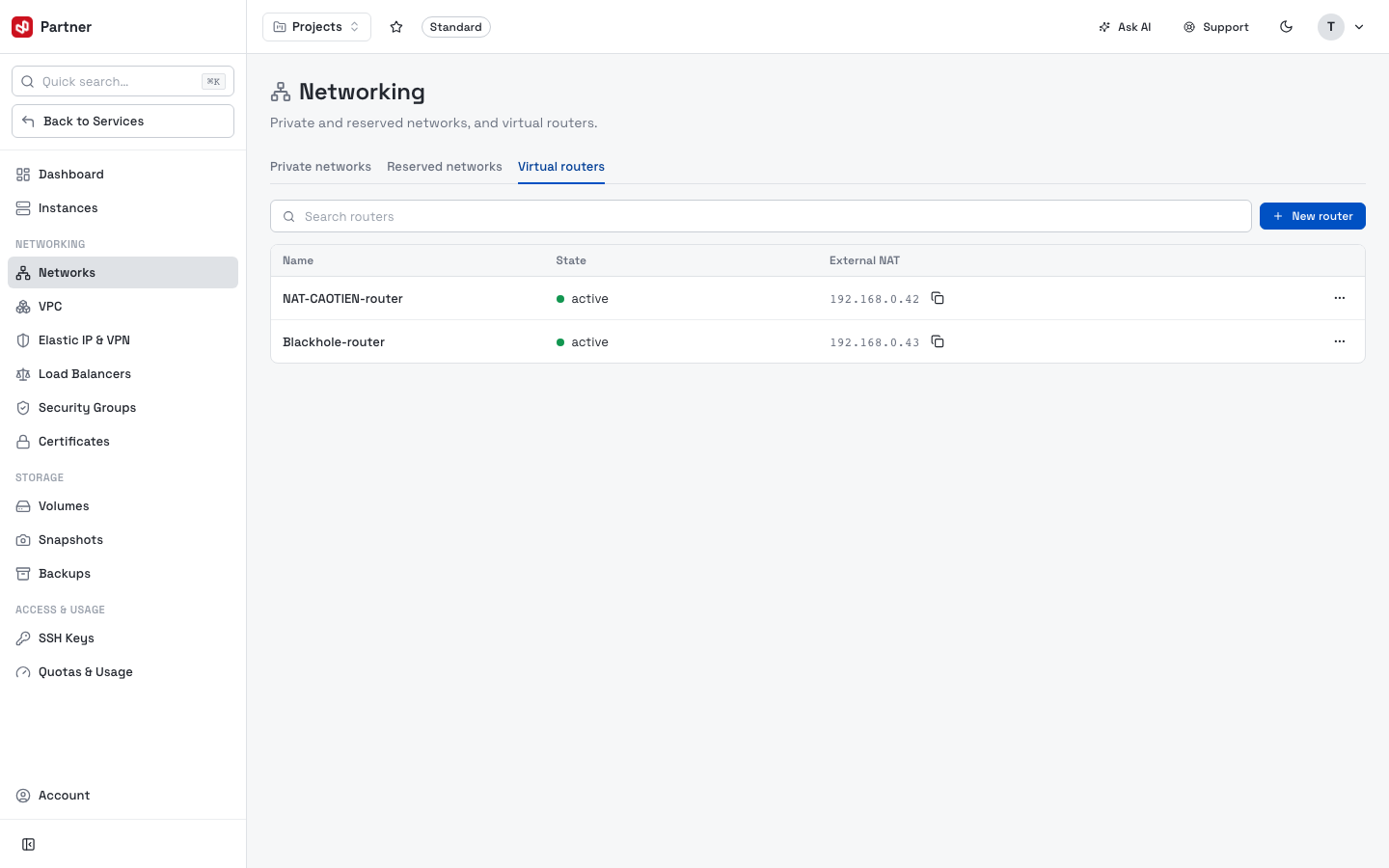
Virtual routers — routers that connect private networks together and out to the internet. Open a router to see the networks it links.
Create a network
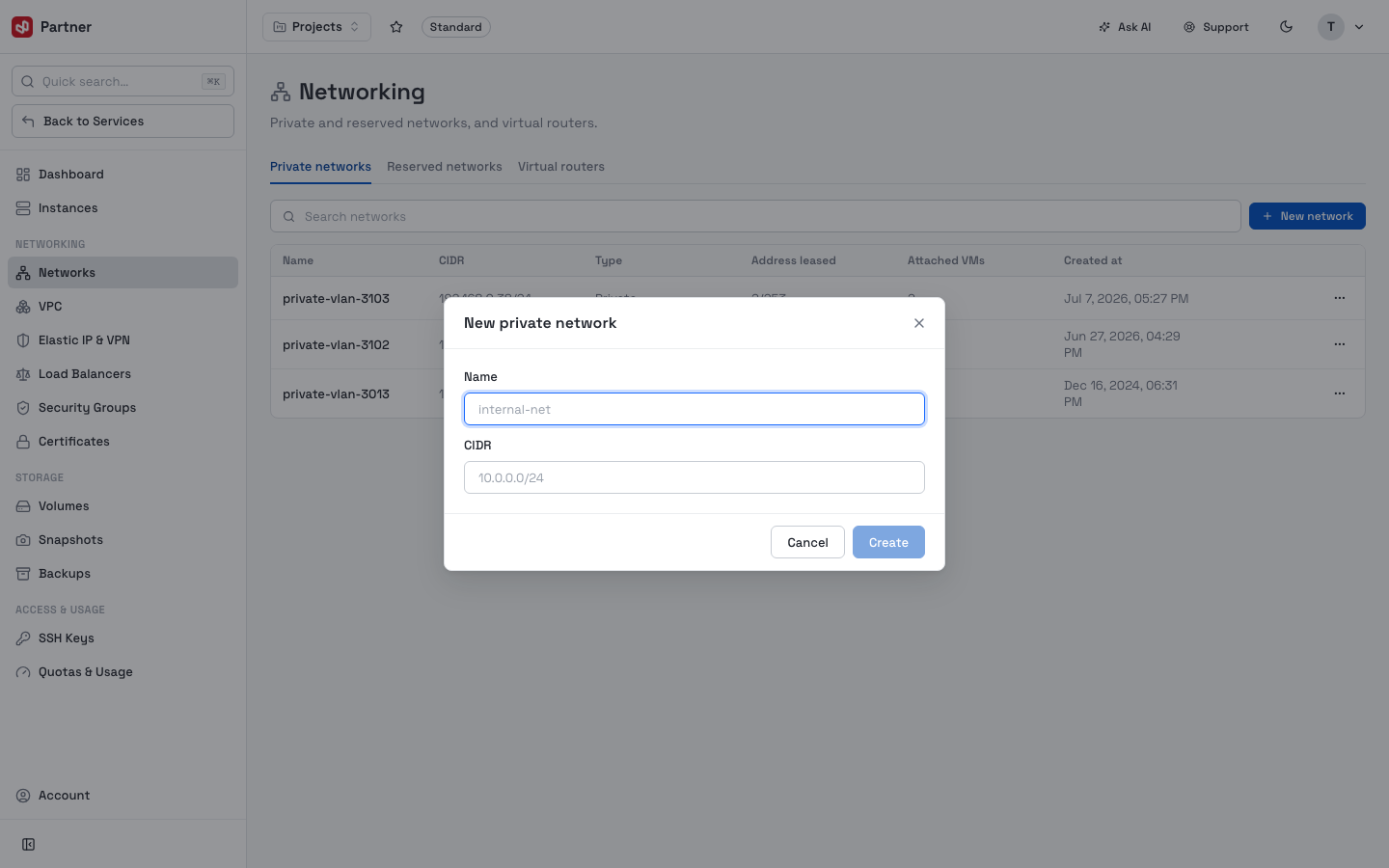
On the Private networks tab, click New network, give it a name and a CIDR range, and create it. The network then appears as a choice when you create an instance or attach a NIC.
Each network row has a … menu to manage or remove it.
VPC
A Virtual Private Cloud is an isolated private network with its own address space.
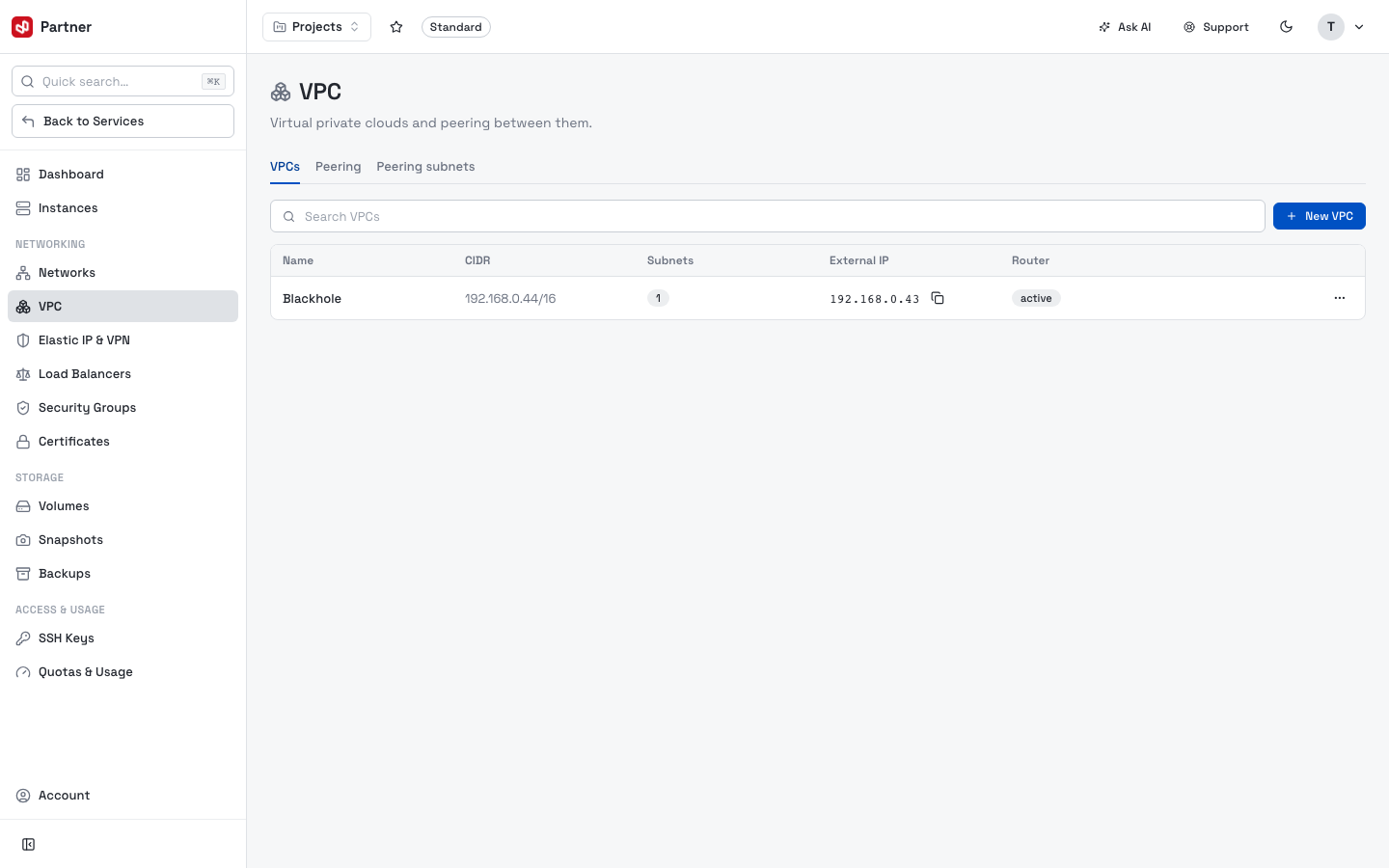
The list shows Name, CIDR, Subnets, External IP, Router, Status.
Create a VPC
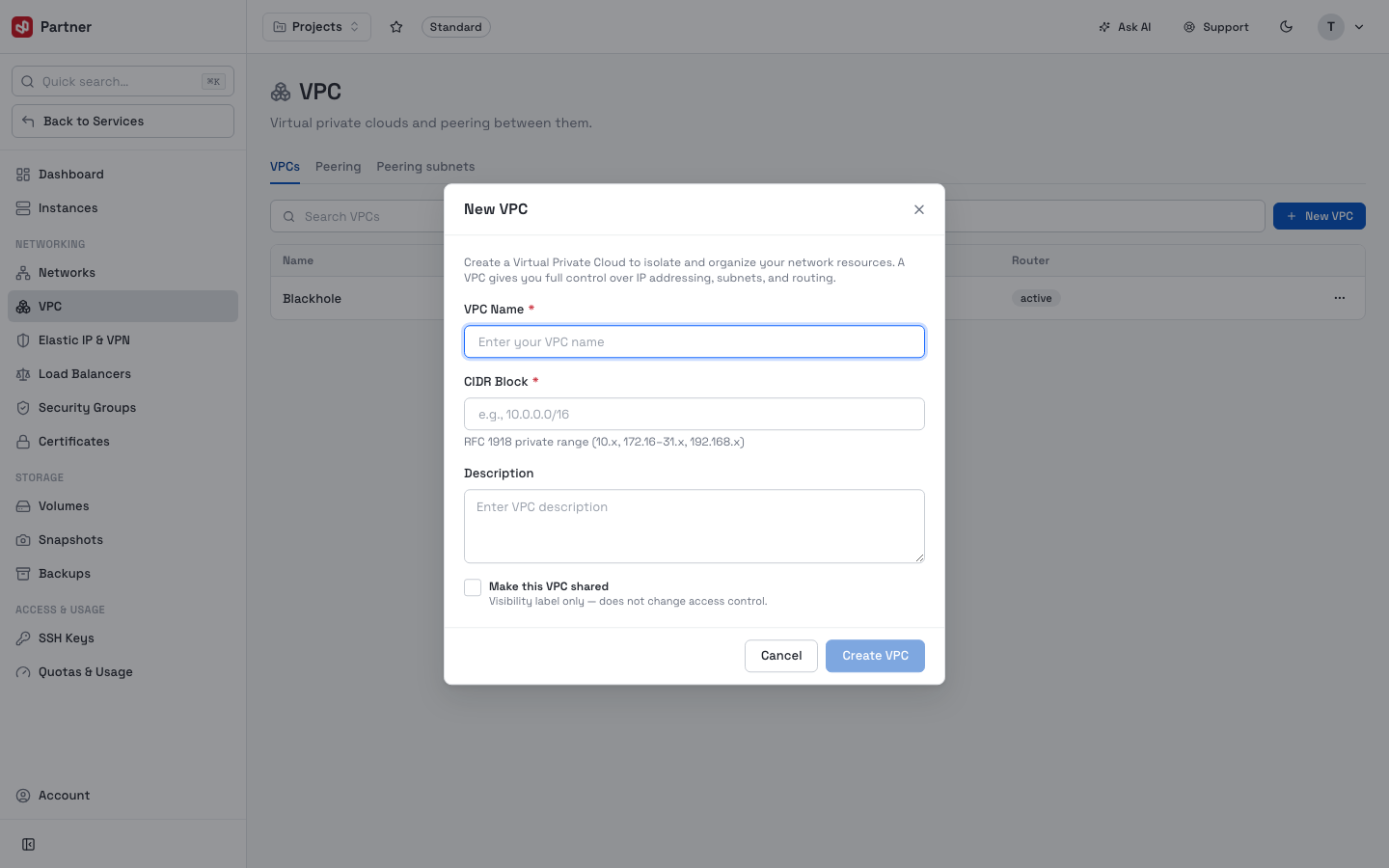
Click New VPC, give it a name and a CIDR block, and create it — the VPC provisions its own router and can then host subnets and instances.
Peering
Two VPCs can be connected so instances in one reach the other privately.
-
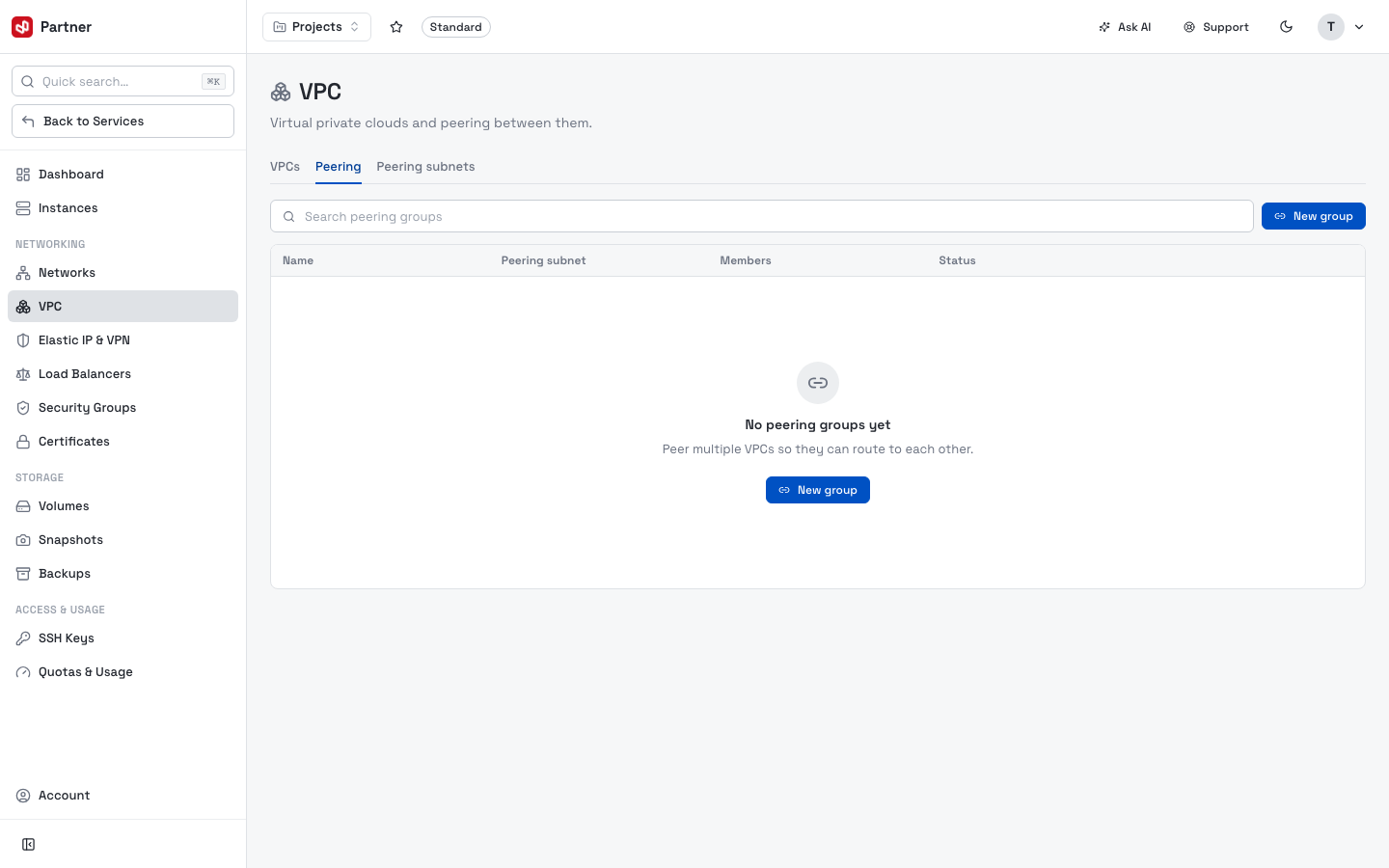
Peering — the peer connections between VPCs.
-
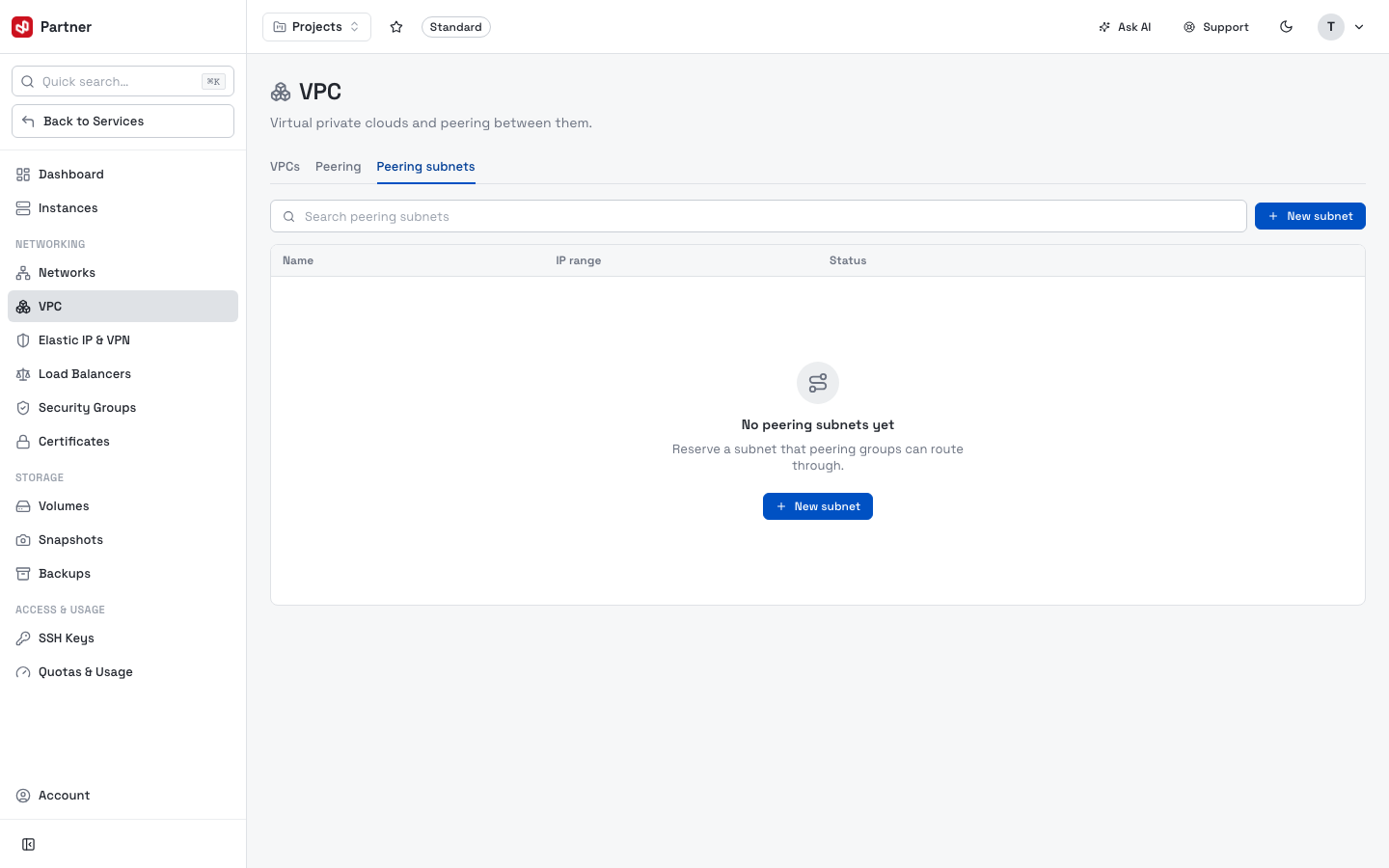
Peering subnets — which subnets are exposed across a peering.
Elastic IP & VPN
This page has six tabs covering static public IPs and site-to-site VPN.
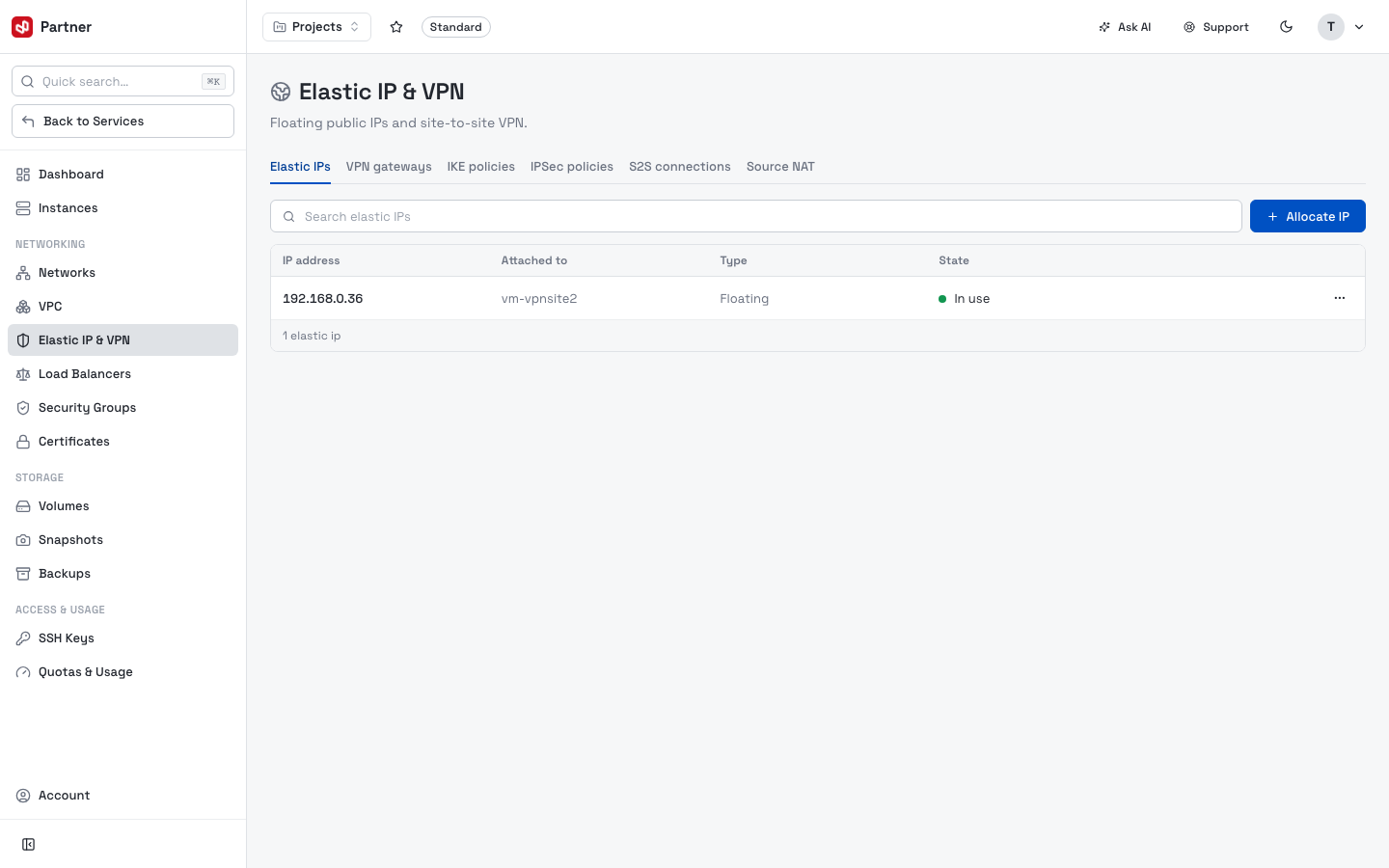
Elastic IPs
Static public IPs (floating IPs) you reserve for the service and then assign to an instance. The table shows each IP's Attached to, Type and State (Available = reserved but unassigned, In use = attached).
Allocate IP immediately reserves a new IP (there's no form) — it appears in the list as Available. Each IP's … menu then has Attach to instance and Release:
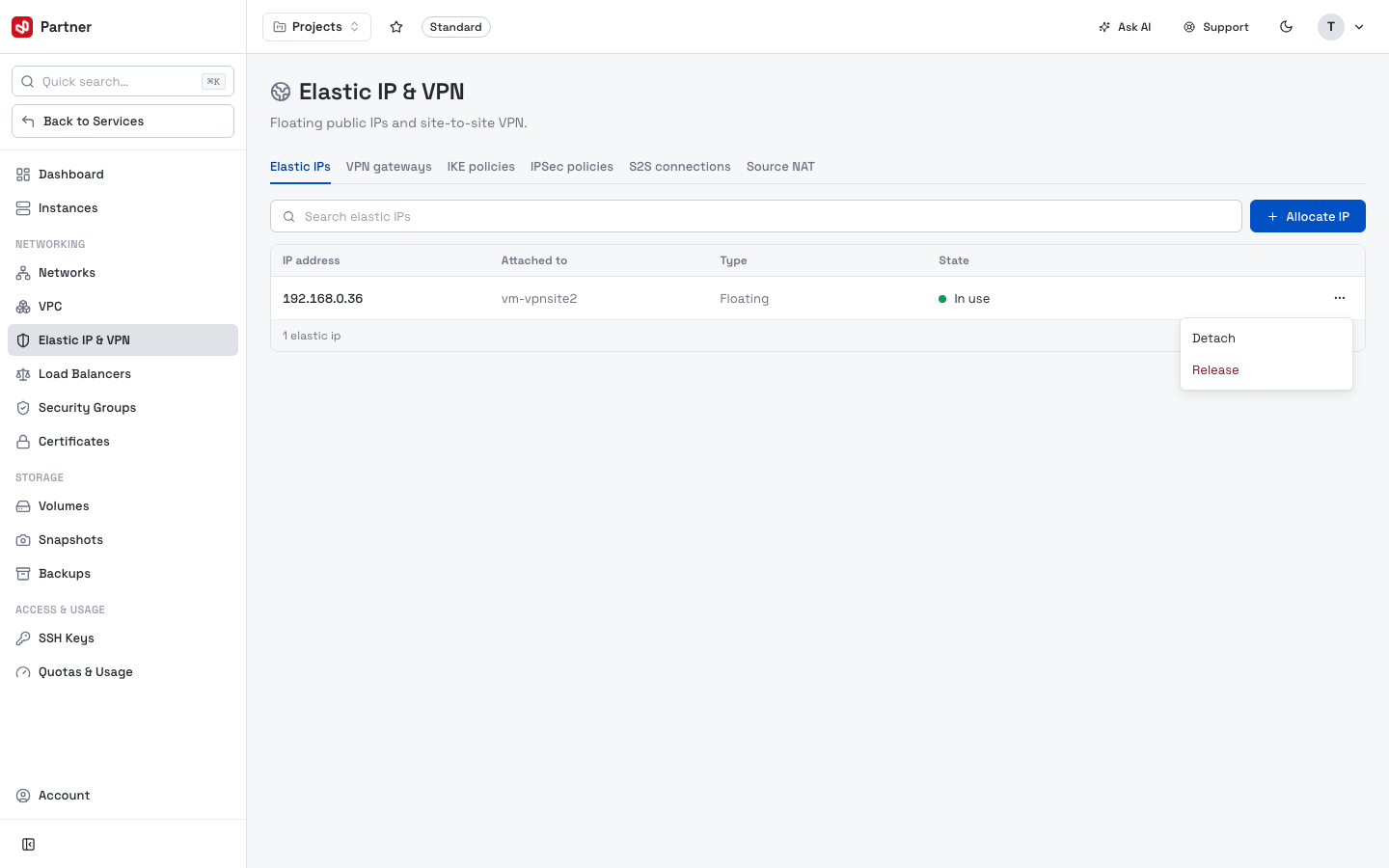
-
Attach to instance — bind the IP to a running instance (also reachable from the instance's Network tab → Attach floating IP).
-
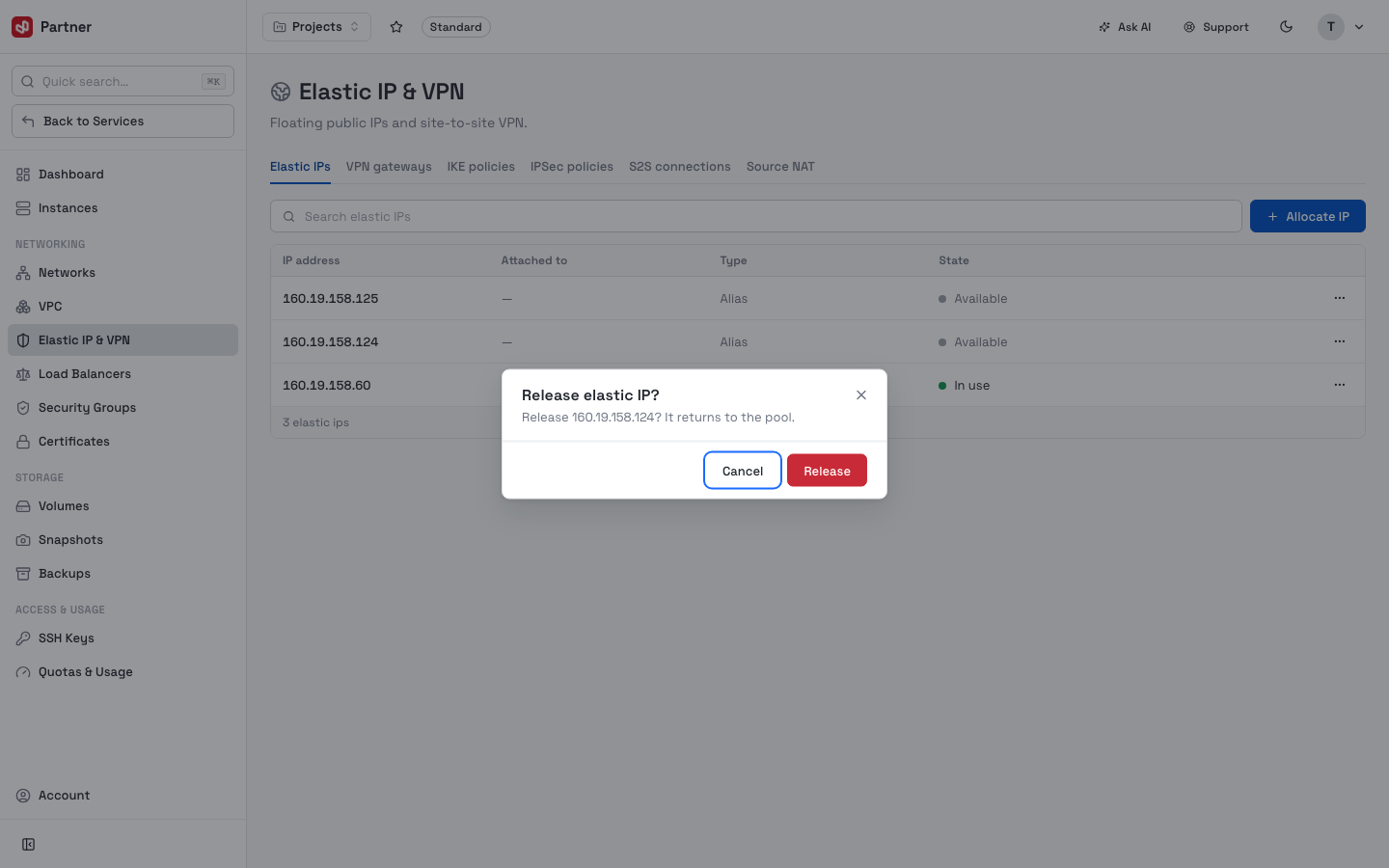
Release — return the IP to the pool. The console asks you to confirm, since the IP goes back to the shared pool and you may not get the same address again. Release IPs you no longer need so they don't keep counting against quota.
Work through the tabs in order: create a VPN gateway, define an IKE policy and an IPSec policy to match your peer, then create the S2S connection that ties them together. Source NAT is separate (outbound internet for private instances).
VPN gateways
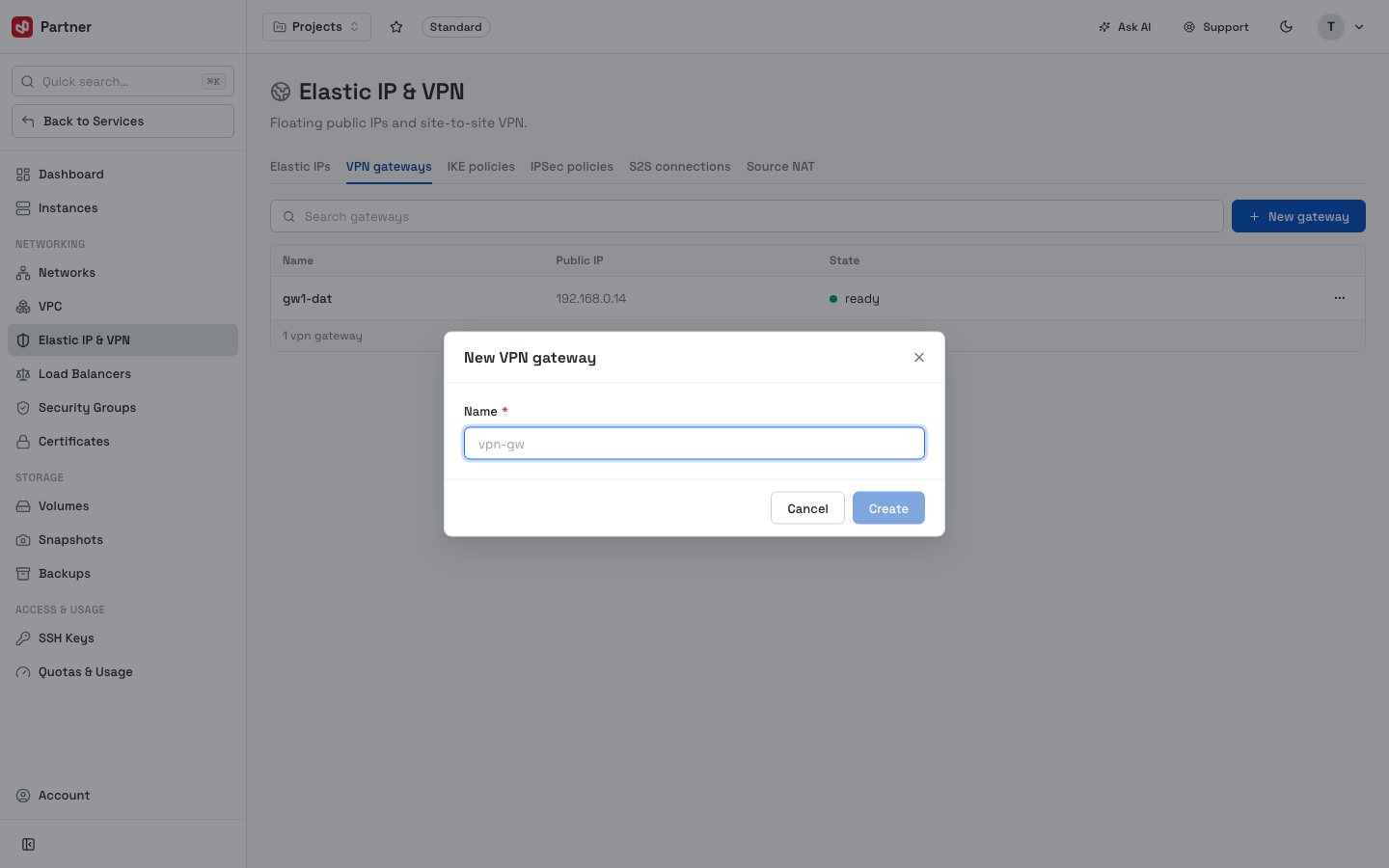
VPN endpoints that connect your cloud network to an on-premise network. Each gateway gets a public IP.
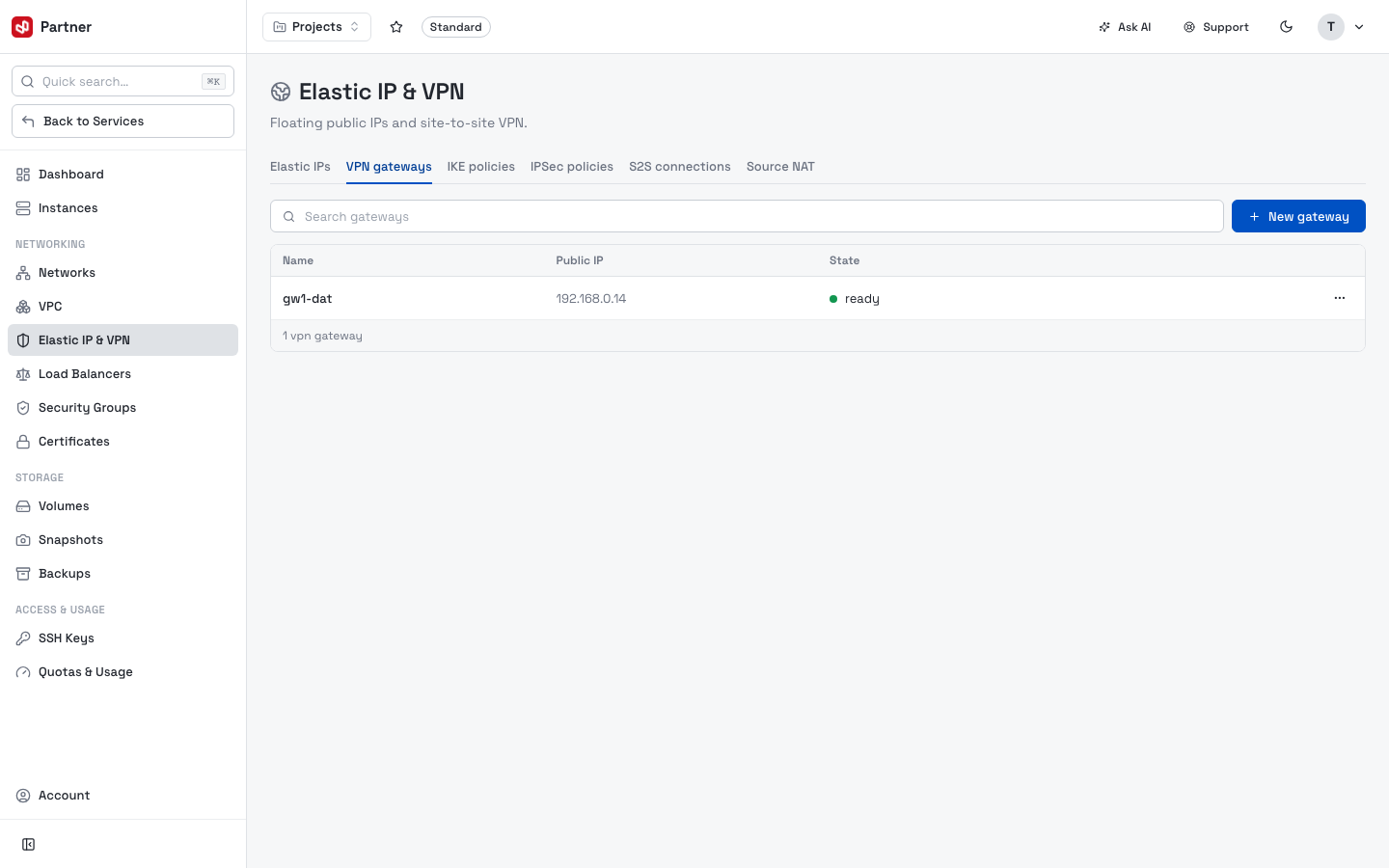
Click New gateway and give it a name — the gateway provisions with a public IP you then reference in an S2S connection.
IKE & IPSec policies
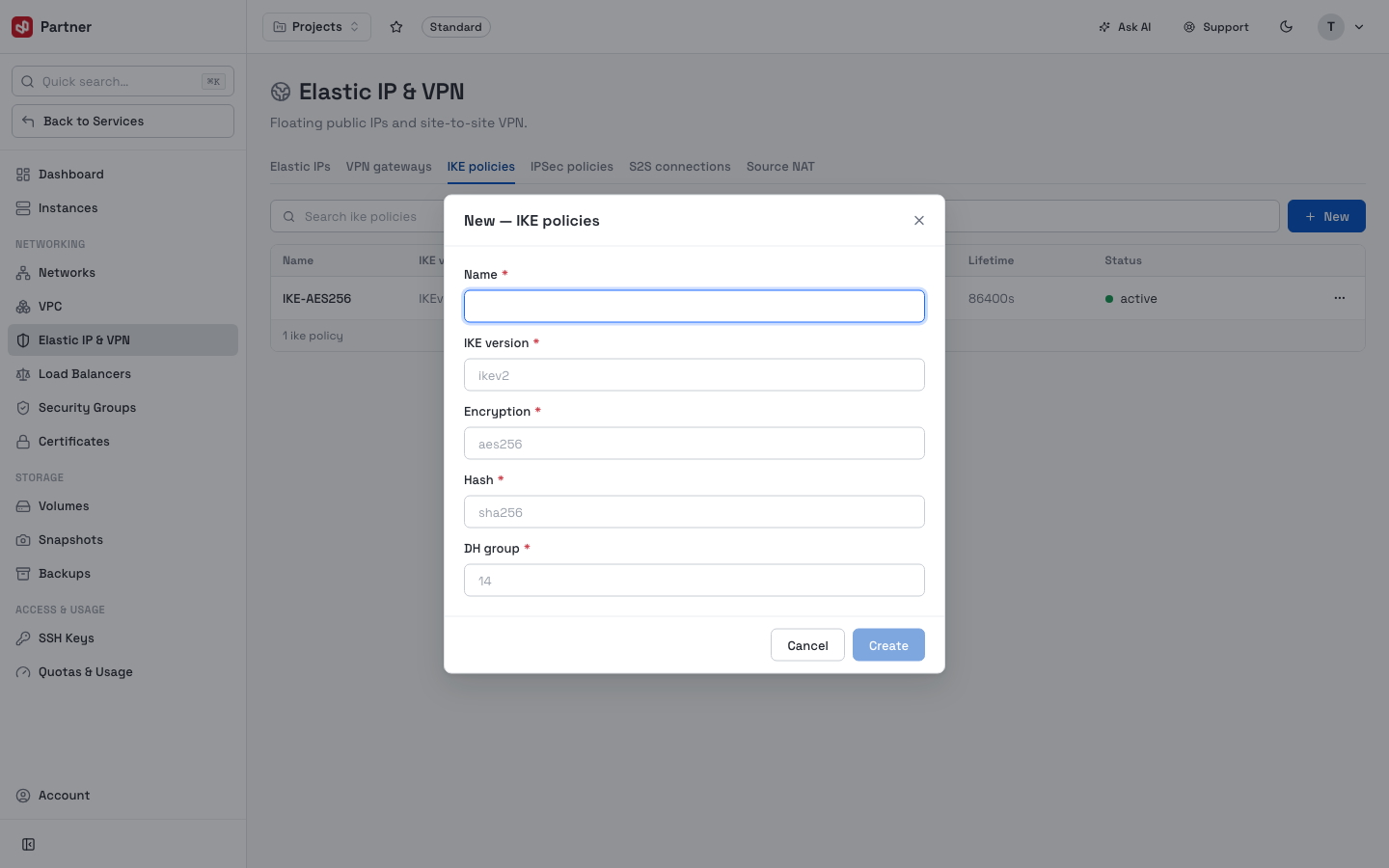
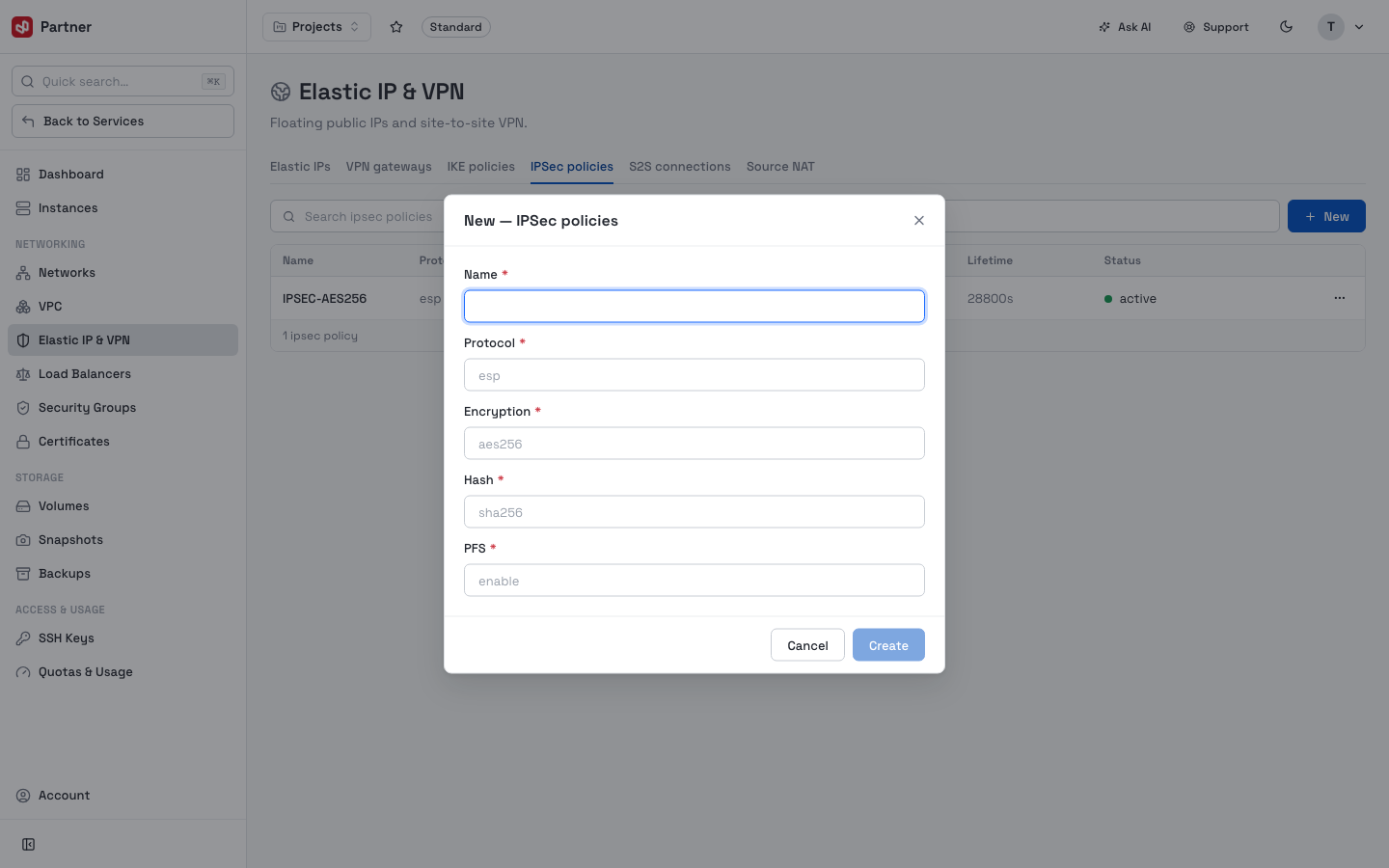
The cryptographic policies a tunnel negotiates with. Define an IKE policy (phase 1) and an IPSec policy (phase 2) whose parameters match your peer device exactly.
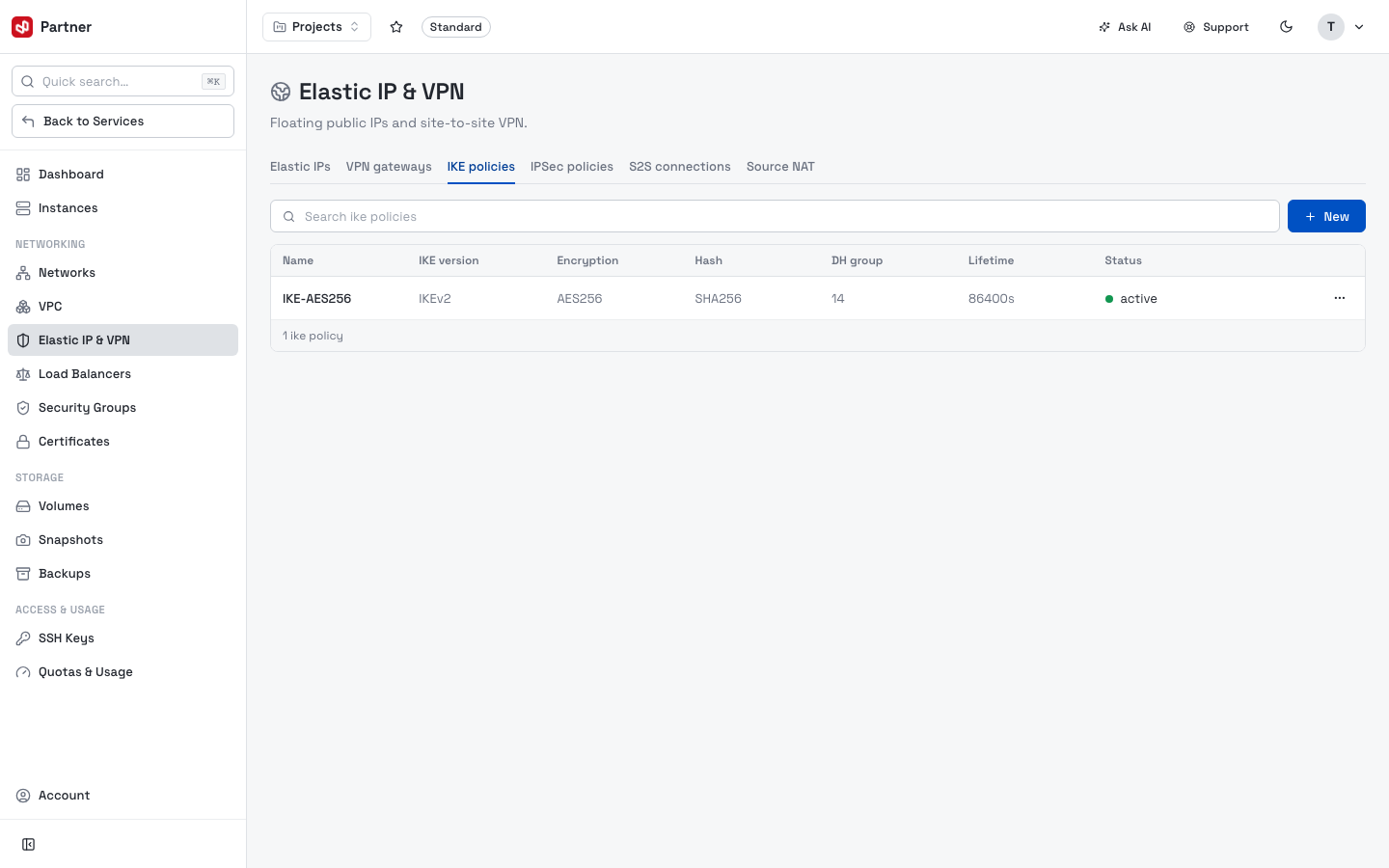
Create each with New — set the encryption/authentication/DH-group parameters to match the far end.
S2S connections
A site-to-site connection ties a VPN gateway to a peer using the IKE/IPSec policies.
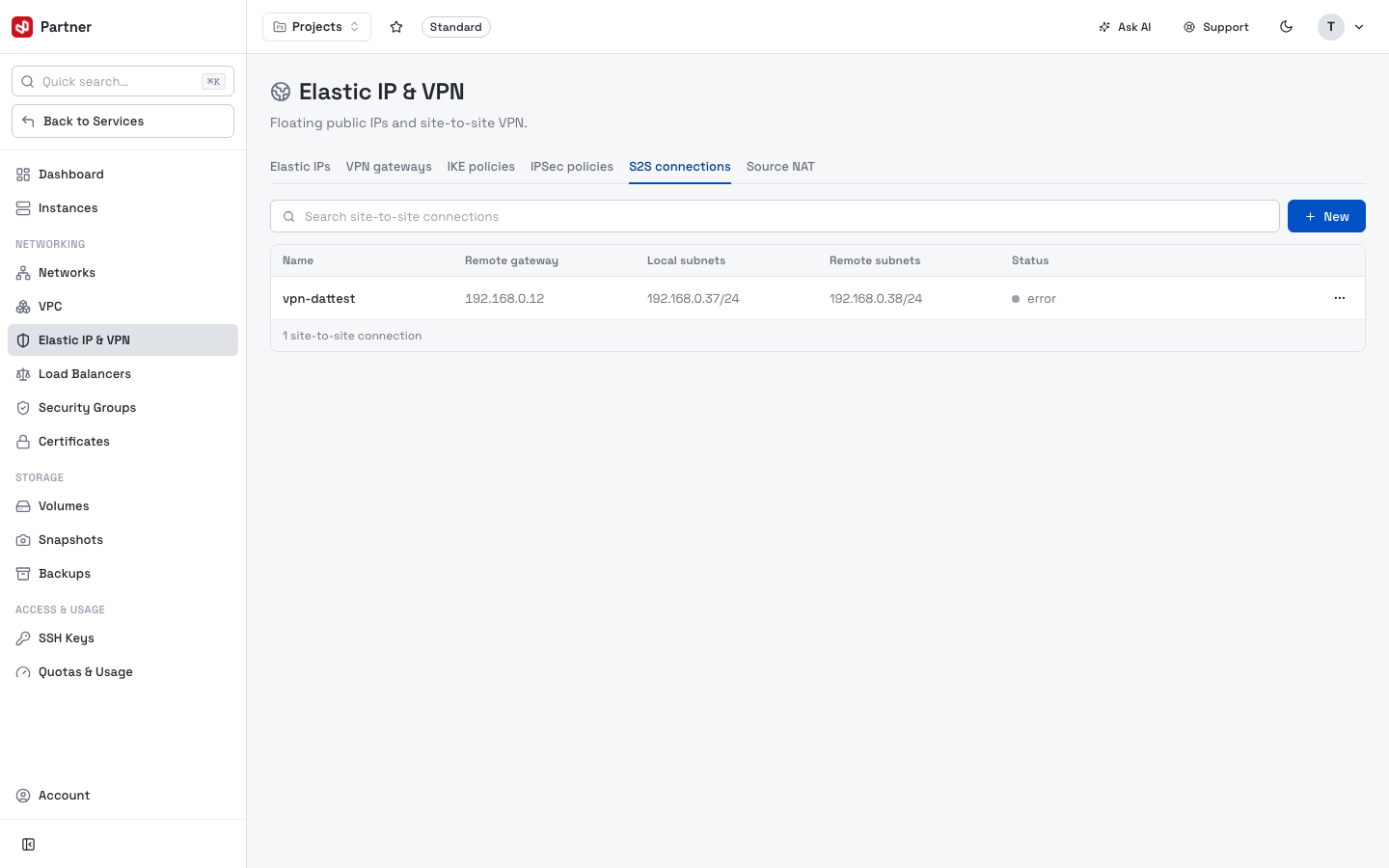
Click New and fill the tunnel details:
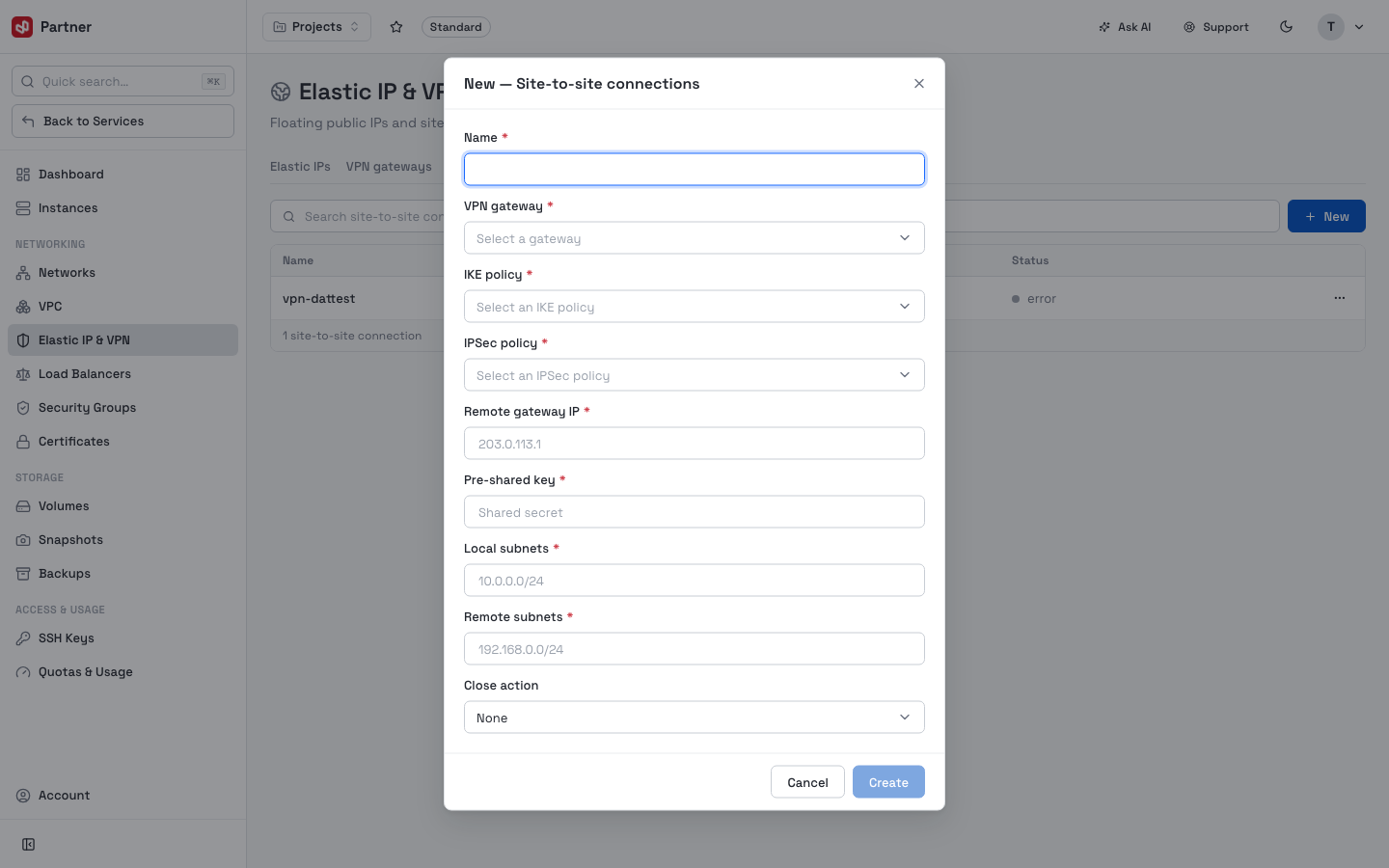
- Name, and the VPN gateway this tunnel runs on.
- IKE policy and IPSec policy (the ones you defined above).
- Remote gateway IP — your peer's public IP.
- Pre-shared key — the shared secret configured on both ends.
- Local subnets / Remote subnets — the CIDRs on each side that may talk over the tunnel.
- Close action — what to do when the tunnel goes down.
Source NAT
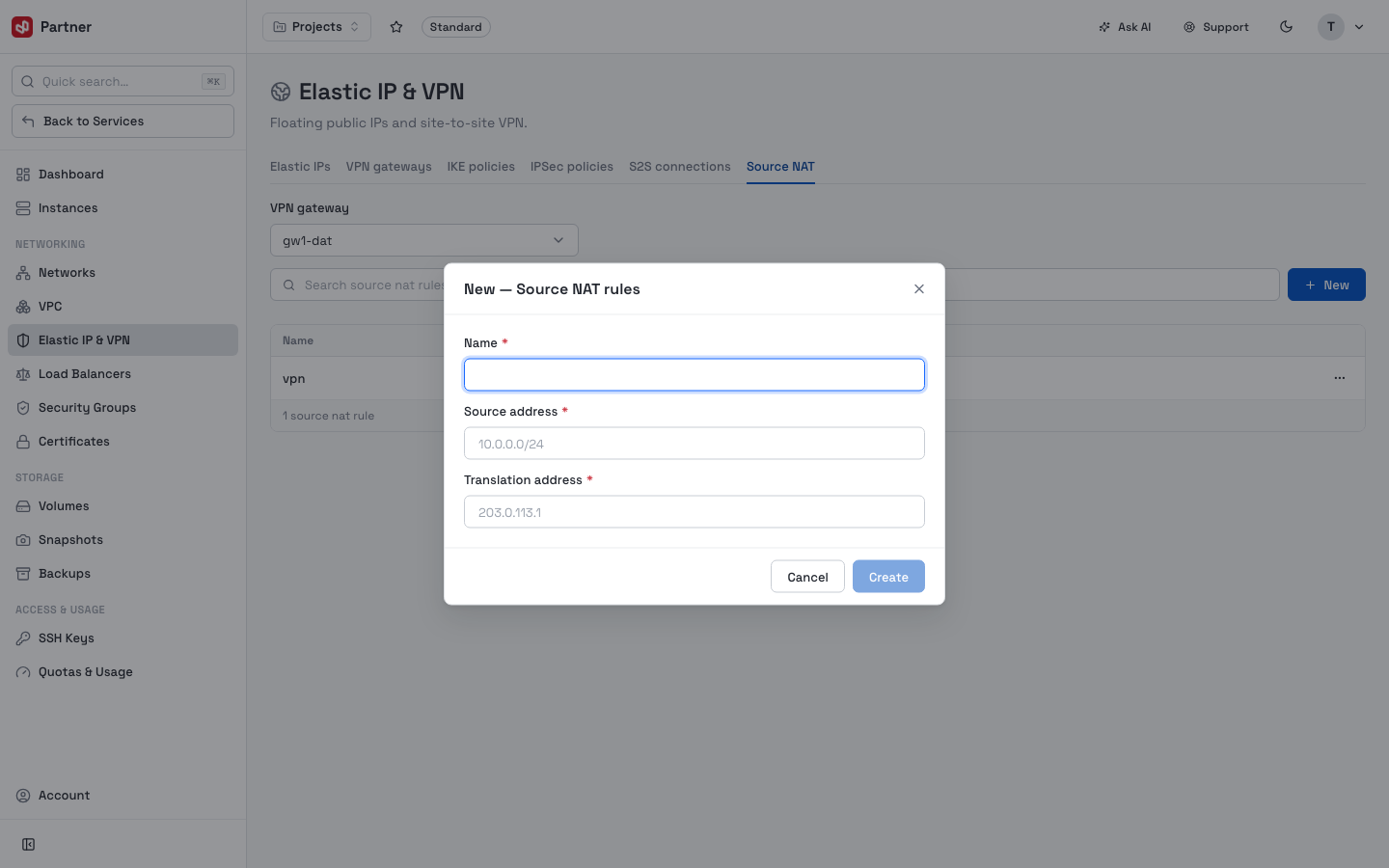
Source NAT rules that let instances on a private network reach the internet through a shared public address.
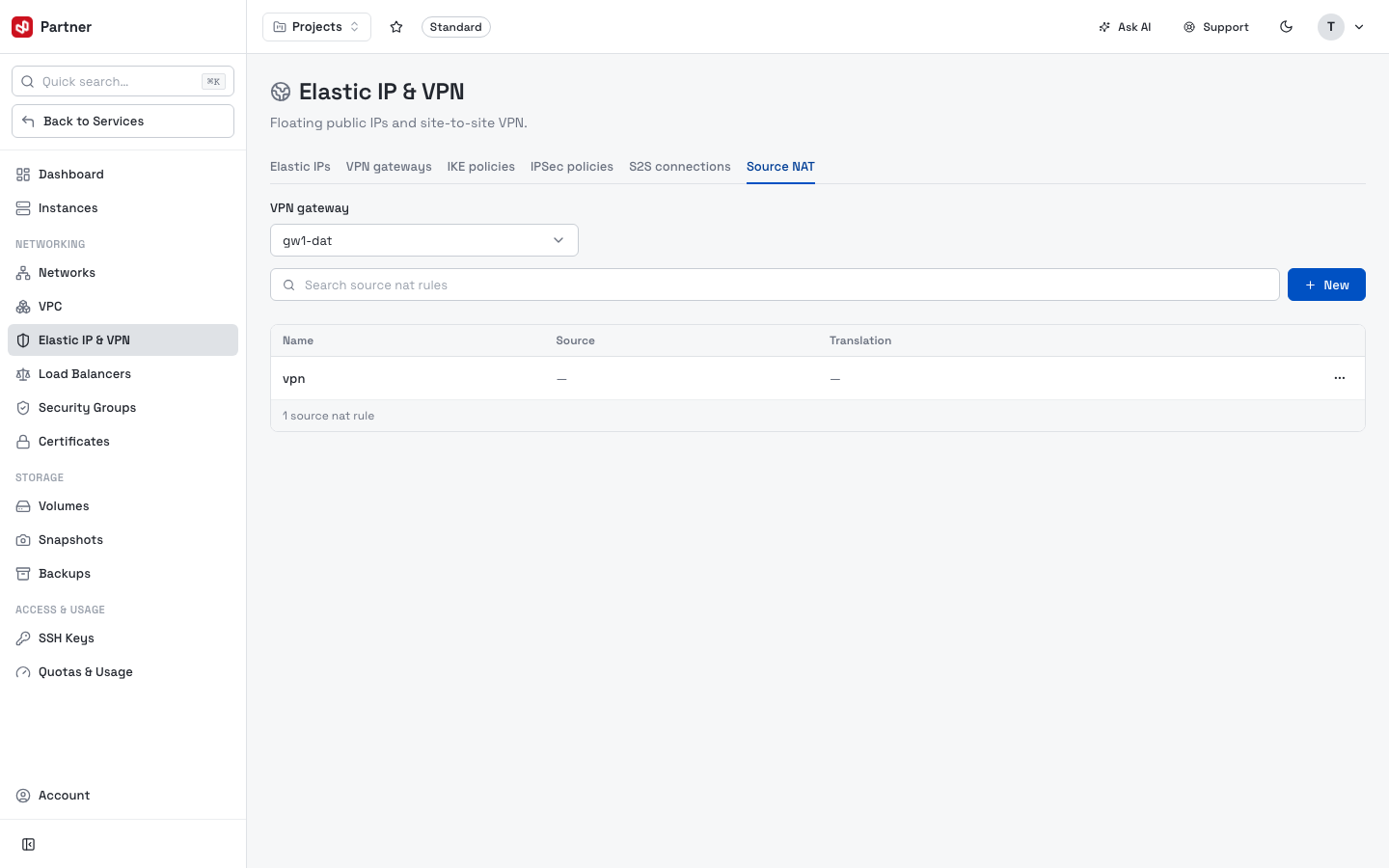
Click New to add a rule mapping a private source range to an outbound public IP.
Load Balancers
Distribute HTTP/TCP traffic across multiple backend instances with a managed HAProxy load balancer.
List
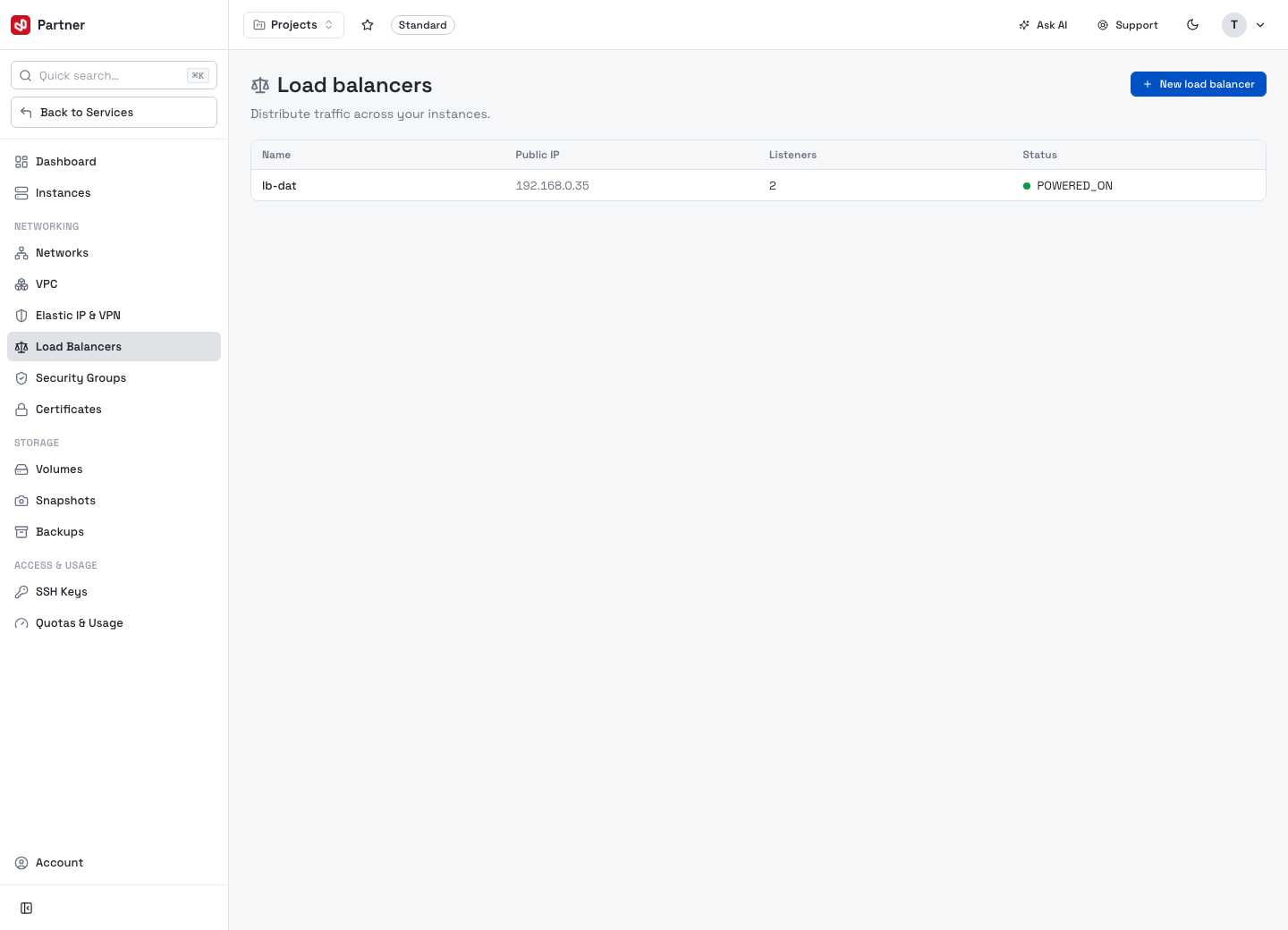
The table shows Name, Public IP, Listeners, Status. Click a row to open its detail, or New load balancer to create one.
Create a load balancer
The Create load balancer page provisions a managed HAProxy instance.
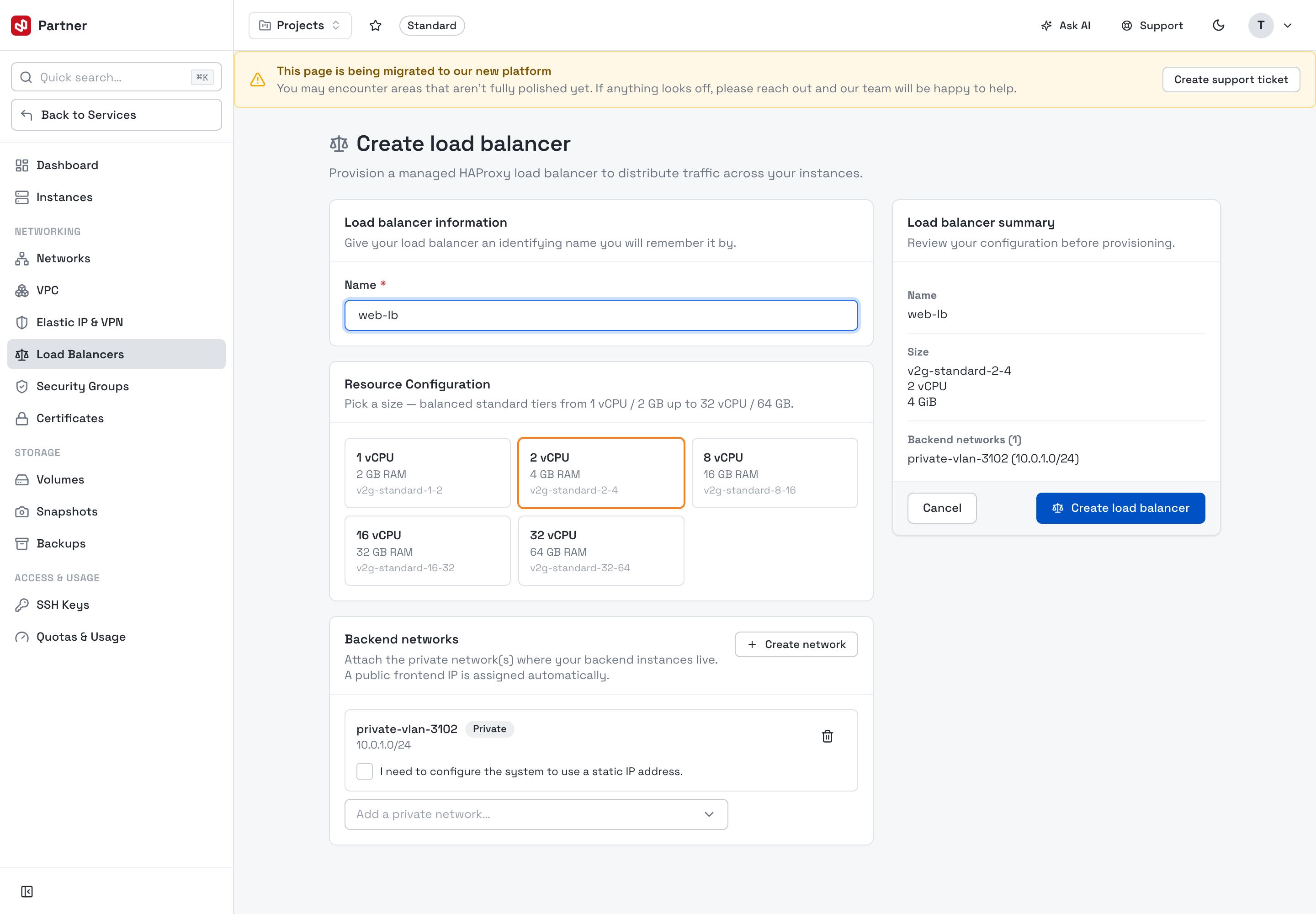
- Load balancer information — set the LB Name.
- Resource Configuration — pick a size. Balanced standard tiers run from 1 vCPU /
2 GB up to 32 vCPU / 64 GB (each card shows the flavor code, e.g.
v2g-standard-2-4). - Backend networks — attach the private network(s) holding your backend instances. A public frontend IP is auto-allocated; tick use a static IP address to pin one instead. You can Create network inline if the backend network doesn't exist yet.
- The Load balancer summary on the right reflects your choices — click Create load balancer to provision.
Manage a load balancer
Open an LB to enter its sub-console — tabs Overview · Listeners · Monitoring · Statistics · Ingress; the top-right cluster has Resize and Delete.
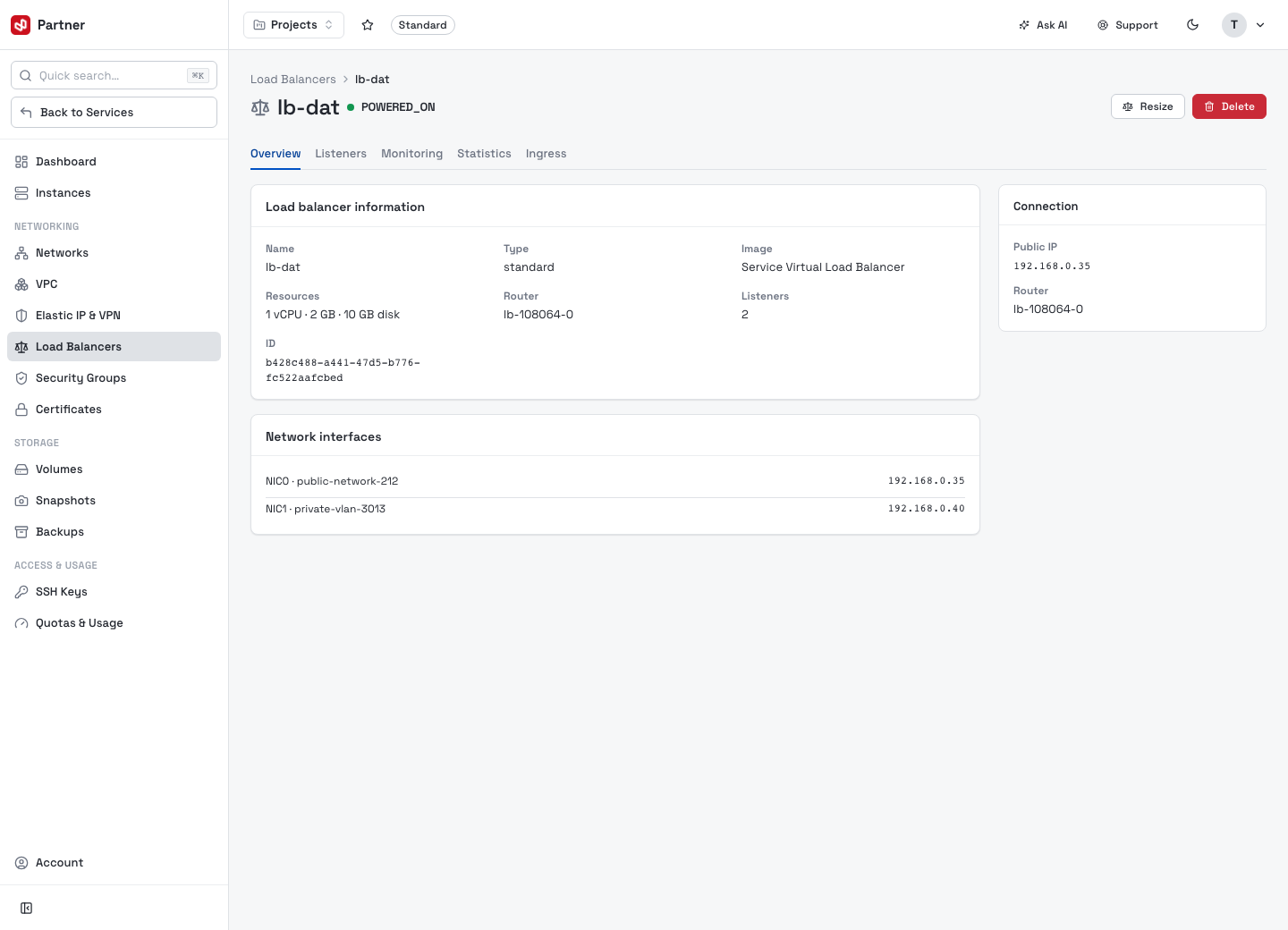
Overview shows Connection (the public IP), Load balancer information and its Network interfaces.
Listeners
A listener is a front-end port and the backend servers it balances to.
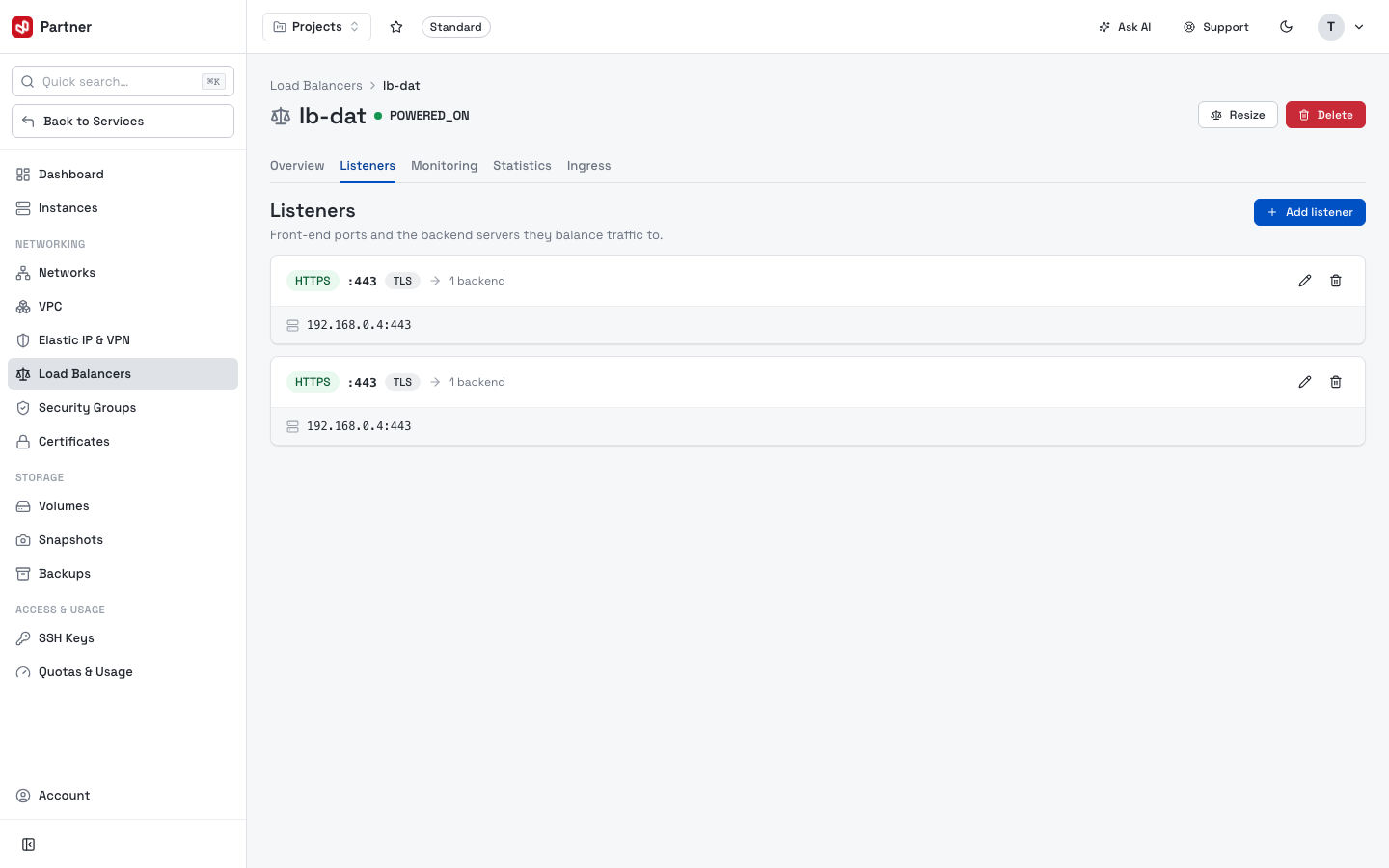
Each listener shows protocol : port (e.g. HTTPS :443 TLS) and its backend count,
with edit/delete icons at the end of the row. Click Add listener to add one:
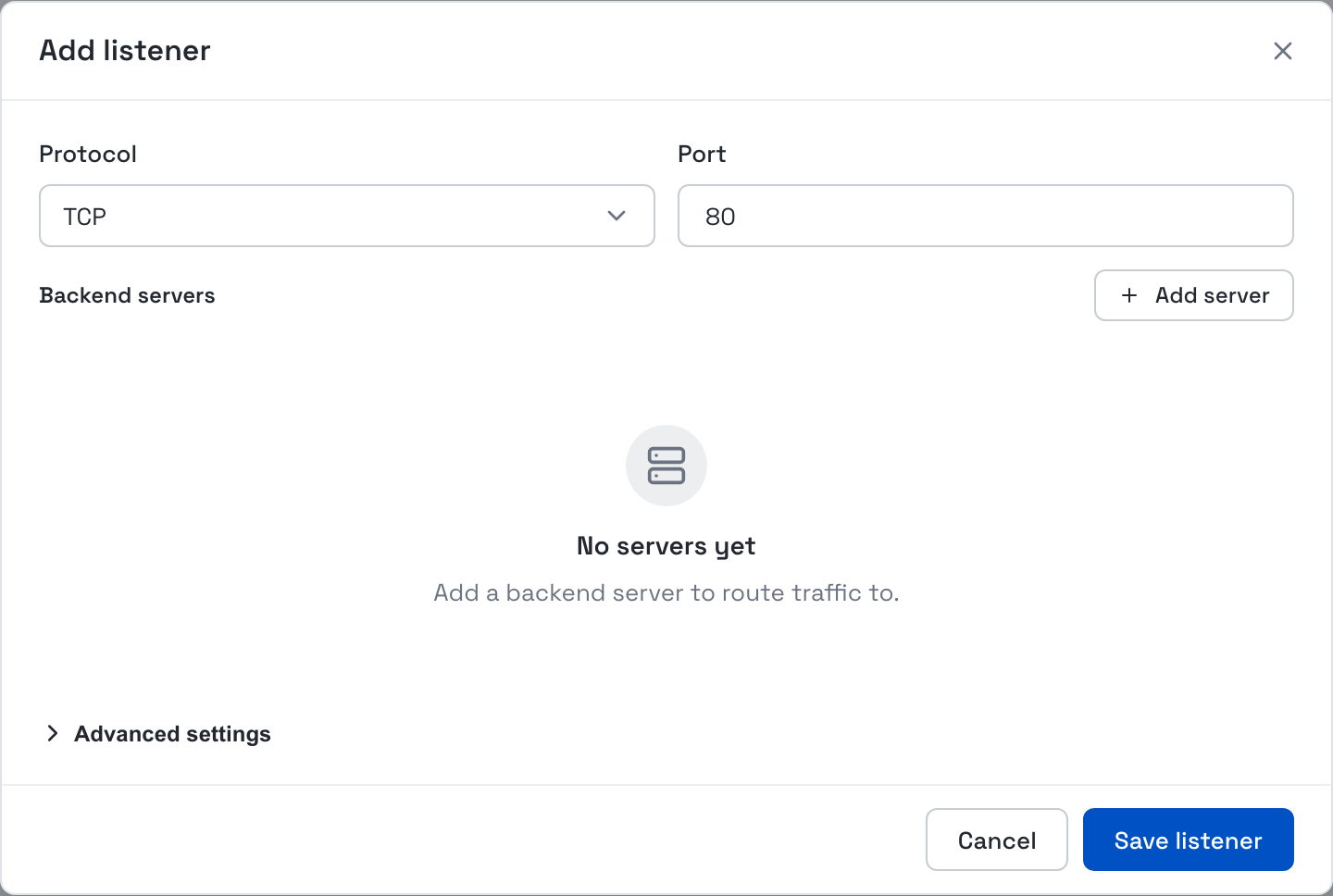
In the dialog, choose a Protocol (TCP/HTTP/HTTPS…) and Port, add Backend servers with Add server, and open Advanced settings to configure a Health check and ACL routing rules, then Save listener. For HTTPS listeners, pick a certificate from Certificates.
Monitoring & Statistics
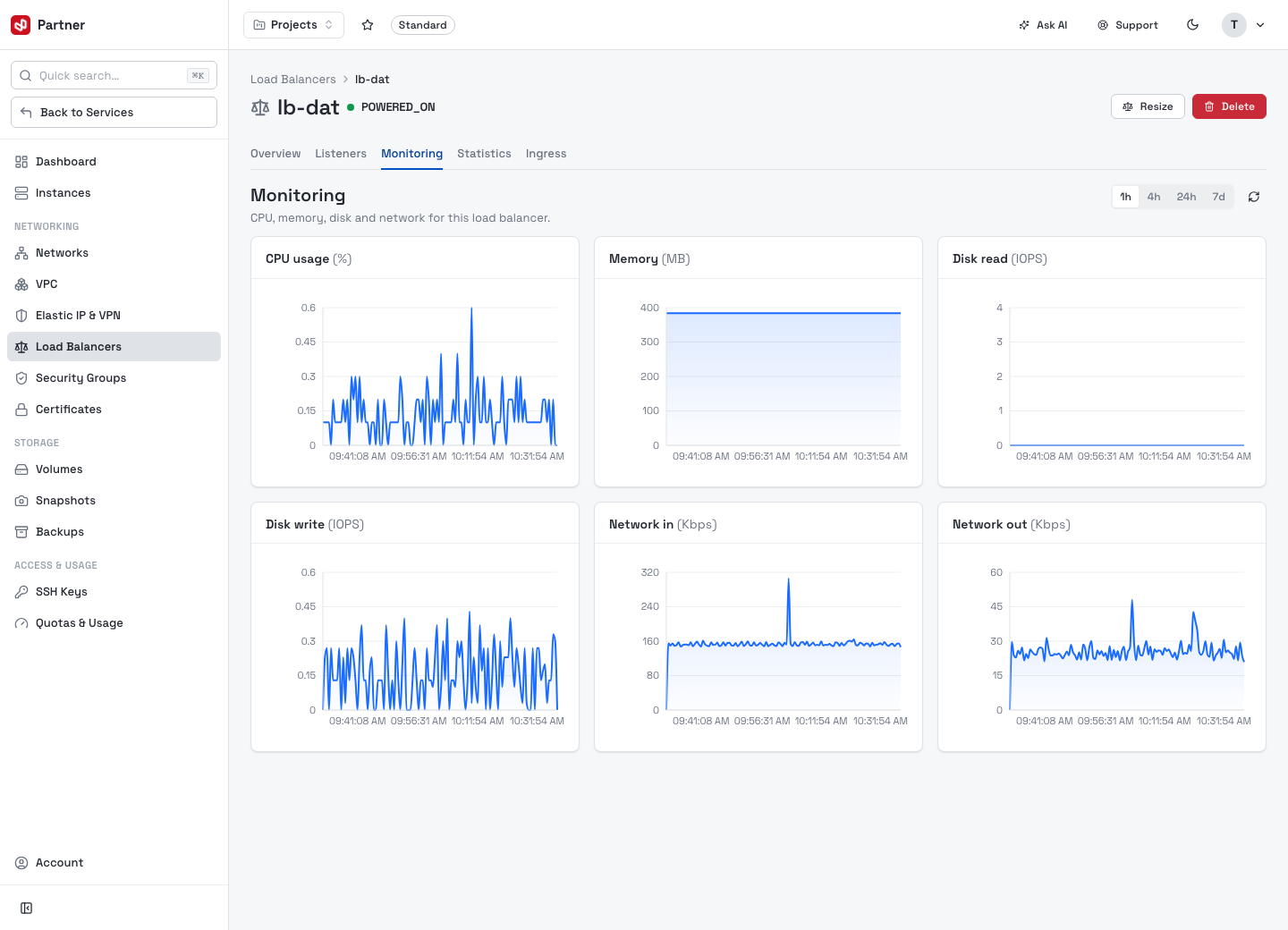
Monitoring charts the load balancer's performance over time.
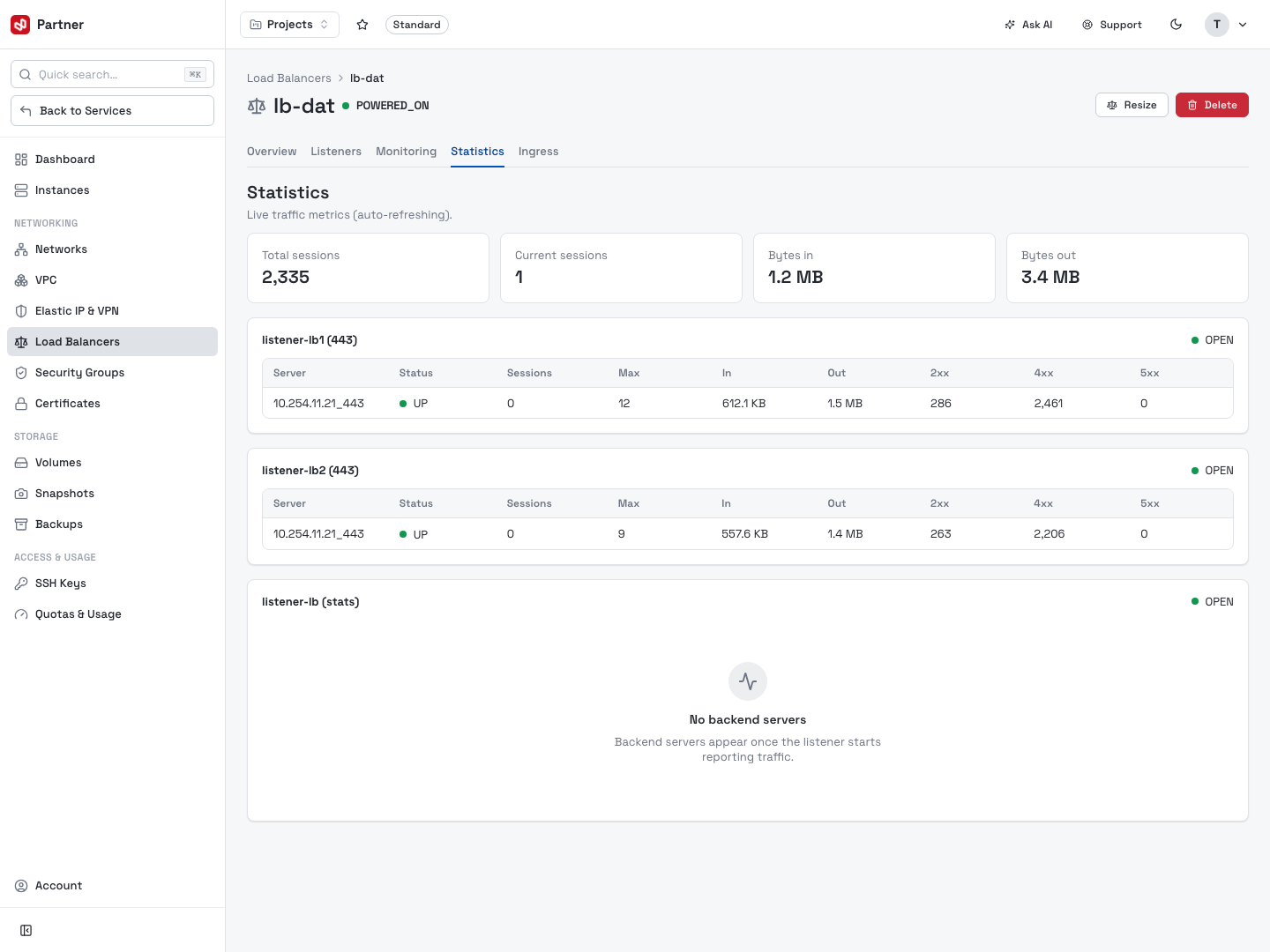
Statistics shows live HAProxy metrics (auto-refresh) — Total/Current sessions, Bytes in/out — and a per-listener table of Server, Status (UP), Sessions, In/Out, 2xx/4xx/5xx codes.
Security Groups
A security group is a set of inbound/outbound firewall rules you attach to an instance's NIC. Instances block all traffic by default, so a group is what opens the ports you need.
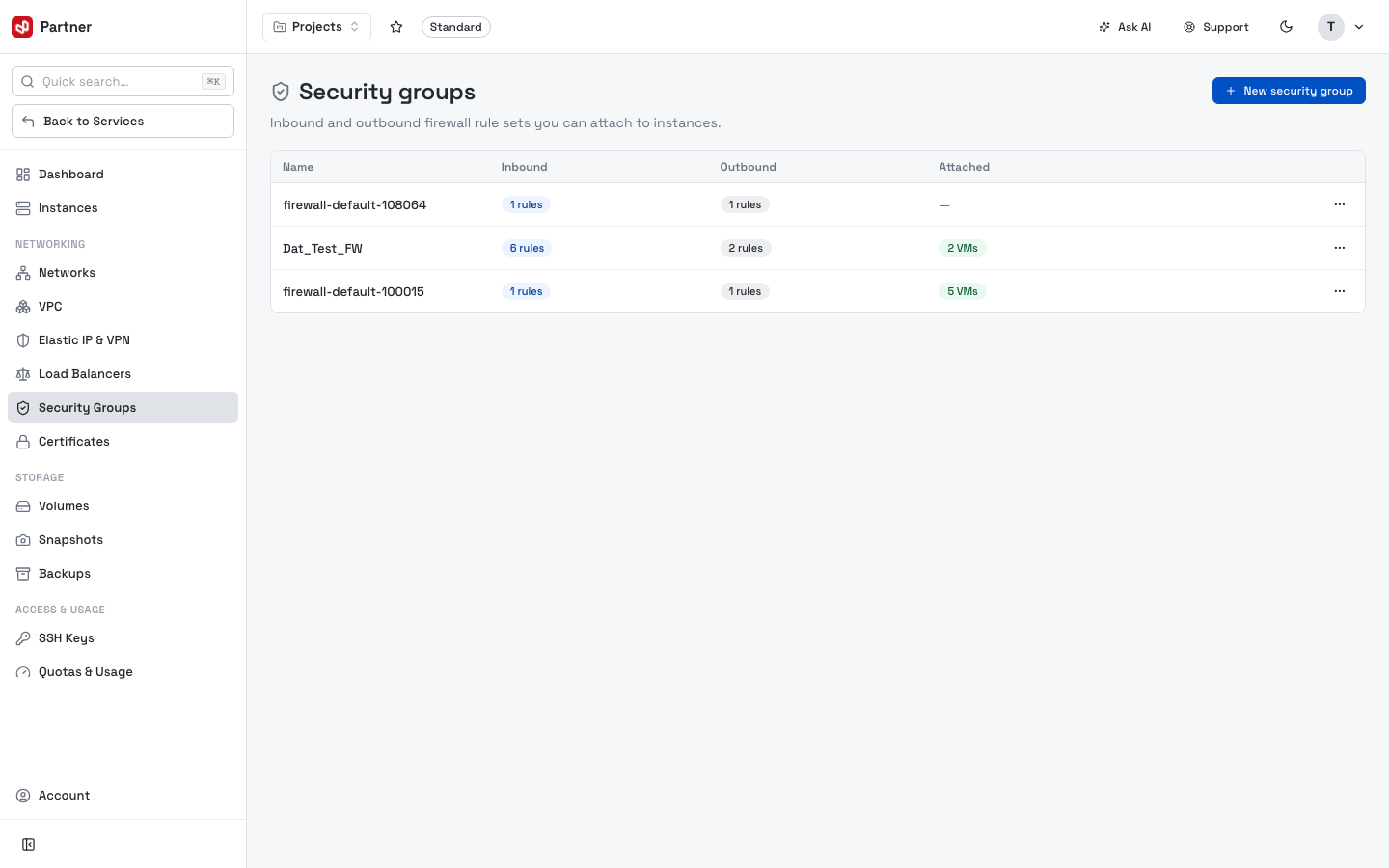
The list shows each group with its inbound/outbound rule counts. Click New security group to create one:
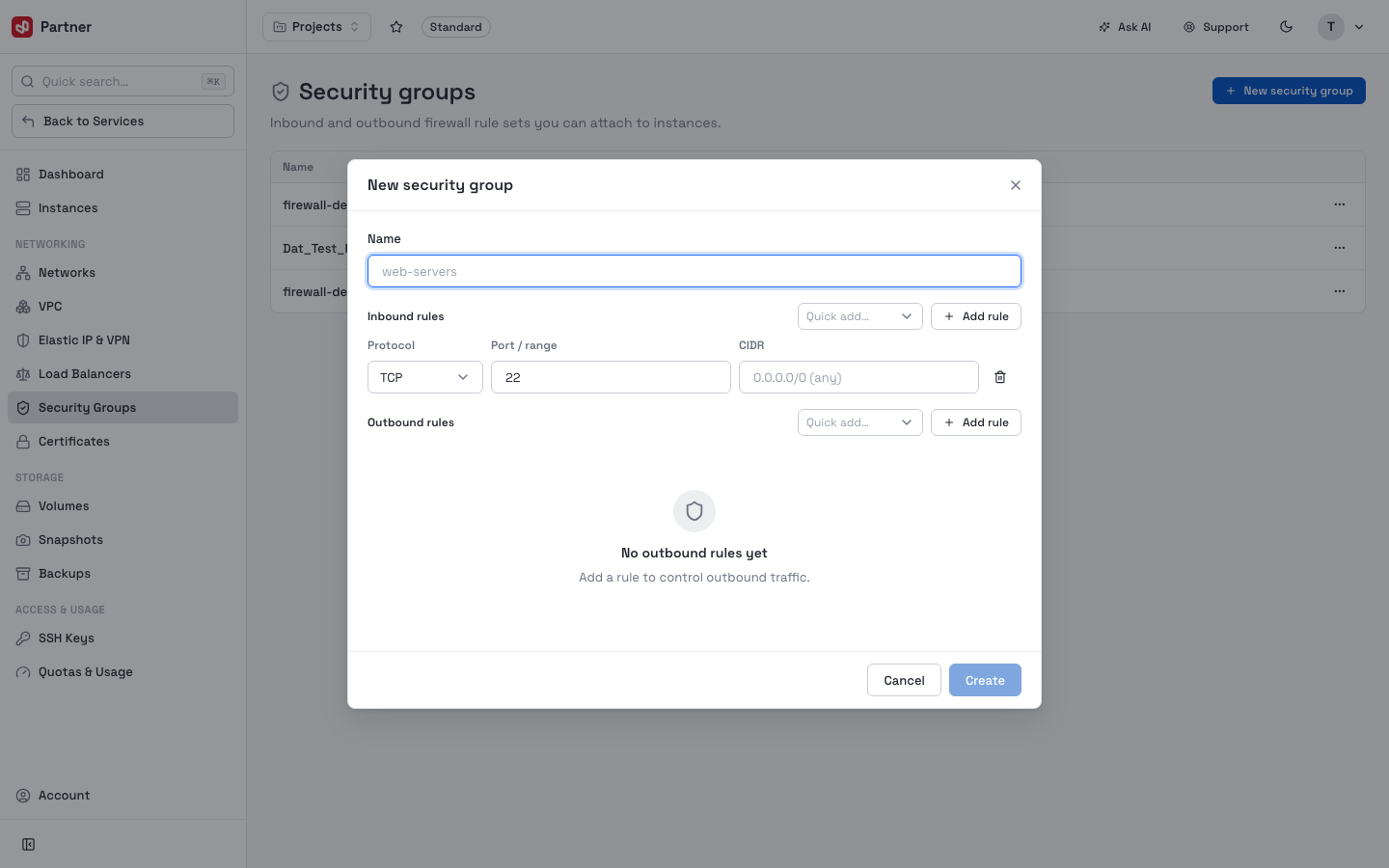
- Set a Name.
- Add Inbound rules — each rule is a Protocol (TCP/UDP/ICMP…), a Port /
range, and a source CIDR (
0.0.0.0/0= any). Use Quick add for common ports (SSH 22, HTTP 80, HTTPS 443…) or Add rule for a custom row. - Add Outbound rules the same way (empty = no outbound restrictions declared here).
- Create the group, then attach it to an instance from its Network tab or at instance creation.
Keep groups small and purpose-named (e.g. web-servers, db-internal) and reuse them
across instances rather than one broad group per machine.
Certificates
A store of SSL/TLS certificates used by load balancer HTTPS listeners.
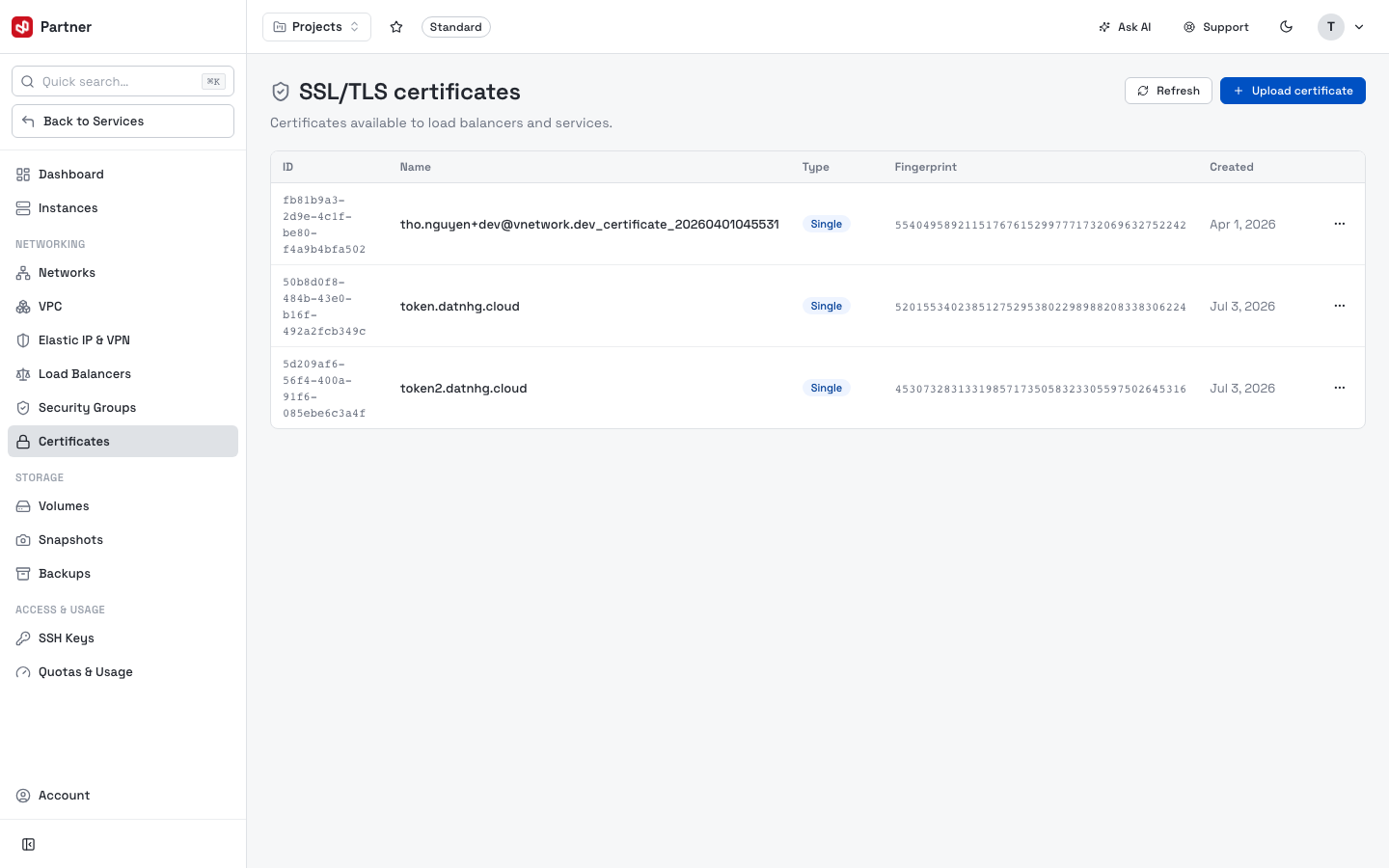
The table shows ID, Name, Type, Fingerprint, Created. Click Upload certificate to add one:
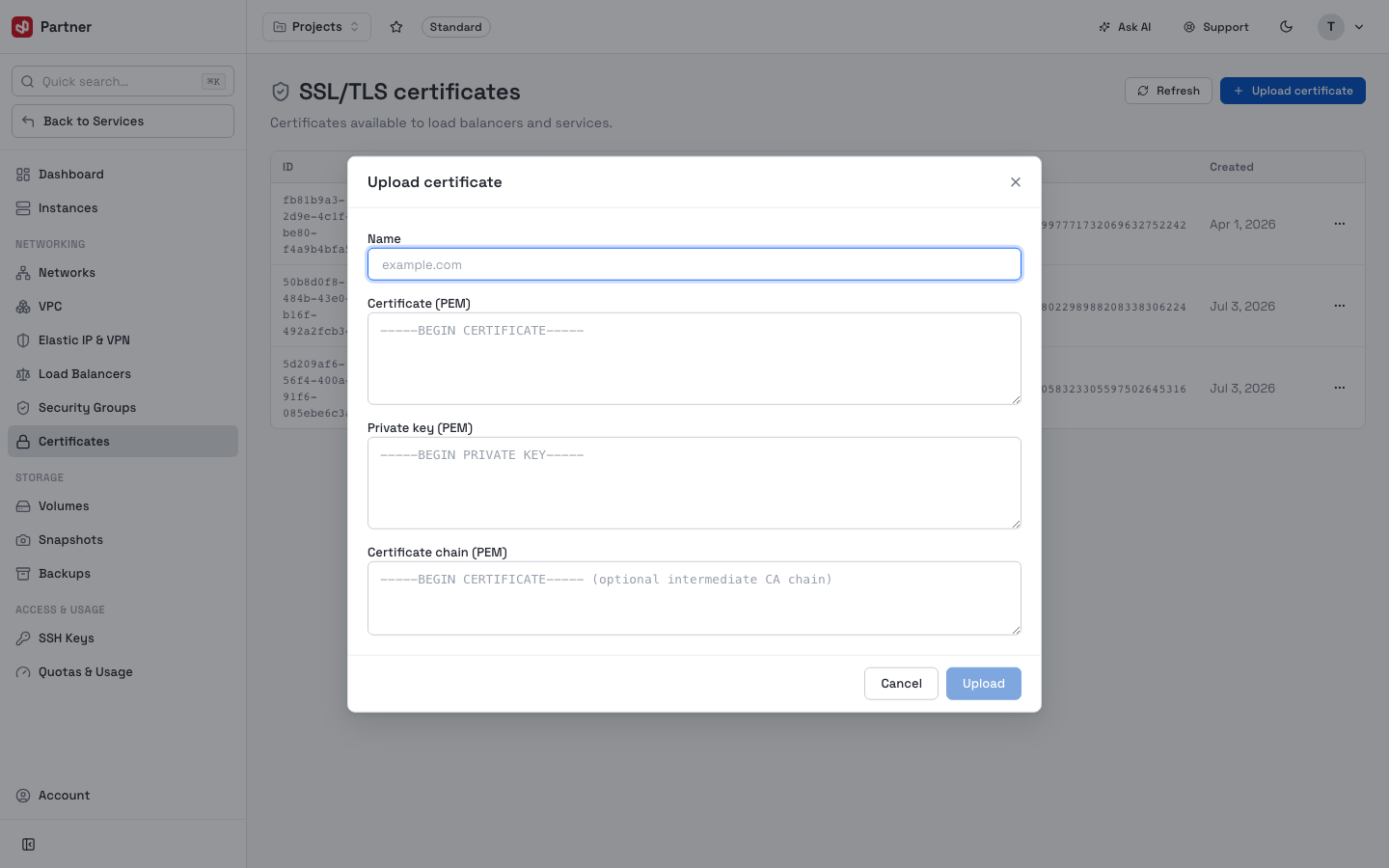
Provide the certificate and its private key (and chain if needed); the certificate then appears as a choice when you add an HTTPS listener.