Multi-CDN Orchestration
Multi-CDN Orchestration puts your domains behind VNETWORK's consolidation edge, which can steer traffic across multiple CDN backends at once. You manage domains, caching, TLS certificates, WAF rules and delivery analytics from one console instead of stitching several CDN dashboards together — and if a backend degrades, delivery shifts to another.
When to use it
Use Multi-CDN when you deliver websites, APIs, downloads or streaming and want resilient, analytics-rich edge delivery with WAF and managed TLS — especially if you want to avoid lock-in to a single CDN vendor, or need multi-CDN failover for availability.
Concepts
| Term | Meaning |
|---|---|
| Orchestrator (service) | One Multi-CDN service. It owns a set of domains and a family of provider backends. An organization can hold several. |
| Provider backend | A CDN that actually delivers traffic (e.g. Raven CDN, Eagle CDN, Hawk CDN). One is the primary (canonical); others are secondary and can be toggled per service. |
| Domain | A hostname you serve through the edge. Each domain is bound to one or more provider backends and carries its own caching, rules, security and TLS config. |
| Load Balancer | How requests are distributed across active backends (failover / weighted / latency-based). |
Open the console
From the Partner Portal sidebar, open Services → Networking & CDN → Multi-CDN Orchestration. The landing page is a searchable directory of your organization's orchestrators.
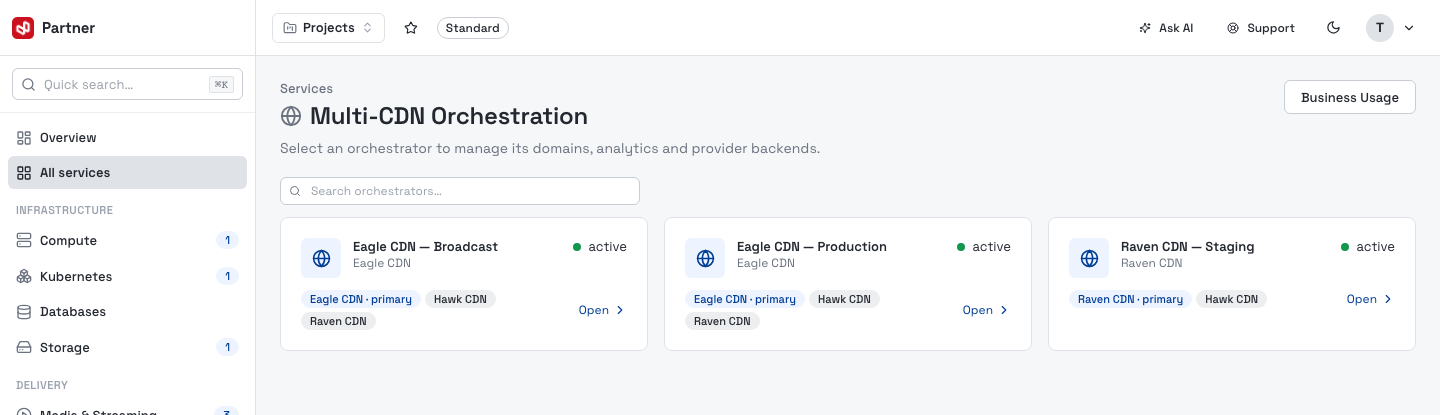
Each card shows the orchestrator's name, its provider backends (the primary tagged primary), a status pill and an Open link. Use the search box to filter when you hold many, and Business Usage (top right) to see egress across every orchestrator at once. Select a card to enter that orchestrator's scoped console.
Self-serve activation is one orchestrator per organization: when your org has none of its own yet, an Activate Multi-CDN button appears here — name the service and confirm to provision it. To add further orchestrators, talk to your VNETWORK account manager.
Console navigation
Entering an orchestrator swaps the sidebar to its scope. Back to Services returns to the services dashboard.
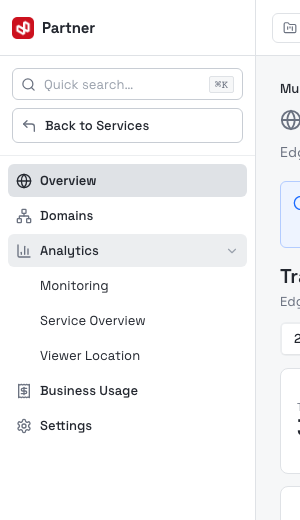
| Entry | What it covers |
|---|---|
| Overview | Headline traffic, domain health and quick links (this page). |
| Domains | The domain list and per-domain configuration. |
| Analytics | Monitoring, Service Overview and Viewer Location. |
| Business Usage | Per-domain egress and peak bandwidth, billed monthly. |
| Settings | Providers, project assignment, rename and delete. |
The Overview dashboard
The scoped Overview is the orchestrator's headline: edge traffic across all its domains, its rollout health and jump-off links.
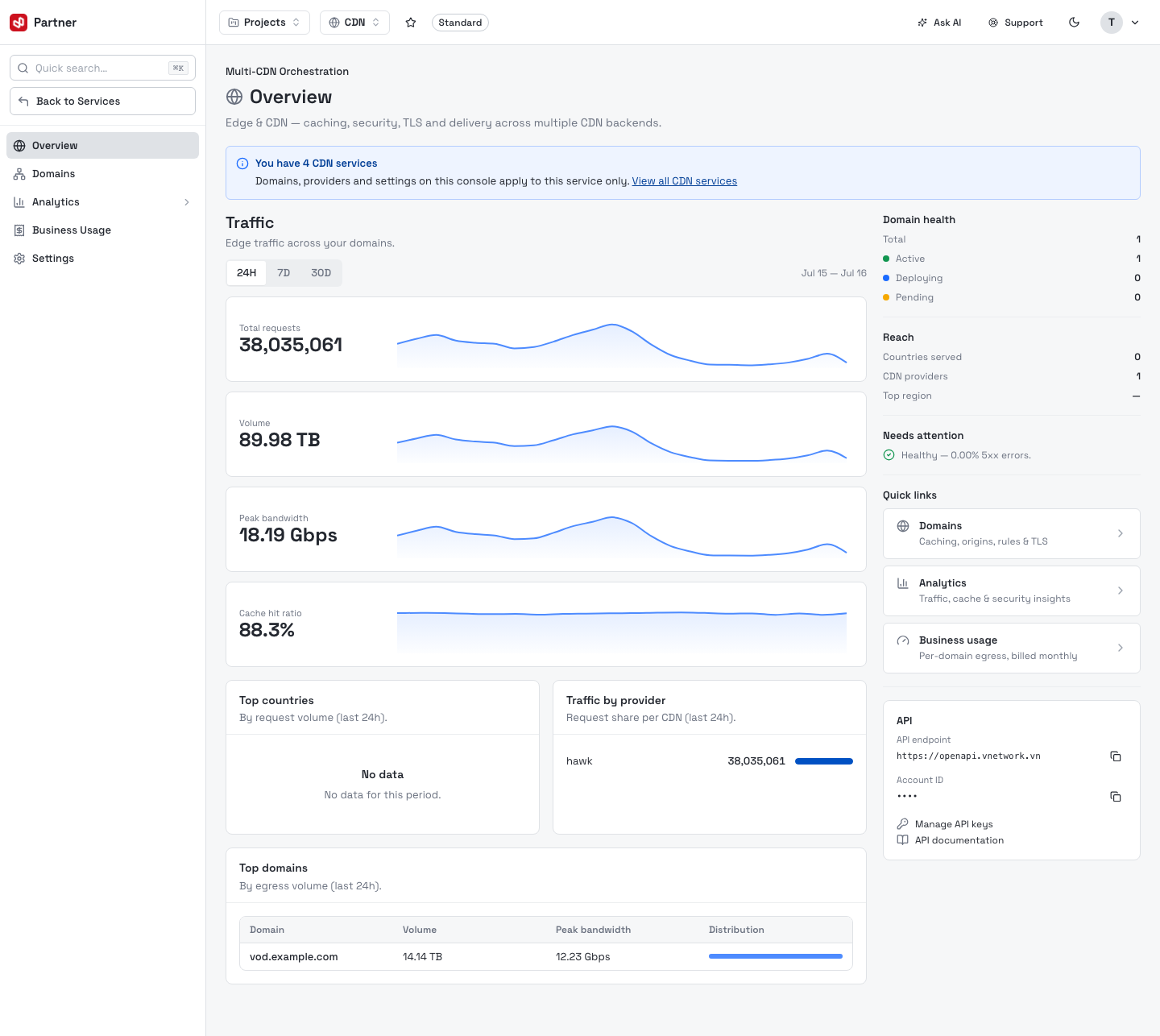
- Traffic — Total requests, Volume, Peak bandwidth and Cache hit ratio over the last 24H / 7D / 30D, each with a sparkline. Figures aggregate every provider backend.
- Top countries and Traffic by provider — where requests come from and how they split across CDN backends for the window.
- Top domains — the busiest domains by egress volume, with peak bandwidth and a distribution bar.
- Domain health (right rail) — Total / Active / Deploying / Pending domain counts.
- Reach — distinct countries and CDN providers served, plus the busiest region.
- Needs attention — edge health from the 5xx error share.
- API — the OpenAPI endpoint and your account ID for automating the same actions, with links to Manage API keys and the API documentation.
When your organization holds more than one CDN service, an info banner reminds you that domains, providers and settings on this console apply to this orchestrator only. Use View all CDN services to switch.
Next steps
- Add and configure domains — onboard a domain, set its origin and caching.
- Domain configuration — caching, rules, security, TLS and delivery.
- Analytics — traffic, cache and viewer-location insights.
- Settings — provider backends and the load balancer.